📘 Screen: Bale Collection
Bale collection is the load that hauls the bales from the field to the gin. In upCampo, it is the document that groups the bales of one load and receives the weighing on arrival — and it is that weighing, divided among the bales in the load, that gives each bale its weight.
This makes collection the step that closes out the cotton harvest: before it, the bale exists but has no weight; after it, the weight adds to the total harvested from the field and makes up the area's yield. Since the harvest produces many bales and hauling is done a little at a time, each trip is a collection.
📍 Location in the system
Menu: Crops > Bale Collection
🧩 Main function
This screen is used to record the loading of bales onto trucks or trailers. Each entry corresponds to a "load", with information such as:
- Vehicle
- Driver
- Collection date
- Bales included in the load
This is usually done in the app, at the moment the load is put together.
🔎 The list
The list opens filtered by Season, Start date (from), End date (to) and Status — All, Pending or Finalized. Next to them are the totals Collections Qty and Bales Qty, which tell you right away how many loads and how many bales went out in the period.
The columns show Date, Code, Situation, Fleet / Asset, Driver, Bales Qty, the codes of the load's Bales, Gin Status, Sector, Reference/Integration ID, Tare weight, Gross weight, Net weight and Notes.
📝 Collection header
The screen numbers the two steps: 1 - Edit / Save Header and, on the Bales tab, 2 - Add / Save Details.
| Field | Description |
|---|---|
| Code and Date | Identification and day of the load. The date is required. |
| Sector | Required. Which sector of the farm the load came from. |
| Destination | The gin that will receive it — chosen from the registered entities. |
| Fleet / Asset | Required. The truck or trailer that hauled the bales. |
| Driver | Who drove the load. |
| Tare weight, Gross weight and Tarp weight | The vehicle weighings. Tarp weight deducts the tarp that covers the load. |
| Net weight | Calculated by the system: gross weight − tare weight − tarp weight. It recalculates on its own with every change. |
| Yield | The yield measured for the load. |
| Notes and Reference/Integration ID | Free-text field and the code in the external system. |
| Status and Finalized By | Read-only: the collection's status and who finalized it. Next to them are Start user and Changed user. |
📦 Tab: Bales
This is where you build the load, bale by bale. The Type field decides how:
- Existing bale: picks a bale already recorded on the Bales screen — the normal path
- New bale: creates the bale on the spot, for one that was not entered before
Each item also records Shift, UP code, QR code, Border, Burst, Farm weight, Yield and the Collection Order — the sequence in which the bales were loaded, which helps check the unloading in the same order.
The Import multiple button brings in several bales at once, instead of one by one, and the Qty counter shows how many are already on the load.
⚖️ Weighing at the gin
When the truck arrives at the gin:
- The gross weight of the loaded vehicle is recorded
- After unloading, the tare weight is recorded
How upCampo assigns a weight to each bale
The scale weighs the truck, not the bale. The individual weight comes from an equal split among the bales of that load:
| Step | Value |
|---|---|
| Gross weight (loaded truck) | 38,400 kg |
| Tare weight (empty truck) | 14,200 kg |
| Tarp weight | 200 kg |
| Load net weight | 24,000 kg |
| Bales in the collection | 12 |
| Weight per bale | 2,000 kg |
A bale that already arrives with its own weight — from the picker through the integration, for example — is not overwritten by the split: the division only fills in bales that had no weight.
Added up by field, these weights make up the total harvested and the average yield in Season Planting, in arrobas per hectare.
🔐 Finalizing the collection
- The screen has a Finalize button
- Once finalized, the collection is "sealed" and can no longer be edited
- This ensures the security and traceability of the load
- If you need to fix something later, the same button becomes Reopen — the system asks for confirmation first
- In the list, Finalize multiple closes several loads at once: you check the collections in the grid and confirm
The header keeps the Status and Finalized By, so there is a record of who sealed each load.
✅ Bale check
In practice, when the truck arrives, there is no time to check every bale at the scale.
- That is why the Bales tab has the Check Bales button
- This check is done later, at unloading
- The goal is to confirm that the bales entered in the app are really the ones that were on the load
- If the check was done by mistake or needs to be redone, Remove Bale Check undoes it
Progress shows up in two places: in the Gin Status column of the list, which shows Pending while the load has not been checked, and in the grid on the Bales tab, which shows the status per bale and the Check user — who checked each one.
📊 Related reports
📱 Bale collection in the app
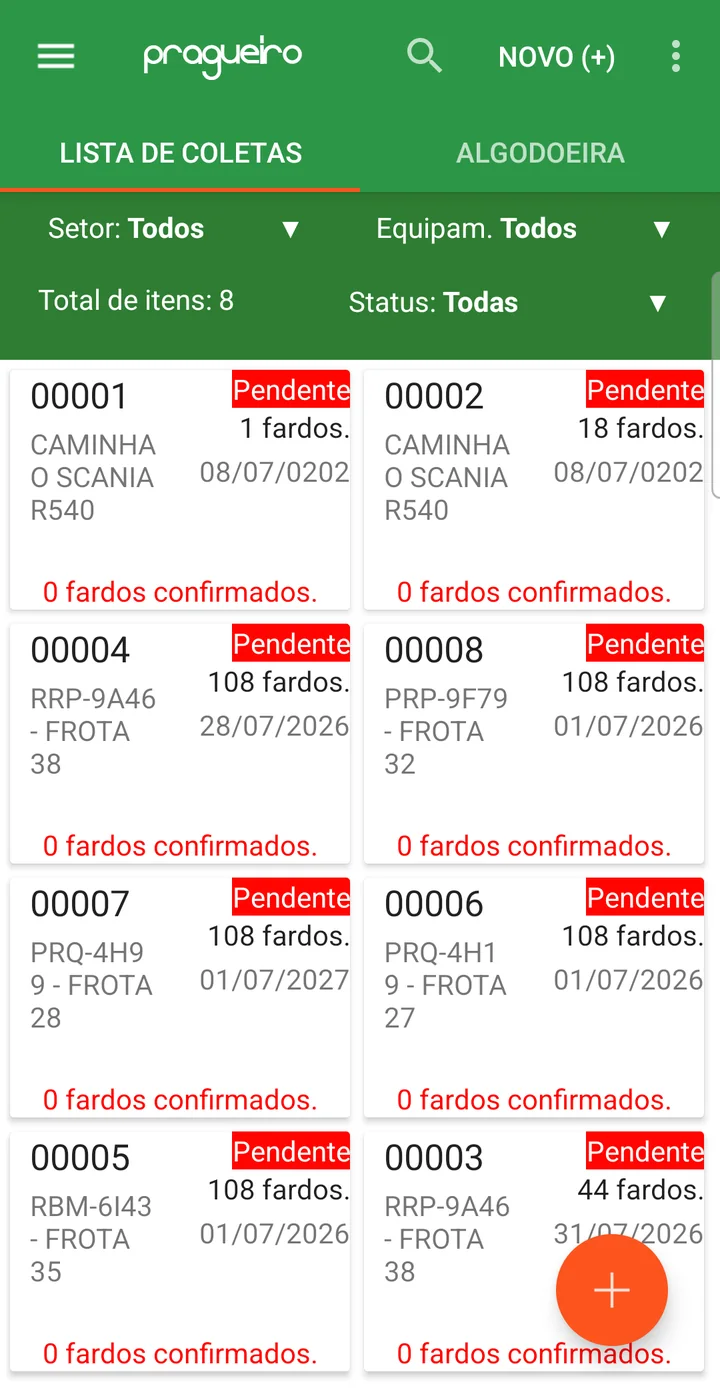
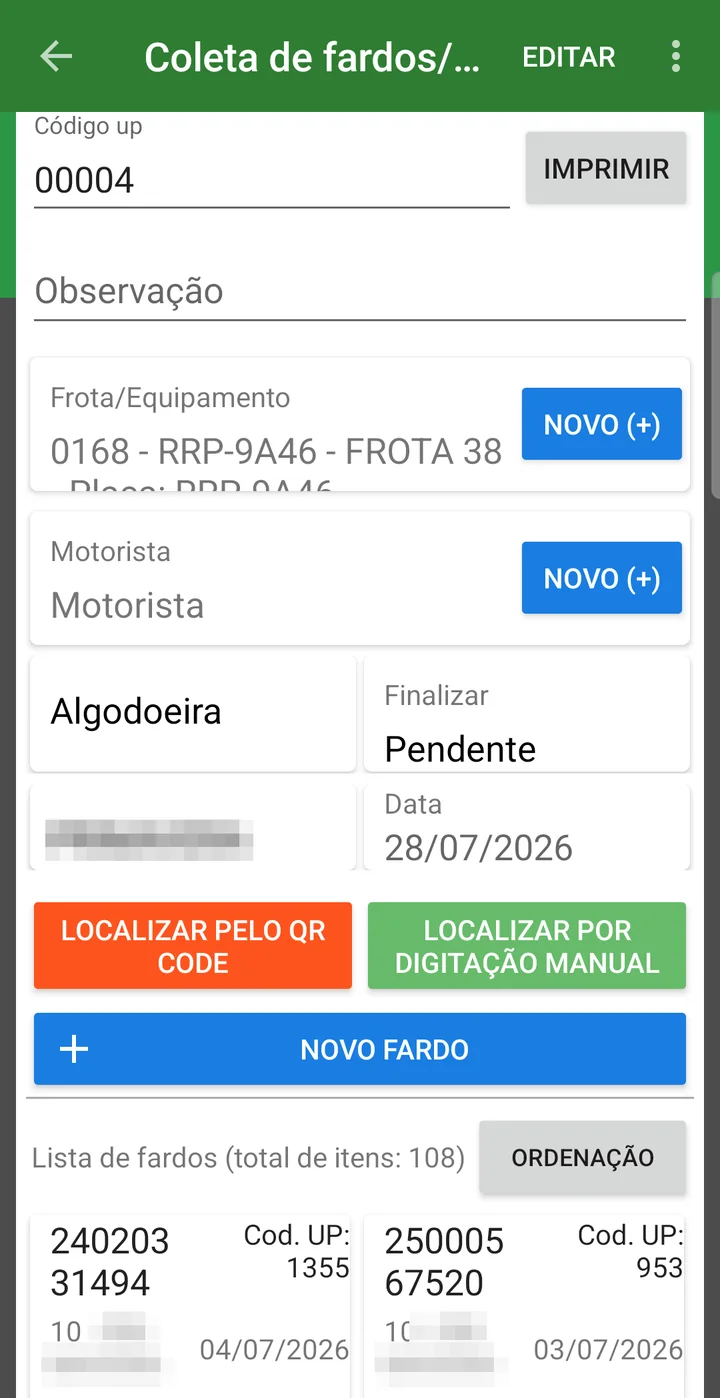
In the app, the menu is Bale/item collection. The list shows the collections with filters for Sector, Equipment and Status and the total items; each collection shows the number, the truck, the status, how many bales it has and how many have been confirmed. Tapping it opens the load: Fleet/Equipment and Driver (each with its own NEW (+)), the gin, the status, the sector and the date. Right above the load's list of bales are FIND BY QR CODE, FIND BY MANUAL ENTRY and NEW BALE, and the SORT button.
- Each bale's weight is determined
- Yield per field is calculated automatically
- You have complete traceability of production from harvest to arrival at the gin
Collection is the link between the picker and the gin — see how upCampo tracks cotton end to end, from the field to the lint bale sold.
❓ Frequently asked questions
How is each bale's weight determined?
By the weighing at the gin. You record the gross weight of the loaded truck and, after unloading, the tare. The system calculates the load's net weight — gross minus tare minus tarp — and divides it equally among the bales in that collection. They all get the same weight; that is why you should not mix bales from different fields on the same load when you want accurate yield per field.
How does the system calculate the area's yield?
By adding up the bale weights per field. Since each bale gets its weight from the load split, the total per field gives that area's yield.
I need to fix a collection that is already finalized. Is that possible?
Yes. When finalized, the collection is sealed and no longer accepts edits — but the Finalize button becomes Reopen for whoever needs to make a correction. The system asks for confirmation first, and the header keeps who finalized it in the Finalized By field.
How do I know which loads have not been checked at the gin yet?
From the Gin Status column in the list, which shows Pending while the load has not been checked. Inside the collection, the grid on the Bales tab shows the status bale by bale and the Check user — who checked each one.
I checked the bales wrong. Can I undo it?
Yes. On the Bales tab, the Remove Bale Check button undoes the check, and Check Bales redoes it afterwards.
How is the load's net weight calculated?
It is the gross weight minus the tare weight minus the tarp weight. The Net weight field is filled in by the system and recalculates on its own whenever you change one of the three weighings.
Do I have to add the bales to the load one by one?
No. On the Bales tab, the Import multiple button brings in several bales at once. For a bale that was not recorded before, change the Type to New bale and create it on the spot.
How do I close several loads at once?
With the Finalize multiple button, in the list: check the collections in the grid and confirm. Before closing, it shows the date, code, situation, fleet, driver and number of bales of each load.
What is recorded for each load?
Vehicle, driver, collection date and the bales included. The entry is usually made in the app, at the moment the load is put together.