📘 Screen: Purchase Order
The Purchase Order screen is used to record purchase orders for products and services on the farm.
Orders are usually created before the invoice comes in and can be linked to an earlier quote (optional).
Ideal when a purchase takes a while to arrive, such as farm inputs.
📍 Location in the system
Menu: Inventory > Purchase Order
🧩 Main function
Record product purchase requests by season, with optional approval control and traceability.
🖥 The list
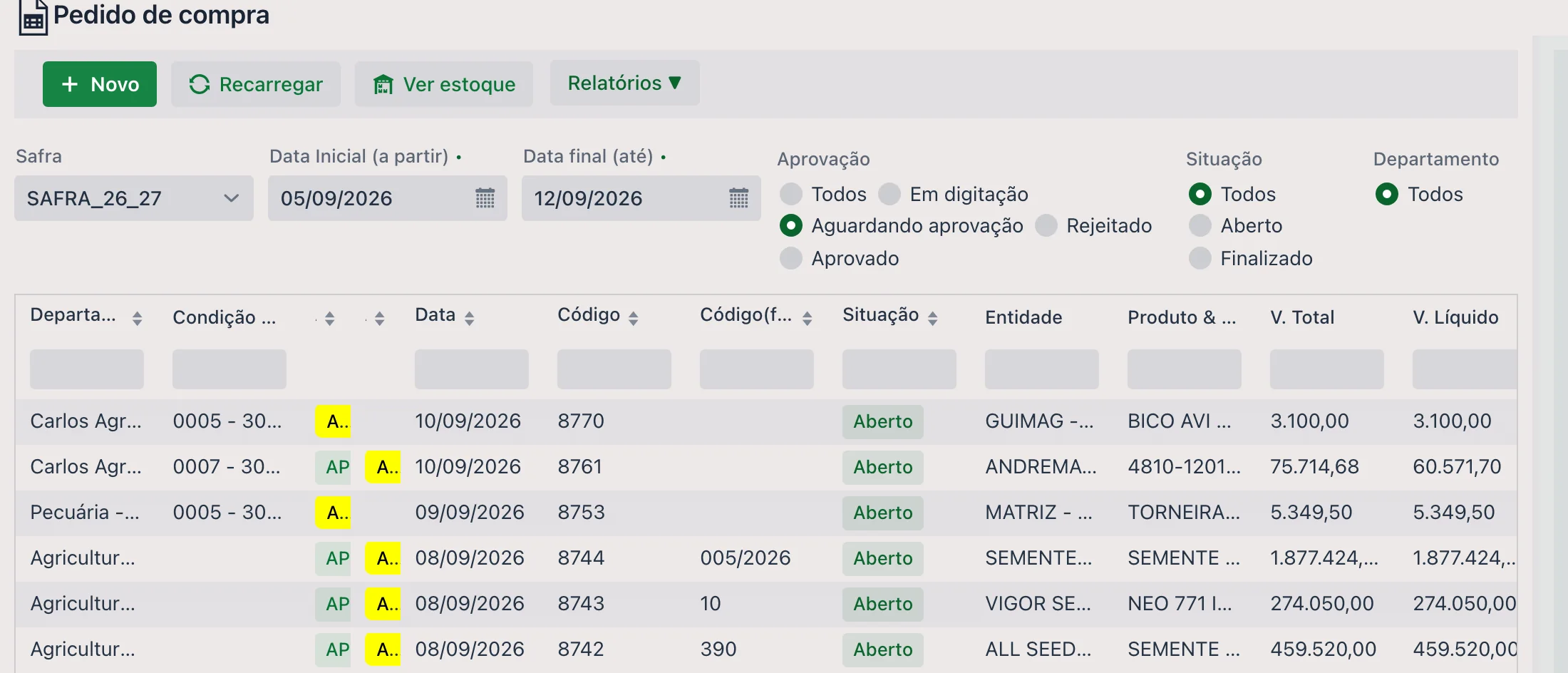
At the top are New, Reload, View Inventory and the Reports ▼ menu. The filters are:
| Filter | Description |
|---|---|
| Season | Season of the orders shown. |
| Start Date (from) and End Date (to) | Period of the orders. |
| Approval | All, Drafting, Awaiting approval, Rejected or Approved — it is the buyer's and the approver's filter. |
| Status | All, Open or Finalized. |
| Department | Limits the list to the department responsible for the order. |
The grid shows Department, Payment terms, two approval columns (the first and the second), Date, Code, Code (supplier), Status, Entity, Product & Service, Total Value, Net Value, Paid Value and the receiving dates. The approval columns appear as colored tags, so you can see at a glance what is still waiting.
📝 Order header
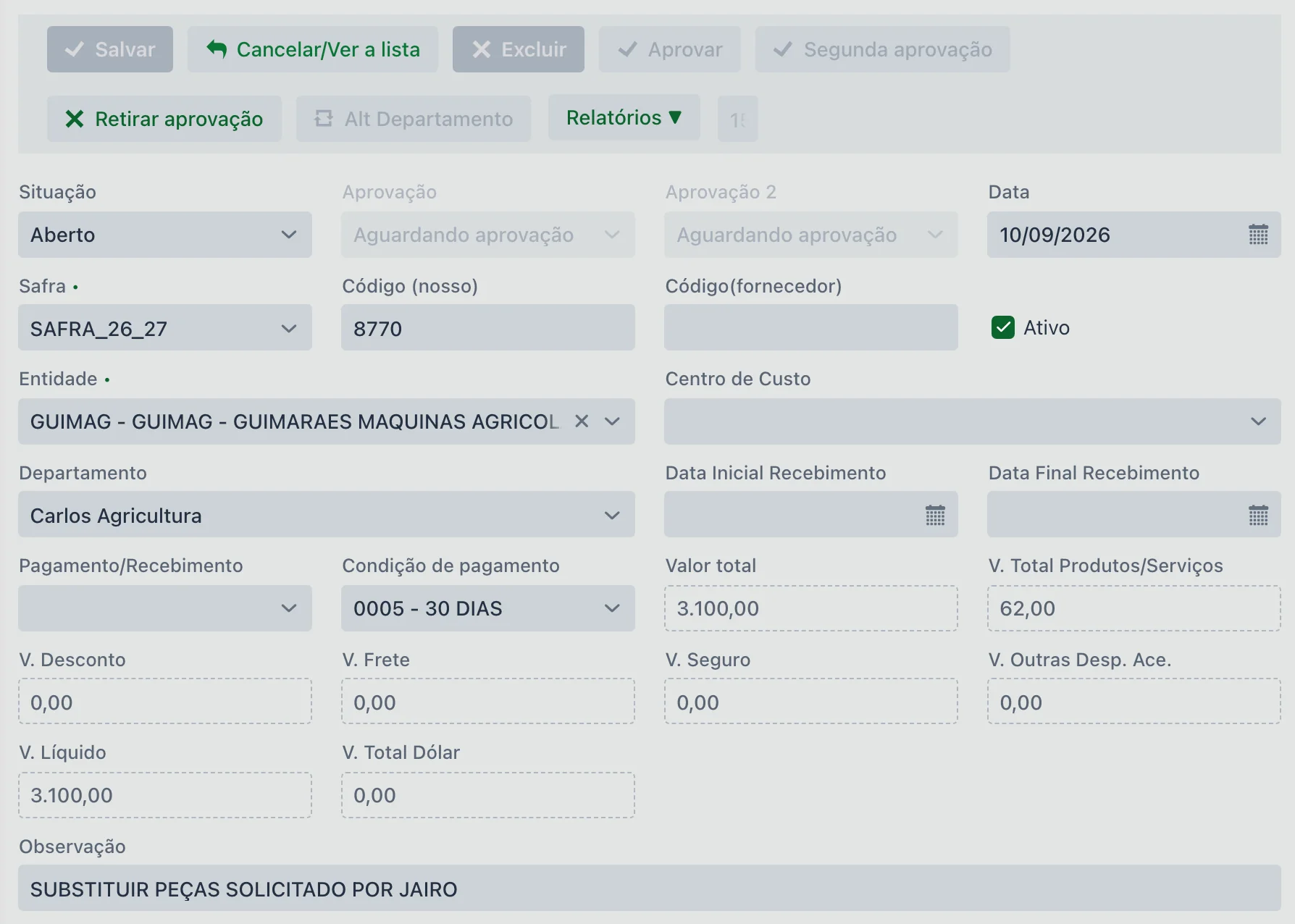
| Field | Description |
|---|---|
| Status | Open or Finalized. |
| Approval and Approval 2 | Read-only: where each of the two approvals stands — see below. |
| Date | Order date. |
| Season | Required. |
| Code (ours) | The farm's order number. |
| Code (supplier) | The reference the supplier uses, so both records can be matched. |
| Active | Uncheck it to take the order out of circulation. |
| Entity | Required. The supplier. |
| Department | Responsible department — it is what determines who can approve. |
| Cost Center | Where the expense will be charged. |
| Receiving Start Date and Receiving End Date | Expected delivery window — this is what lets you chase late deliveries. |
| Payment/Receipt and Payment terms | Agreed method and terms (e.g., "0005 - 30 DAYS"). |
| Total value, Products/Services Total, Discount Value, Freight Value, Insurance Value, Other Ancillary Expenses and Net Value | The breakdown of the order amount: the item total, the additions and deductions, and the net. |
| Total Value USD | For purchases in foreign currency. |
| Notes | Free note about the order. |
🔐 Approval
Whether approval is required is a company setting: on some farms the order goes straight through, and on others it only counts once approved. Where approval is enabled, the order goes through up to two: the Approval and Approval 2 fields show where each one stands.
| Approval status | Meaning |
|---|---|
| Drafting | The order is still being put together. |
| Awaiting approval | It is in the approver's hands. |
| Approved | Released. |
| Rejected | Turned down by the approver. |
The order's buttons follow that status:
| Button | What it does |
|---|---|
| Approve | Opens the decision window, which shows the supplier and the order amount and offers to approve or Reject. |
| Second approval | The next approval, when the farm works with two levels. |
| Remove approval | Undoes an approval (or rejection) already recorded. |
| Change Department | Changes the order's department — which changes who the responsible approver is. |
Not just any user can approve: authorization is granted by department, in the branch's user records. Anyone not linked to the order's department sees the buttons disabled.
🗂 The order tabs
| Tab | What it shows |
|---|---|
| Details (products) | The order items — see below. |
| Product x Requisition | The link between each item and the requisition it came from. |
| Movement (Invoice) | The movements that received this order's items: this is where you see what has already arrived. |
| Info | Document control data. |
| Trail | The path of each item, as a tree: from the work order to the requisition, and from there to the quote, the order and the movement that received it — or to the inventory issue. Each step shows quantity, amounts, date, user and status. |
| File | Attachments — the offer, the signed order, the receipt. |
📦 Details (products)
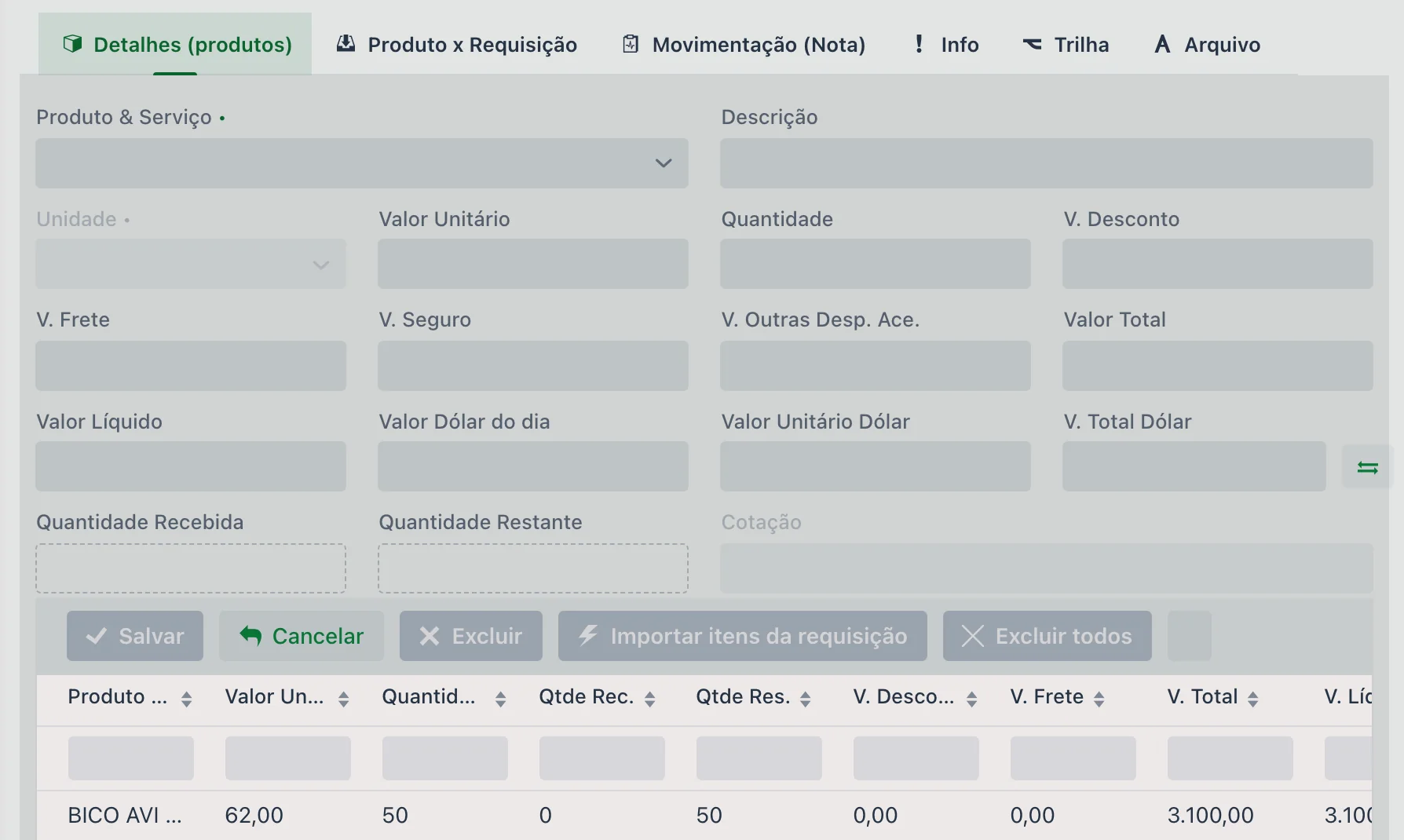
| Field | Description |
|---|---|
| Product & Service and Description | Required. What is being bought. |
| Unit | Required. The item's unit of measure. |
| Unit Price and Quantity | Price and quantity ordered. |
| Discount Value, Freight Value, Insurance Value and Other Ancillary Expenses | The item's additions and deductions, which make up the Total Value and the Net Value. |
| Dollar rate of the day, Unit Price USD and Total Value USD | For purchases in dollars. |
| Quantity Received and Quantity Remaining | Read-only. They show how much of the item has come in by invoice and how much is still due — this is how partial deliveries are tracked. |
| Quote | Read-only: the quote the item came from, when the order came from one. |
The Import requisition items button brings a requisition's items into the order, with no retyping. In the grid, the Qty Rec. and Qty Rem. columns summarize what has been received and what remains for each item.
- Orders are recorded and can be matched to inbound invoices on the Movement screen
- They make budget control, approval and purchase planning easier
- They support the purchasing flow and the traceability of inputs bought
📊 Related reports
🔁 Integration with other screens
- Can be generated with the Generate order button on the Quote screen
- Can import items directly from a Requisition
- Can be linked directly to Movements (Inbound & Outbound)
❓ Frequently asked questions
When is it worth using a purchase order?
Mainly when the purchase takes a while to arrive, as is the case with farm inputs. The order is created before the invoice and lets you track what was ordered and has not come in yet.
How do I require approval before buying?
Requiring approval is a company setting. Where it is enabled, the order starts as "Drafting", moves to "Awaiting approval" and only counts once approved — and it may also require a second approval, depending on the farm's policy.
The approve buttons are disabled for my user. Why?
Because permission to approve is granted by department: only users linked to that order's department can approve. Check the department in the order header — if it is wrong, the "Change Department" button lets you fix it.
I approved by mistake. Can I undo it?
Yes, with the Remove approval button, which also undoes a rejection. The order goes back to awaiting a decision.
How do I know what part of the order has arrived?
On the items, the Quantity Received and Quantity Remaining fields (Qty Rec. and Qty Rem. columns in the grid) show how much has come in by invoice and how much is still due. The Movement (Invoice) tab lists the receipts linked to the order.
What is required on the order?
The Season. The other header fields — entity, cost center, department, expected receiving dates and reference codes — are supplementary.
Does the order connect to the invoice later?
Yes. Orders are recorded and can be matched to inbound invoices on the Movement screen.