📘 Screen: Maintenance Work Order
The maintenance work order is the shop's work order, not the field's. It covers the repair of the tractor that broke down in the middle of planting, the combine's 500-hour service, the trailer's tire change, the fix on the pivot's generator. In upCampo, it's the document that keeps what happened to the machine, who fixed it, how many hours it took, which parts came out of inventory and how much it cost, and the sum of these work orders makes up each piece of equipment's maintenance cost.
There are two worlds on one screen: corrective, which starts from a breakdown, and preventive, which starts from a plan coming due. The difference between a farm that is always putting out fires and one that schedules downtime lies in the ratio between the two.
📍 Location in the system
Menu: Fleet > Maintenance Work Order
🧩 Main function
Record and track corrective and preventive maintenance on the fleet, with activities, labor, requisitioned parts and cost, from opening to finishing.
🖥 The list
The grid lists Name, UP Number, Date, Status, Fleet / Facility, Type, Trigger Hr/KM, Finishing Hour meter/KM, W.O. No., Description, Department, Maintenance Group and Service. The filters at the top are the period (start and end date, required), the Status (All / Pending / In progress / Paused / Finished) and the Type (All / Corrective Maintenance / Preventive Maintenance). Next to them, Qty shows how many work orders the list is bringing: these are work orders, not rows; a "3 items" group counts as three.
An open work order always shows up, whatever its date. Pending, In progress, Working and Paused come into the list even when the work order's date is outside the chosen period; the period only limits finished ones. That way, the work order paused for months waiting for a part doesn't vanish from the list just because its date fell behind.
Each column has a search box in its header. In the Status column, typing "over" brings up only the overdue work orders (see below).
The Status column is clickable. One click on the status changes the work order's progress right away, without opening the form:
| Current status | One click takes it to |
|---|---|
| Pending (or Overdue) | In progress |
| Paused | In progress |
| In progress or Working | Paused |
| Finished | doesn't change: the status isn't clickable |
Hovering over the status shows "Click to change to …" with the next status; with the keyboard, the Enter key does the same. The change saves only the status and who changed it; no date on the work order or the maintenance plan changes, and it reaches the app through normal sync. Pausing from the web portal doesn't ask for the downtime reason: that's still done in the app. In rows that group several work orders ("3 items"), the group's status is informational only; the click works on each work order, inside the group.
The view switches between Standard (the list) and Dashboard (the dashboards; see The dashboards, further down). Switching between them doesn't reload anything: the list comes back as it was.
🎨 The colored date and the grouped rows
Two things in the list save time and aren't obvious the first time:
The date and the status come in a colored tag, and the color is the work order's status:
| Color | Status |
|---|---|
| Solid red | Overdue: pending with its date already past |
| Light red | Pending, still on time |
| Green | In progress or Working |
| Gray | Paused |
| Blue | Finished |
On a crowded screen, the color shows what nobody has touched yet and, among those, what is already past due.
Preventive work orders generated together show up grouped. When a plan comes due and the system generates several work orders for the same machine on the same date (air filter change, fuel filter, engine oil), the first column shows "3 items" and the arrow opens the work orders one by one, each with its own UP Number and description. The group's status is the most urgent in the set: one pending is enough for the group to show as pending, and one overdue is enough for it to show as Overdue. Corrective work orders aren't grouped: each breakdown is its own case.
🔁 The five work order statuses
A maintenance work order goes through five situations. Four of them can be set in the web portal (through the header's Status field or with one click on the list's Status column); one, Working, only appears when it comes from the mechanic's time entry in the app, which also sets Paused and Finished. Knowing who writes each one avoids the shop's most common question: "why did this work order change status if nobody touched it in the portal?".
| Status | What it means | Who sets it |
|---|---|---|
| Pending | The work order exists and nobody has started. | Web portal, when the work order is created |
| In progress | The work order has started: there's already been a time, activity or part requisition entry, or someone marked the start. | The system, on its own, at the first entry; or the portal, by clicking the Status column or through the Status field |
| Working | The mechanic has the clock running right now. | App, when starting the time entry |
| Paused | The mechanic stopped the job; the downtime reason is recorded when the pause is done in the app. | App, when pausing the time entry; or the portal, by clicking the Status column or through the Status field |
| Finished | Job done and cost closed. | Web portal or app, when finishing |
The change to In progress is automatic. As soon as the work order gets its first entry (time, activity or requisition), it stops being Pending. It lets you answer at a glance what has gotten off the ground and what is still sitting and waiting. A work order that is already Working, Paused or Finished isn't changed: the mechanic's clock is more specific and stays in charge.
"Overdue" isn't a sixth status. It's how the list shows a Pending work order whose date has already passed: it appears in the Status column (in solid red), in that column's search and on the group row that has any overdue work order. In the database the work order is still Pending, a click takes it to In progress like any pending one, and the Status filter at the top has no Overdue option: to find them, type "over" in the Status column search.
In the list filter, "In progress" also brings work orders that are Working. They're the same state under different names (one written by the portal, the other by the app), and that's why they appear together. Paused has its own filter, because there the question is usually a different one: what stopped halfway and why.
🔀 Corrective or preventive
| Type | When it applies | What changes |
|---|---|---|
| Corrective Maintenance | It broke, leaked, stopped. | The Trigger Hr/KM is typed in: it's the machine's reading at the moment of the problem. |
| Preventive Maintenance | The machine's plan came due. | The Maintenance Plan, Second-to-last occurrence, Recurrence and Anticipate appear, all locked, because they come from the link between the fleet item and the plan. The Trigger Hr/KM is also locked. |
The Service location says whether the repair is Internal (the farm's shop) or External (a third-party shop).
📝 Header fields
| Field | Description |
|---|---|
| Status | To choose from: Pending, In progress, Paused or Finished. Working isn't among the options: it only appears when it comes from the time entry in the app. See The five work order statuses, below. |
| Code | Required. The work order's number in the system. |
| Work Order No. | The shop's own numbering, when there is one. |
| Date | Required. When the work order was opened. |
| Maintenance Group | The nature of the job: engine, hydraulic, electrical. |
| Responsible department | Who does the work, coming from Department, Maintenance Group & Symptom. |
| Fleet, Equipment and Facilities | Required. The machine or structure to be repaired. |
| Trigger Hr/KM | Required when the fleet item has a counter: the reading that originated the work order. |
| Maintenance Plan | For preventive work orders, the plan being carried out. The Show only fleet item's plans checkbox narrows the list to that machine's plans. |
| Description | Required. What needs to be done. |
| Finishing Hour meter/KM and Finishing Date | Filled in when the work order is closed. |
| Cost Center | Where the job's cost goes. |
| Notes | Details that help whoever will do the work. |
| Financial | Collapsed block with the Total value $. Who fills it in (you or the system) depends on the Maintenance W.O. cost type setting; see below. |
| Final repair summary | Filled in at finishing: what was done, in a few lines, to become the machine's history. |
🗂 Tabs
| Tab | What goes in it |
|---|---|
| Products & Service - Requisition | The work order's parts and services, through
Requisition. The
+ New - Requisition button opens a requisition already tied to the work order. The grid shows
Sequence, Code (with the status as a tag), Date, Requester, Product & Service,
Quantity (with how much is still to be fulfilled), Storage Location, Unit, Qty fulfilled, Qty
Quote, Qty
Order, Unit price and Total
Value. At the top of the tab there's a Requisition / Trail selector: under Requisition you get the grid described above; under Trail the same information becomes a linked tree (requisition → item → quote → order → invoice), with the part handed out by the parts room showing as Inventory issue. It's where you find out where the part got stuck, without opening one screen after another. The work order doesn't appear as a node because it's already the open screen. The trail is explained in full in the Requisition article, and follows the same cost allocation rules described further down. |
| Activities | The work order's tasks: Description, Activity start date, Expected activity end, Responsible, Department (required), the reported Symptom (in an expandable block) and the Type: Internal or External. Each activity has its own Finish button, and that's what the work order requires at closing. |
| Labor (hours) | Who worked and how much: Employee/Operator, the Activity the hours belong to, Start date, Start time, End date and End time, with a More details block for the rest. The grid totals the Total hours per entry, next to employee, group and type. The system rejects negative hours and entries over 24 hours. |
| Internal info | Traceability: the user who opened, changed and finished it and, when applicable, the fueling or checklist that generated the work order. |
💰 How the maintenance cost is built
The header's Financial block has a single field, the Total value $. What changes
is who fills it in, and that's decided once, for the whole farm, in the
Maintenance W.O. cost type setting, under
File > Company/Crop
Settings
:
| Maintenance W.O. cost type | Who fills in the Total value | Who it's for |
|---|---|---|
| Manual | You type it in, when finishing the work order. | Farms that don't enter parts and hours inside the work order, or that work with an outside shop at a fixed price. |
| Calculated automatically | The system adds it up on its own, with each entry. | Farms that record hours and requisition parts through the work order: the value is built from what was entered. |
How the value is added up in automatic mode
In Calculated automatically, the Total value adds three sources and updates with every entry; there's no need to trigger a recalculation:
A combine's 500-hour service:
| Source | Item | Calculation | Value |
|---|---|---|---|
| Labor | Mechanic | 6 h × R$ 45.00 | R$ 270.00 |
| Helper | 6 h × R$ 28.00 | R$ 168.00 | |
| Material | Engine oil | 40 L × R$ 28.00 | R$ 1,120.00 |
| Oil and air filters | 3 units × R$ 145.00 | R$ 435.00 | |
| Purchase | Seal bought for this work order | inbound invoice | R$ 320.00 |
| Total value | R$ 2,313.00 | ||
The three sources, one by one
Labor: each entry in the Labor (hours) tab has its own Hourly rate. Hours recorded without an hourly rate count as zero: they show up in the work order's time, but not in the cost.
Material: the requisition items that come out of the farm's inventory. It's the part that was already in the parts room: the requisition deducts the balance and the value goes into the work order.
Purchase: the part that wasn't in stock and was bought for this work order. Here the value isn't the requisition's, but the invoice that arrived: the system follows the path requisition → quote → purchase order → inventory transaction and brings in the actual amount paid. Until the invoice arrives, that portion isn't in the cost yet.
What lets external and internal maintenance live side by side is each activity's Type field: Internal or External. And the header's Cost Center is what decides where that expense will show up in financials.
💸 Generate financial: turn the work order into an account payable
Knowing how much the maintenance cost is one thing; having the account payable recorded is another. That's what the Generate financial button, in the work order's Financial section, solves: it creates the bill in Accounts Payable from the work order itself, without retyping anything. The typical case is the outside shop: the machine was repaired, the work order is closed with its value, and now there's an invoice to pay.
The button opens the Generate Financial window, with what the bill needs:
| Field | Description |
|---|---|
| Entity | Who will be paid: the shop, the dealership, the parts supplier. Required. |
| Management Account/Category | The expense classification. Required. |
| Cost Center | Where the expense will weigh. Optional: without it, the bill has no cost center. |
| Entry Date | The bill's date. Defaults to today. |
| First installment | The due date of the first one. Defaults to today plus 30 days. |
| No. of Installments | How many installments the invoice was negotiated in. Starts at 1. |
| Days | Every how many days each installment comes due. Starts at 30. |
| Total value | The work order's value, already filled in and not editable: it's what will be split among the installments. |
Below the form, the window shows the Installments that will be created, with Installment, Due Date and Value. The list is rebuilt with each change to the first installment, the quantity or the days, and the last installment takes the remainder of the division so the total matches the work order's value. Once confirmed with Generate, the accounts payable bill is created, already linked to the work order.
The bill is created as Accounts PAYABLE, with the description Maintenance work order followed by the work order's code, which makes it clear where it came from when someone finds it in the financial list.
⏩ Advance, generate and finish plan execution
Two buttons on the list handle preventive maintenance in batch, without opening work order by work order:
| Button | What it does |
|---|---|
| Advance/generate plan exec. | Pick the fleet item and the plans you want to move up, enter hour meter/KM and date, and generate the execution: useful when the machine is going to stop anyway and it's worth taking the chance to do the service early. |
| Finish plan exec. | Select the fleet item and the plans carried out and finish the execution all at once. |
✔️ Finish and reopen
The Finish button opens the Finish W.O. window, which warns in plain words: "finish the W.O. only when all activities have been completed". In it you enter:
| Field | Description |
|---|---|
| Finishing Date | Defaults to today. |
| Hour meter/KM | The machine's reading at closing. Required in the situations in the table just below. |
| Work Order No. | The shop's numbering, if it hasn't been entered yet. |
| Final repair summary | What was done, in a few lines: it becomes the machine's quick history. |
| Total value | How much the job cost. |
Confirm with Yes, or with Finish + New, which closes it and opens the next work order right away, for anyone closing several at once.
Rules worth knowing:
- The work order must be saved before finishing
- It only finishes when all activities are completed: if there's a pending activity, the system refuses
- A finished work order can't be changed. To correct it, use Reopen, which uses the same window
When the Hour meter/KM is required. It only applies to fleet items marked with an hour meter in the
Fleet / Facility record; for the others, it's
never required. For those machines, it depends on the work order type and on the
Require hour meter to finish maint. W.O. option, under
File > Company/Crop
Settings
(Fleet block):
| Work order type | Option unchecked (default) | Option checked |
|---|---|---|
| Preventive Maintenance | Required | Required |
| Corrective Maintenance | Not required | Required |
If the reading is missing, finishing is blocked with the message "Fleet item has an hour meter, it is required!". Finish plan exec., which closes preventive maintenance in batch, has always asked for hour meter/KM, with or without the option. The option applies per farm and takes effect after switching farms or logging into the portal again.
📊 The dashboards: Maintenance overview and Workshop now
In the Dashboard view, the first two options are the screen's own dashboards, built from the data of the farm in use: Maintenance overview, which opens by default, and Workshop now. After them come the dashboards registered in Report and enabled for the user, as before.
These two dashboards don't use the Filters button or the auto-refresh countdown of the other dashboards; their bar disappears. Each has its own Refresh button and shows, at the top, the farm and the time of the last load ("Farm · updated at 14:32"). The dashboard reloads itself when you switch farms, when the load is more than 10 minutes old or when a work order's status was changed by clicking the Status column. Saving or finishing a work order from the form doesn't reload the dashboard: in that case, use Refresh.
Every grid in both dashboards has search on every column.
Maintenance overview
The manager's view: how much maintenance cost, what's open and which services are coming due. Everything from the last 12 months.
At the top, Equipment types sets which types count. It's for taking out what isn't a machine (headquarters, inputs, administrative allocations), which tends to inflate spending and hide the real fleet. The choice applies to the whole screen until you leave the portal.
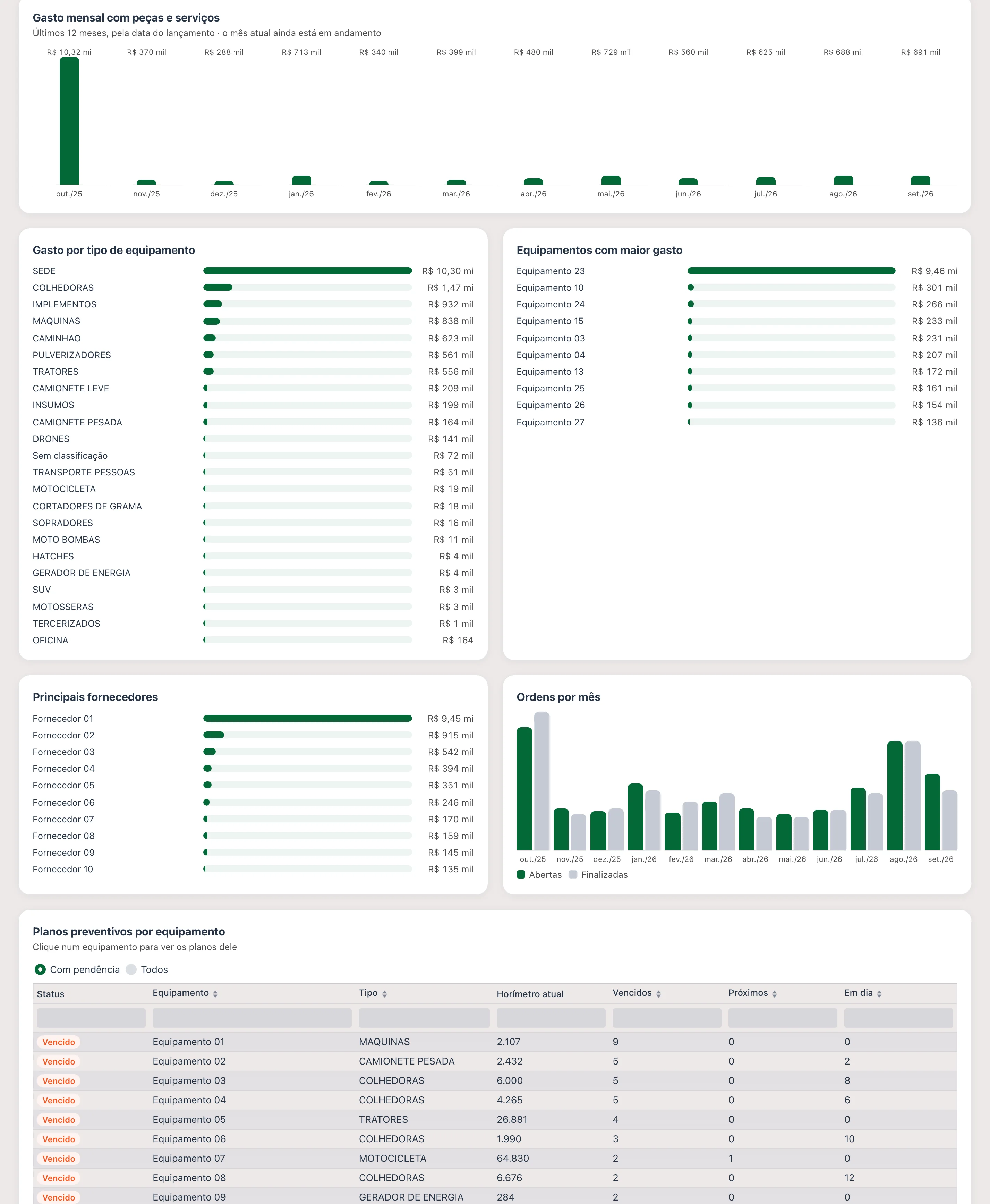
| Card | What it shows |
|---|---|
| Open work orders | How many are pending, in progress and paused, highlighting those open for more than 30 days. |
| Overdue plans | How many preventive plans are overdue and on how many pieces of equipment, highlighting those that don't have a W.O. open yet. |
| Coming due | Plans that will come due soon. |
| Parts and services (12 months) | Spending for the period, with the average ticket per entry. |
| Finished work orders (12 months) | How many were closed, with the average days to finish. |
| Type with highest spending | The equipment type that consumed the most, with its share of the total. |
Below the cards come the blocks Monthly spending on parts and services, Spending by equipment type, Equipment with highest spending (top 10), Top suppliers (top 10), Work orders per month (opened × finished), Preventive plans by equipment and Longest-open work orders (the 15 oldest, flagged Overdue when applicable). In Preventive plans by equipment, the filter switches between With pending items and All, and clicking a piece of equipment opens its plans with the last one, the next one, how much is left and whether there's an open W.O.
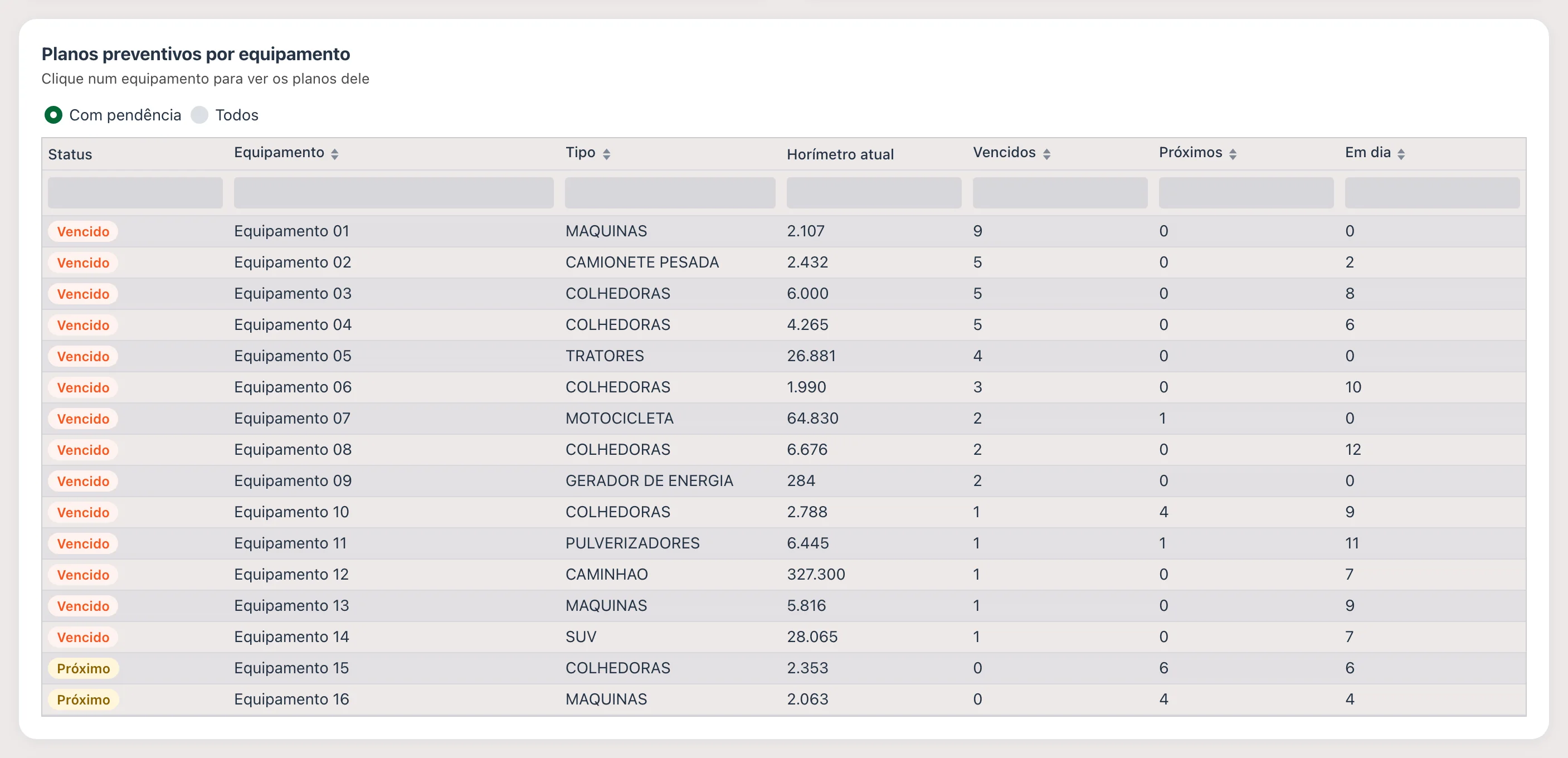
How the dashboard counts:
- Spending is what was entered for parts and services on owned equipment, by entry date. Fueling isn't included, and entries with a future date are left out.
- Overdue plan is one that has passed its next hour meter/km reading or next date. Coming due is one within 10% of the recurrence or 7 days of coming due. It's the same rule UPí uses to answer questions about plans.
Workshop now
The shop foreman's view: what's sitting in there right now and who's working on what. Work orders In progress, Working or Paused count as in the shop; the hours come from the mechanics' time entries.
At the top, Hours period picks 7, 30 or 90 days for the hours blocks; at 90 days, the chart switches to weekly.
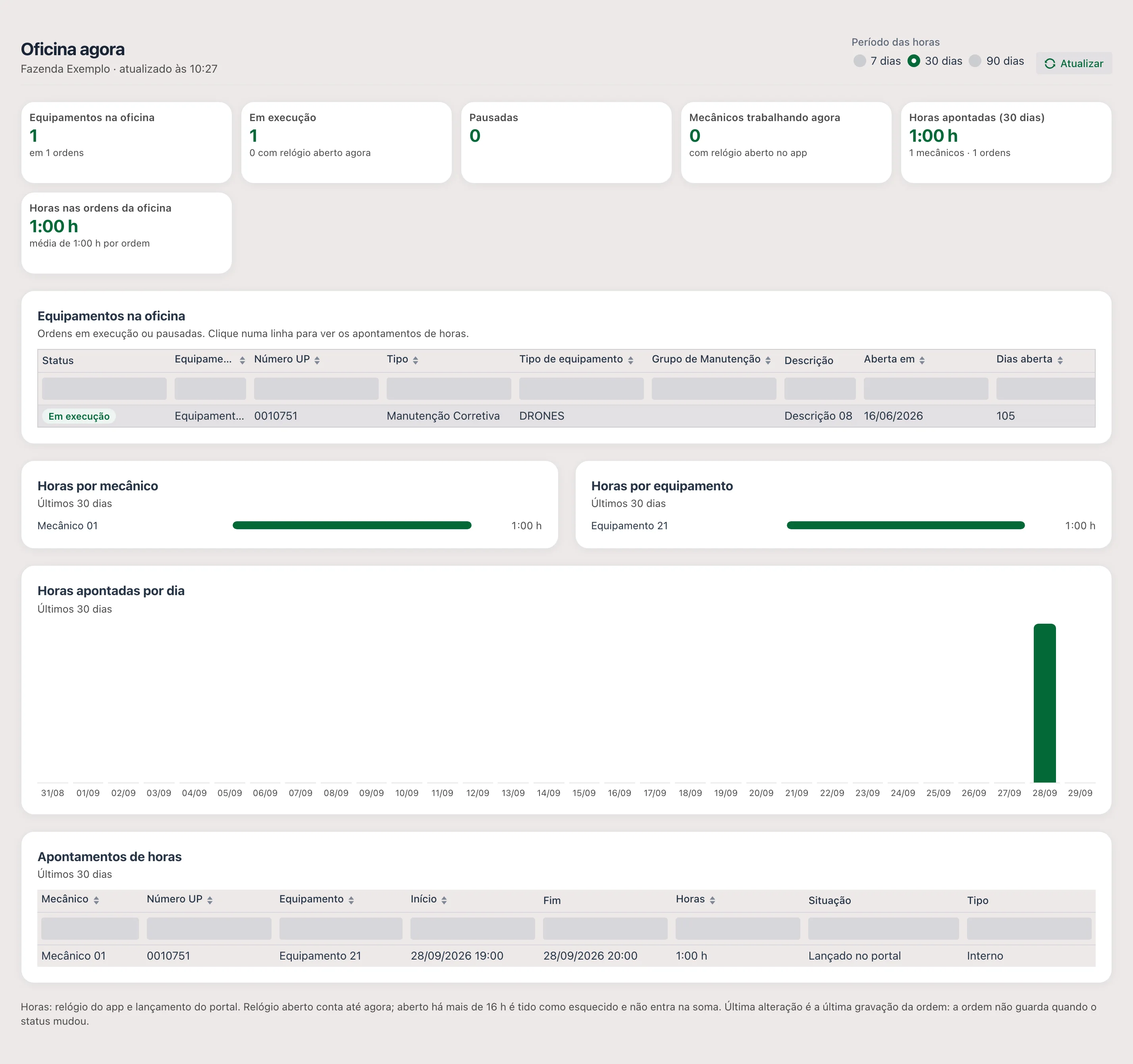
| Card | What it shows |
|---|---|
| Equipment in the shop | How many machines are in the shop, and on how many work orders. |
| In progress | How many work orders are in progress, and how many with a clock running right now. |
| Paused | How many are paused, the most common downtime reason and how many have been stopped for more than 7 days. |
| Mechanics working now | Who has a clock running in the app, highlighting forgotten clocks. |
| Hours recorded (N days) | Hours for the chosen period, with how many mechanics and how many work orders. |
| Hours on shop work orders | Hours already recorded on the work orders currently in the shop, with the average per work order. |
The blocks are Equipment in the shop (clicking a row opens that work order's time entries), Hours by mechanic, Hours by equipment, Hours recorded per day and Time entries.
How the dashboard counts:
- Hours from the app's clock and hours entered in the portal are added together.
- An open clock counts up to now. A clock open for more than 16 hours is considered forgotten: it's left out of the total and shows as "Clock left open".
- The Last change column is the last time the work order was saved; the work order doesn't store the moment its status changed. It works as an approximation of "stopped since".
📱 The two QR codes
| Where it is | What it opens |
|---|---|
| QR code button, on this screen's list | Opens the branch's Maintenance Work Order. It's the QR to hang on the shop wall or the notice board. |
| QR code tab of the Fleet / Facility record | Opens the work order for that machine. Stuck in the cab, it lets the operator record the problem the moment it happens. |
In both cases the Save QR button downloads the image for printing.
- Complete history of each machine: what broke, when and how much it cost
- Parts leaving inventory through the requisition, not on a scrap of paper
- Labor measured in hours, by mechanic and by activity
- Preventive and corrective kept apart, which shows whether the plan is working
- Maintenance cost per machine and per cost center
The maintenance work order is the day-to-day of upCampo's fleet and farm maintenance management; the website page shows everything the module covers.
❓ Frequently asked questions
What's the difference between this screen and the field work order?
The Work Order records farm work (planting, spraying, harvest) with field and applied products. The maintenance work order records shop work on the machine: repair, service, part replacement.
The tractor broke down in the middle of the field. How do I open the work order?
In Fleet > Maintenance Work Order, click New, keep the Corrective Maintenance type,
pick the machine, enter the hour meter at the time of the breakdown and describe the problem. Then add the
activities, record the mechanic's hours and requisition the parts through the products tab.
How do I request a part from the parts room from the work order?
In the "Products & Service - Requisition" tab, use the + New - Requisition button. The requisition is created tied to the work order, and the tab then shows how much has been fulfilled, how much is in quoting and how much became a purchase order. To follow the part's path document by document, switch the tab's selector to Trail: it shows, as a tree, the quotes, orders and invoices each item generated.
The system won't let me finish the work order. What's missing?
Usually there's an open activity: the work order only finishes when all activities are completed. Open the Activities tab and use each one's Finish button. Also check that the work order was saved before finishing.
If the message is "Fleet item has an hour meter, it is required!", the Hour meter/KM is missing in the finishing window. It's required when the machine has an hour meter in its record and the work order is preventive or, if the farm checked Require hour meter to finish maint. W.O. in Company/Crop Settings, for corrective ones too. Enter the machine's reading at closing and confirm again.
I finished the wrong work order. Can I fix it?
Yes: use the Reopen button. A finished work order doesn't accept changes, so the fix goes through reopening, adjusting and finishing again.
The machine is going to be down this week. Can I move up the service that would come due later?
Yes. Use Advance/generate plan exec. on the list, select the fleet item and the plans, enter the hour meter/KM and the date, and generate the execution. The plan then counts from this new occurrence.
How do I know how long the shop sat idle waiting for parts?
Through the time entries, using the downtime reasons. They separate time worked from time lost and let you total hours by cause.
Why does the list show "3 items" instead of the work order number?
Because they're several preventive work orders for the same machine, generated on the same date; the system groups them so the list isn't repetitive. Click the arrow next to it to open the group: each work order appears with its own UP Number and description (air filter change, fuel filter, engine oil).
What does a red date in the list mean?
The date's color is the work order's status. Solid red is an Overdue work order: pending with its date already past; light red is Pending still on time. Green is In progress or Working, gray is Paused and blue is Finished. The Status column uses the same colors. For a group of work orders, the group takes the most urgent status of its children.
How do I mark that the shop started or stopped a work order without opening the form?
Click the work order's status in the Status column of the list in
Fleet > Maintenance Work Order. Pending or Paused goes to In progress; In
progress or Working goes to Paused. The change saves only the status (no date on the
work order or plan changes) and reaches the app through normal sync. A finished work order doesn't change with
that click.
What does "Overdue" mean in the Status column?
It's a Pending work order whose date has already passed. It's just how the Maintenance Work Order list shows that work order: in the system it's still Pending, and that's why there's no "Overdue" in the Status filter at the top. To see only overdue ones, type "over" in the Status column search.
Does a work order paused months ago disappear from the list?
No. In the Maintenance Work Order list, every open work order (Pending, In progress, Working or Paused) shows up whatever its date. The period chosen at the top only limits finished work orders.
I finished a work order and the maintenance dashboard didn't change. Why?
The Maintenance overview and Workshop now dashboards don't reload when a work order is saved or finished from the form. Use the dashboard's Refresh button. They reload on their own when you switch farms, when the load is more than 10 minutes old or when a work order's status is changed by clicking the Status column.
How do I record the mechanic's hours on a specific activity?
In the Labor (hours) tab, choose the Employee/Operator and, in the Activities field, the matching activity; enter start and end date and time. The system calculates the total hours. Recording hours by activity is what later tells you where the shop's time went. Also enter the entry's Hourly rate: that's what puts that time into the work order's cost; without it, the hours show up in the time but add zero.
The work order's Total value isn't filling in on its own. Why?
Because the farm is set to Maintenance W.O. cost type = Manual. In this mode you
enter the value when finishing the work order, and the system adds nothing up, even if there are hours
recorded and parts requisitioned. For automatic filling, the option is
Calculated automatically, in File > Company/Crop Settings. The
choice applies to the whole company, not per work order.
I bought the part for the work order and the value didn't show up. Why?
In Calculated automatically mode, a purchased part comes in at the value of the invoice (nota fiscal), not the requisition's: until the inbound inventory transaction is entered, that portion isn't in the cost yet. Also check the item type in the requisition: anything requested "for inventory" becomes parts-room balance and doesn't go into any work order; it only shows up on a work order when it's requisitioned from it.
The shop sent the invoice. How do I enter the maintenance account payable?
With the Generate financial button, in the maintenance work order's Financial section. It opens the Generate Financial window, where you enter the entity, the management account, the cost center, the date, how many installments and every how many days. The window shows the installments before saving and, on confirming, creates the bill in Accounts Payable from the work order's own value.
The Generate financial button disappeared from the work order. Why?
Because this work order has already generated its bill. In place of the button, the Financial section shows Bill generated, with its number and date. One work order generates one bill and only one: that's what keeps the same maintenance from becoming two accounts payable. If the bill came out wrong, correct it in Accounts Payable/Receivable.