📘 Screen: Work Order/Activity Type
This is where the farm's activities are grouped — planting, fertilizing, crop protection spraying, harvest — and it is the most important setup in the operations area. It is not just a classification: it is what configures how the work order behaves, defining which fields appear, what is required, and which values come prefilled.
Most questions like "the work order is asking for too many fields" or "why doesn't this field show up" are solved here.
📍 Location in the system
Menu: Operations > Work Order/Activity Type
🧩 Main function
Define the activity types the farm performs and, for each one, the behavior of the corresponding work order: the nature of the work, the required fields, the application defaults, and the associated documents.
📝 Setup fields
| Field | Description |
|---|---|
| Description | Required. Name of the type (e.g., "Crop protection spraying", "Planting"). |
| Code | Internal identifier. |
| Category | Required. Defines the nature of the activity — see the section below. |
| Color | Color that identifies the type on screens and dashboards. |
| Display order | Sets the type's position in selection lists. |
| Default Report | Report used when printing a work order of this type. |
| Checklist Template | Checklist shown when the work order is executed. |
| Integration | Reference code in external systems. Can be configured as required for the farm. |
| Active | Defines whether the type is available for use. |
🌱 Category: the nature of the activity
The Category is chosen from a predefined system list and tells what kind of work it is. That choice changes what the system calculates and which fields the work order shows:
- Soil preparation
- Fertilizing
- Planting
- Crop protection spraying
- Harvest
- Sampling
- Irrigation
- Seed treatment — the rate becomes per 100 kg of seed and the execution becomes a slurry withdrawal (see how to record seed treatment)
- Manual
- Other
⚙️ Details, Show in, and Hide
A set of checkboxes controls, field by field, how the entry screen behaves — whether the field is only shown, hidden, or required. Among the items controlled are Field, Fleet/Equipment, Employee/Operator, Execution, Details, Quantity, Helper, Start/end time, and Short Identification. This is also where the Show on dashboard option is, which makes the type appear on the home screen dashboards.
There are also behavior locks:
- Lock date change on execution — prevents changing the date when recording the execution
- Change reference date of the Season Planting
- Separate Variety — separates the data by variety within the field
This is also where you define which Short Identifications are available for that type, limiting the list the operator sees on the work order.
💧 Spray volumes and application conditions
For application activities, the type stores the values that usually repeat, and the work order brings them ready in the Crop protection spraying tab.
These values apply only to crop protection spraying activities.
They are organized in two blocks — Spray volumes for ground application and Spray volumes for aerial application — because the work order has an Application type field that determines which one applies. Each block accepts three spray volume settings (Volume 1, 2, and 3), and each setting has:
- Spray volume
- Tank capacity
- (ha) per tank
- Spray nozzle
There are three because you can indicate, in the product setup, which of these settings it uses — different products in the same tank mix may require different spray volumes.
And the working conditions considered suitable for the application:
- Wind speed
- Humidity
- Temperature
- Spray mix pH
- Working pressure
⏱ Re-entry
The Re-entry interval (hours) field records how many hours must pass before anyone can go back into the field after the application — occupational safety information, tied to the product applied.
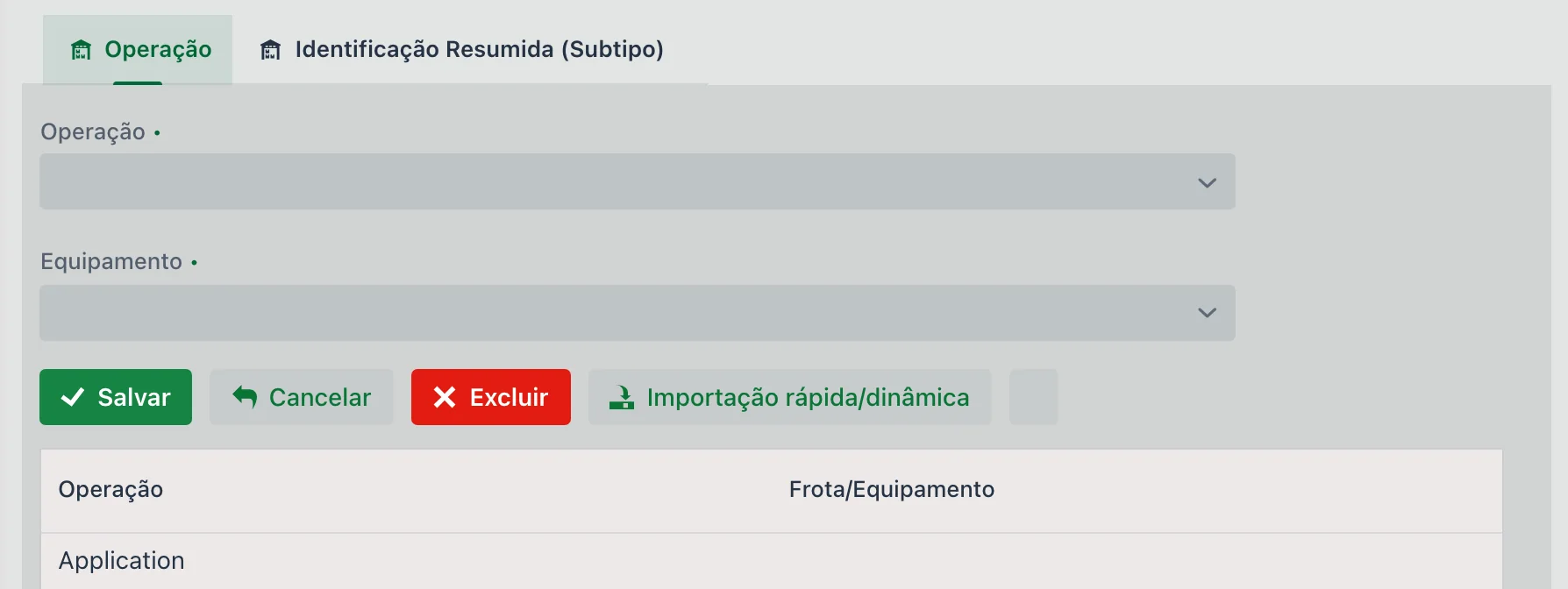
🔗 "Operation" tab: the mapping with the integration
This tab links the farm's activity type to the operation type used by an external system — currently, John Deere. This is what lets an application recorded by the machine in the field find the right work order in upCampo.
| Field | Description |
|---|---|
| Operation | The external operation type, set up in Operations > Operation. In John Deere there are four: Application, Seeding (planting), Harvest, and Tillage (soil preparation). |
| Equipment | Reserves a fixed fleet unit for whatever comes in through that operation. Since the imported execution brings the area of the whole operation, not the machine that did the work, the usual practice is to use a generic fleet unit — John Deere Integration — which marks in the list what came from outside and what was typed in. |
The Quick/dynamic import button creates the links all at once, instead of one by one.
📥 Import ready-made types
In the main list there is the Import activity types (default) option, which brings in setups maintained by the upCampo team. It is the fastest path during implementation: instead of creating everything from scratch, you import the common types and adjust what is specific to the farm.
You can also copy to another company, choosing the destination company and branch — useful if you have more than one farm and want to repeat the same configuration.
- Each work order shows only the fields that make sense for that activity
- Whoever enters data types less: spray volume, conditions, and checklist come already defined
- Activities are grouped consistently in reports and dashboards
- The field re-entry interval is recorded together with the activity
❓ Frequently asked questions
The work order is asking for fields I don't use. How do I remove them?
In this setup. A set of checkboxes defines, field by field, what the work order shows, hides, or requires — field, fleet, employee, execution, details, quantity, start/end time. When you adjust the type, the entry screen changes.
Do I have to create all activity types from scratch?
No. Use Import activity types (default) in the screen's list: these are setups maintained by the upCampo team, ready to use. Then just adjust what is specific to your farm.
I have more than one farm. Can I repeat the configuration?
Yes, with the Copy to another company option, where you select the records and enter the destination company and branch.
Why are there separate spray volumes for ground and aerial?
Because the application work order has an Application type field, with the options Ground and Aerial — and that is what determines which set of spray volumes applies to that entry. These fields apply only to crop protection spraying activities.
What are the three spray volume settings for?
Because different products may require different spray volumes. In the product setup you can indicate which of the three settings (Volume 1, 2, or 3) it uses.
Where do I record the field re-entry time after the application?
In the activity type's Re-entry interval (hours) field. It indicates how many hours must pass before anyone can go back into the treated area.
How do I limit the short identifications of an activity type?
In the type setup itself, by indicating which short identifications apply to it. The work order then shows only those.
I can't delete an activity type. What should I do?
When the type has already been used in a work order, the system does not allow deleting it — that would lose the history. Uncheck the Active field: it stops showing up in the lists and the old records stay intact.