📘 Screen: Bales
The bale — or module — is the roll of seed cotton the picker leaves in the field. In upCampo, each bale is a record with a number, field of origin, variety and harvest date: it is the traceability unit of cotton, which lets you go from a lint bale sold months later back to the field that produced it.
The bale is created here without a weight. It gets its weight at collection, when the truck that takes it to the gin is weighed — and that weight is what adds to the total harvested from the field. A bale recorded with the wrong field means wrong yield in two fields at the same time.
📍 Location in the system
Menu: Crops > Bales
🧩 Main function
Each bale is recorded with its agronomic and geographic characteristics:
These records can be used later for traceability and logistics control, and they are the basis for collection and storage operations.
🔎 The list and the totals
The screen is called Cotton bales/Tracking item and opens filtered by Season, Start date (from) and End date (to). Next to the filters are three totals for what is being displayed: Farm weight, Gin weight and Qty — the quick way to close out production for a period.
The list shows Code, QR Code/Barcode, Date, Field, Variety/Cultivar, Farm wt., Gin weight, Hectares, Collected?, Bale collection, Fleet, Collection date, Start user, Check user, Collection user, Origin, Border, Burst, Notes and Reference/Integration ID.
📝 Bale fields
| Field | Description |
|---|---|
| Where | In the field or Collected — where the bale is now. |
| Format | Cylindrical or Square, depending on the picker. |
| Shift | 1st Shift or 2nd Shift. |
| Date, Hour, Minute and Second | When the bale was produced. The date is required. |
| Code | Required. The bale's identification. |
| Field and Variety/Cultivar | Required. Where the cotton came from. |
| QR code | The code on the label stuck to the bale — it is how the bale is tracked at collection. |
| Module ID | The module identifier on the picker, used by the integration. |
| Farm wt. | Weight recorded at the farm. |
| GIN weight | Weight checked at the gin — comparing the two is what reveals losses or scale discrepancies. |
| Diameter and Hectares | The bale's measurements and the area it represents. |
| Border | Flags a bale harvested on the edge of the field, which tends to have a different yield. |
| Burst | Flags a bale that burst — a loss to account for at closing. |
| Latitude and Longitude | Where the bale was dropped. This is what lets you find it on the map. |
| Fleet / Asset Harvest | Required. The picker that produced the bale. |
| Notes and Notes/Integration | Free-text fields; the second receives the text coming from the integration. |
⚡ Batch tools
Bales are a high-volume record — one season can run past a thousand. That is why the screen has tools to handle many at once:
Generate multiple in batch
Creates several bales at once, for when the harvest has already happened and nobody entered them bale by bale. Enter Field, Variety, Number of bales, Date, Farm wt., Hectares, shift and border.
- The Get auxiliary qty from WO executions button pulls the quantity from what has already been executed in the harvest work orders — instead of you counting
- Initial QR Code: leave it blank to not generate QR Codes. If you enter one, the system increments it for each bale (0050, 0051, 0052…)
Batch adjustment
Corrects one field on many bales at once. Choose what to change — Field, Variety/Cultivar, Shift, Border, Burst, Farm weight, Gin weight or Hectares —, enter the new value, check the bales in the grid and confirm. It is the way to fix a repeated mistake: the wrong field for a whole shift, the shift entered incorrectly.
View on Map
Shows the bales positioned on the map, based on each one's latitude and longitude — useful for planning the pickup route and for finding a bale that was left behind.
📲 Where records come from
1. From the app
The most common way to record bales is in the app:
- The technician enters the bale as soon as the picker produces it
- Usually a QR Code is stuck on the bale
- The code is scanned later for tracking. For this, you can print numbered labels with report POS.04.02 (formerly 009.A) - Bale labels
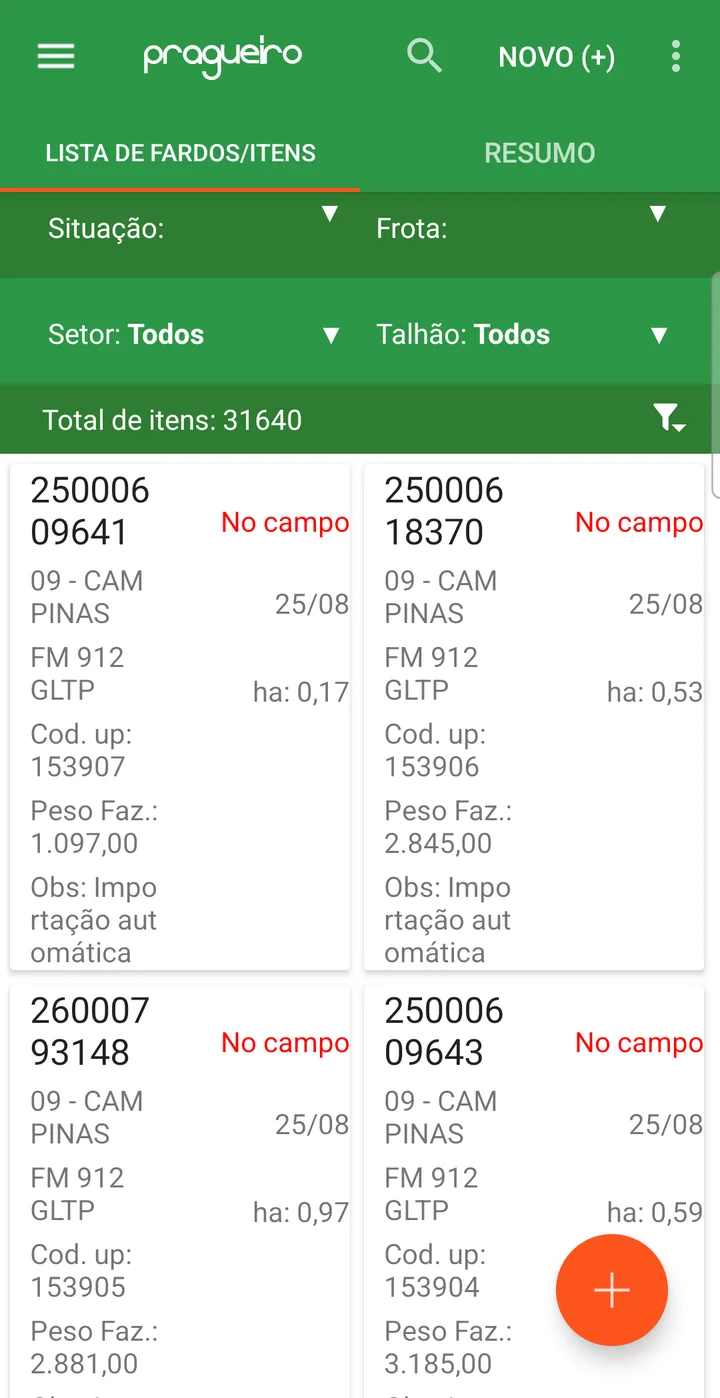
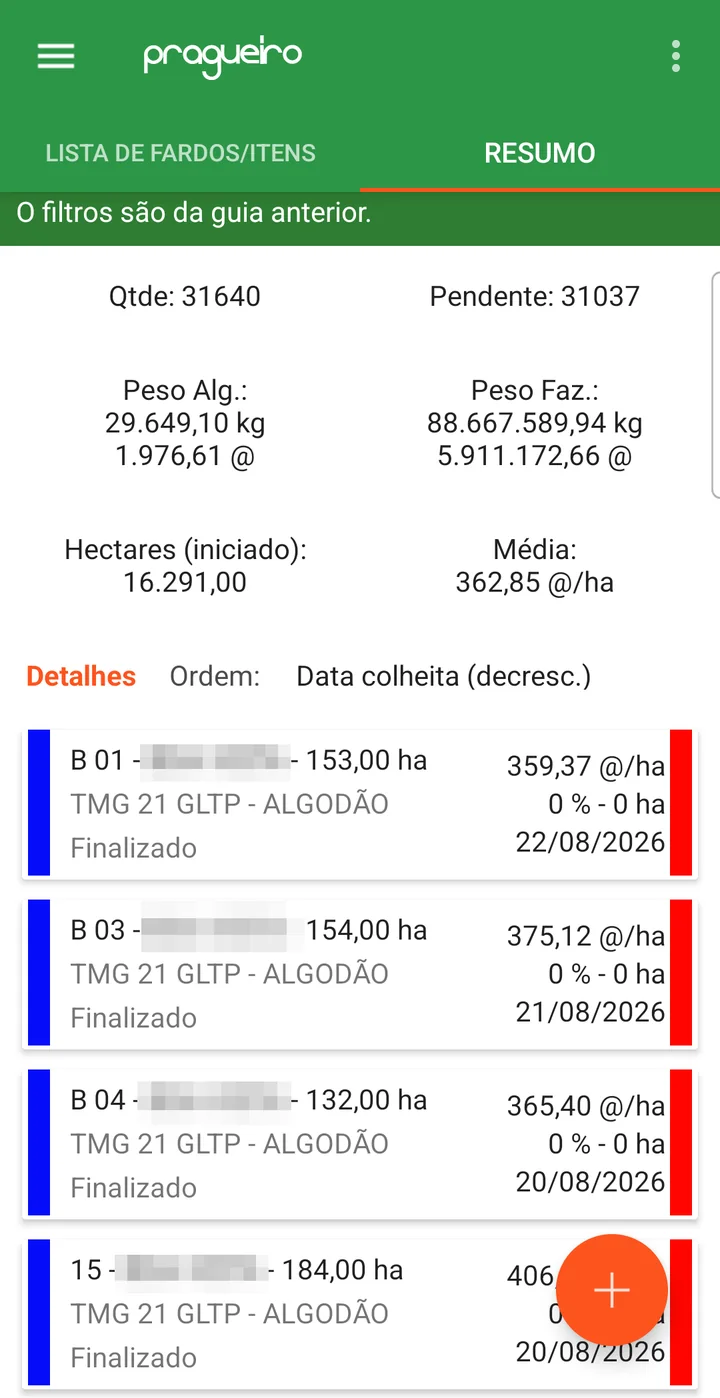
In the app, the menu is Bale/item tracking. The BALE/ITEM LIST tab filters by Status, Fleet, Sector and Field, shows the Total items and, for each bale, the number, field, variety, up code, farm weight, status and date. The SUMMARY tab adds up the quantity, pending bales, weights and the average per hectare, with a breakdown by field.
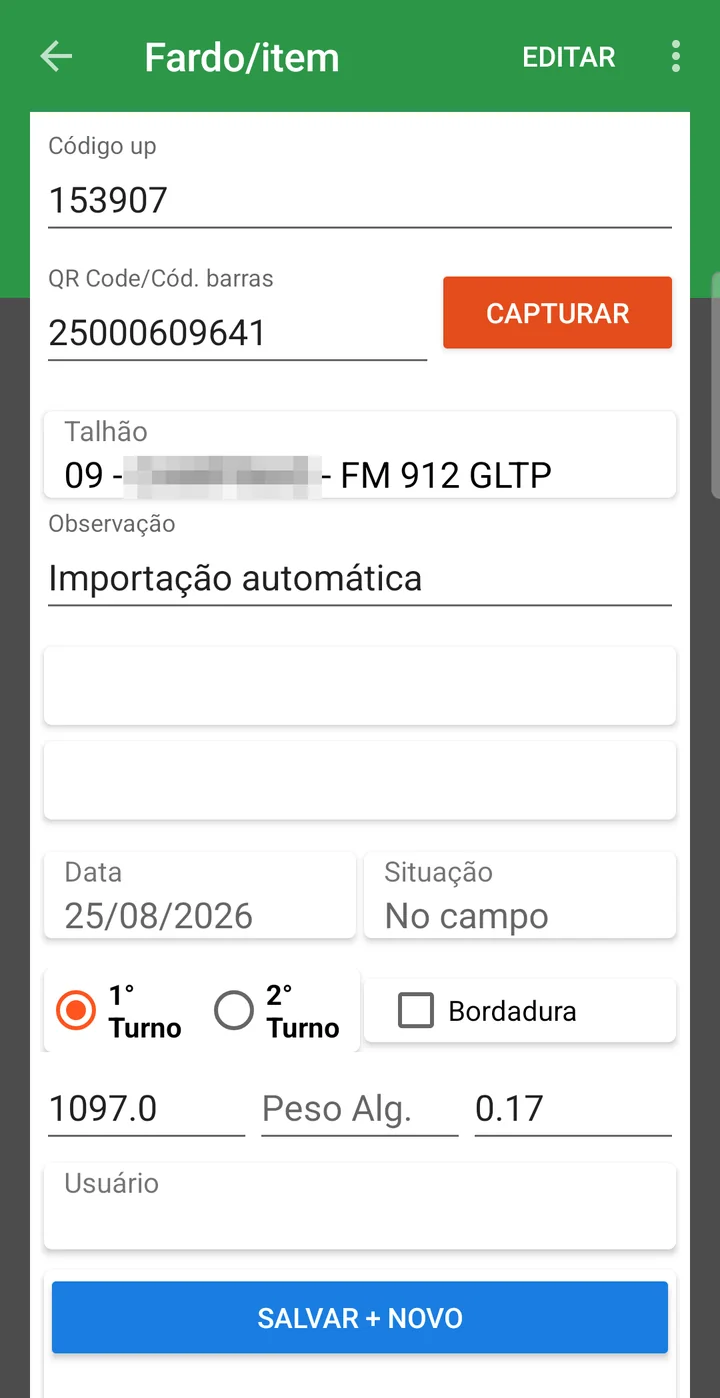
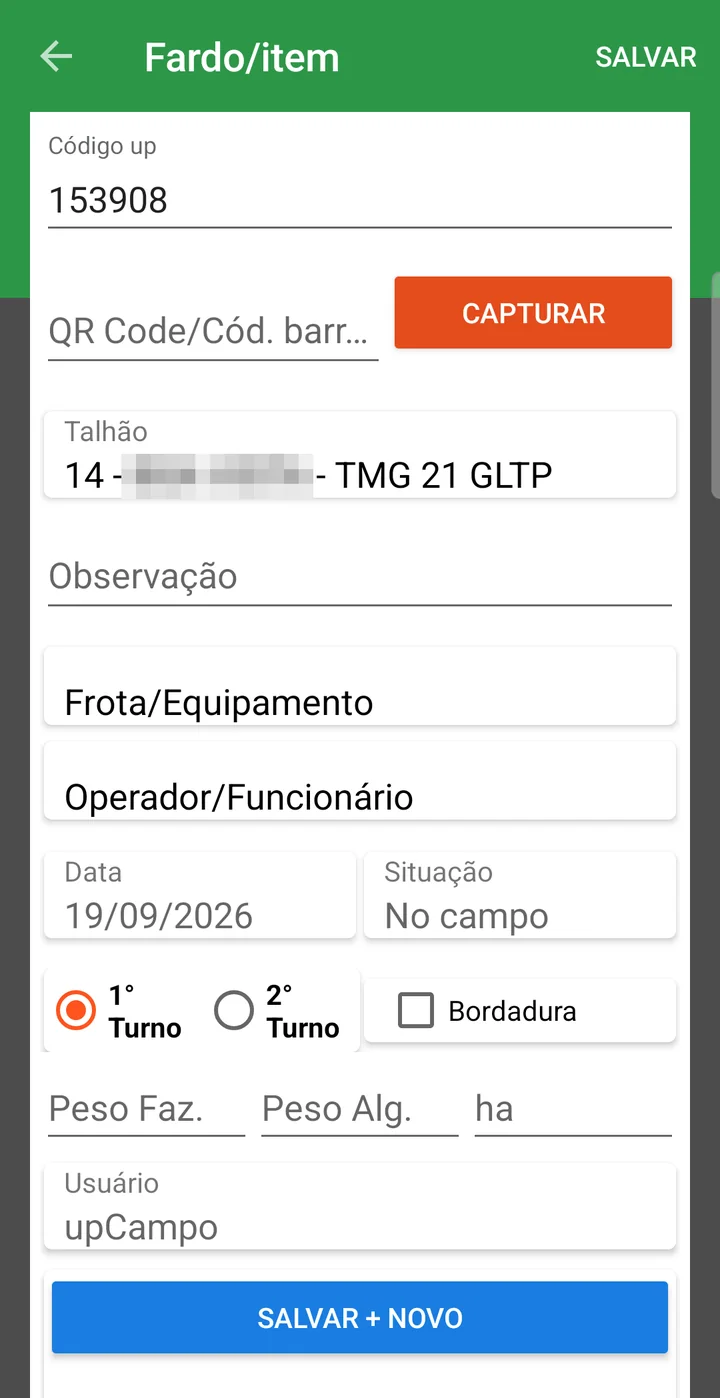
Tapping a bale opens its record: up code, QR Code/Barcode (with the CAPTURE button next to it), Field, Notes, Fleet/Equipment, Operator/Employee, Date, Status, shift (1st Shift or 2nd Shift), Border, farm weight, gin weight and ha. The list's NEW (+) opens the same form blank, already with the next up code, and the button at the bottom is SAVE + NEW, so you can enter one bale after another.
2. From the web portal
- Manual entry by the team, filling in the data
3. Through the John Deere picker integration
- Requires setup by the upCampo team to enable the integration and sync the data automatically
- The Origin column in the list shows where each bale came from —
Manualfor those entered by hand - The Import without module button opens the Import JD bales without module window, which lists what John Deere recorded without the module identifier, with date, field, equipment, variety, hectares, weight and operator. Force selected brings those bales in anyway
4. From the machine file
- The Import bales from machine Excel file button, next to the filters, loads the bales from the file generated by the picker itself
🔗 After ginning: the lint bales
When the module goes to the gin and is ginned, the resulting lint is pressed into lint bales — which have their own screen, a GS1 code and separate weights for lint, seed, linters and trash. Each lint bale points to its source module, and that is how traceability runs from the sale back to the field.
🔗 Relationship with Bale Collection
After the bale is recorded, it moves to another stage of the process: bale collection.
- The bale is weighed at collection (manually or through the integration)
- If the picker reports the weight automatically, it is taken into account too
- The recorded weight is used to calculate the field's yield, one of the most important agronomic indicators
- Collection is done in another menu, where you enter where the bale was taken, weight, type of loading, etc.
- Both records are linked and form the bale's complete history
📊 Related reports
- Production traceability is guaranteed
- Field logistics are easier to control
- You can integrate with storage, sales and quality systems
Bale control is part of upCampo's cotton solution — see how the whole module works, from the field to the gin.
❓ Frequently asked questions
The field doesn't show up on the bales screen. Why?
Because the crop must have the Allows bales option checked in the Crop setup. Without it, the field is not available in the feature.
How are bales recorded in practice?
In three ways: through the app, which is the most common — the technician enters the bale as soon as the picker produces it; manually through the web portal; or through the John Deere picker integration, which requires setup by the upCampo team.
How do I track a bale later?
Usually a QR Code is stuck on the bale and scanned later for tracking. The numbered labels come from report POS.04.02 (formerly 009.A) - Bale labels.
What information is stored for each bale?
Season, field, crop, variety, GPS location and the date it was produced — the basis for traceability, logistics and collection and storage operations.
The harvest is over and nobody entered the bales. How do I fix it?
Use Generate multiple in batch: enter field, variety, number of bales, date, weight and hectares, and the system creates them all at once. The Get auxiliary qty from WO executions button can also pull the quantity from the harvest work orders already executed.
I generated the bales in batch and they have no QR Code. Why?
Because the Initial QR Code field was left blank — when blank, the operation creates the bales without a QR Code on purpose. If you enter a starting number, the system increments it for each bale (0050, 0051, 0052…) and they all come out traceable.
I entered several bales in the wrong field. Do I have to fix them one by one?
No. Batch adjustment changes at once the field, variety, shift, border, burst flag, farm weight, gin weight or hectares of the bales you check in the grid.
What is the difference between Farm wt. and Gin weight?
Farm wt. is the weight recorded at the farm; Gin weight is the one checked at the gin. Keeping both is what lets you see in-transit losses and scale discrepancies — the list totals the two separately at the top.
How do I find a bale left behind in the field?
With the View on Map button, which positions the bales by each one's latitude and longitude. The Collected? column in the list shows which ones are still in the field.