📘 Screen: Inbound Load Ticket (Harvest/Purchase)
The inbound load ticket is the document that records the weighing and grading of each load that comes in from the field. In upCampo, it is the entry that brings the crop into the storage location and builds the total harvested for each field, in Season Planting — the sum of a season's load tickets is that crop's yield.
Every harvested load goes through it: the truck goes onto the scale full and comes off empty, the grader pulls the sample and measures moisture and impurity right there, and the system turns those measurements into a weight discount. What is left is the FINAL Net Weight — the number that goes into inventory and up to Season Planting. That is why the rule cuts both ways: a load entered wrong here means wrong inventory and wrong yield over there.
📍 Location in the system
Menu: Storage > Inbound Load Ticket (Harvest/Purchase)
🧩 Main function
Bring the crop in: record the weighing and grading of each load, calculate the final net weight and post that quantity to inventory, linking it to the harvested field.
🔀 The Harvest type is the everyday one
The Type, at the top of the form, already comes set to Harvest — and that is how it stays for the whole season. It is the type for loads that came from the field, the only one that asks for Field/Variety and, therefore, the only one that adds to the crop's total harvested. If you do not have a clear reason to change it, leave it.
The other two are exceptions and rarely used:
- Sales/Purchase Contract — for loads that arrive under a contract. It enables the Contract field and clears the Field; the storage location comes from the contract itself.
- Standalone — to just record the weighing, without touching the balance. It shows the Destination and Product fields: if you fill in the Destination and leave the Storage Location blank, the load is recorded in the system, but it does not move inventory.
📝 Header fields
| Field | Description |
|---|---|
| Entity Third Party | The grower who owns the load, when it is not the farm's own. Selected first, it filters that third party's fields — and, if there is only one, it comes filled in. |
| Number | Load ticket number. It cannot repeat within the same season and branch. |
| Auth. No. | Number of the source document — the ticket or load ticket from whoever weighed it before. It cannot repeat either within the same season and branch: this is the safeguard that prevents entering the same load twice. |
| Date | Date of the load. It comes filled in with today's date. |
| Storage Location | Required. Where the load is stored — the inventory entry goes to this location. |
| Field/Variety | Required. Where the load came from. It brings in the season, the crop and the discount parameters. Only active fields from the branch whose harvest is not yet finished are shown. |
| Team | The team that did the harvest. |
| Fleet | The truck. When you select it, the plate comes from its record. |
| Plate | Filled in from the fleet, or typed in when the truck belongs to a third party. Fleet or plate: one of the two is required. |
| Driver | Who was driving. It is also saved on the fleet record as the last driver. |
| Notes | Free-text field, printed on the load ticket. |
⚖️ Weighing
Right below the truck details are the scales registered in Scale and the two weights:
- Gross weight — the loaded truck.
- Tare weight — the empty truck.
- INITIAL Net Weight — calculated: gross minus tare. The discounts are applied to it.
The Capture Gross Weight and Capture Tare Weight buttons read the weight straight from the selected scale. If no scale is registered, the selection row and the buttons disappear and the weights are typed in. The system will not save with a tare greater than the gross, or with either of them at zero.
🧪 Grading and discounts
The grading block has three columns: Classification (what was measured in the sample), Discount % (how much that deducts) and Discount Kg (the discount converted into weight). The system offers eight types: Moisture, Impurity, Damaged, Broken, Heat-damaged, Storage, Receipt and Other.
Not all of them always appear, and none of this is set up here. Which lines are
visible, which table each one looks up and whether the discount is calculated or typed in by hand comes
from the
Season > Harvest parameters tab
— one record per crop and product. The load ticket only reads what is
defined there.
On that tab, each discount type has two settings:
- the table it looks up — Standard Moisture Discount, Standard Impurity Discount, Standard Broken Discount, Standard Heat-damaged Discount, Standard Damaged Discount, Standard Storage Discount, Standard Receipt Discount Table and Standard Other Discount Table (the last two use this longer label; they are the same thing as the others). Each one points to a standard discount table;
- the manual checkbox — Moisture manual, Impurity manual, Broken manual, Heat-damaged manual, Damaged manual, Storage manual, Receipt manual and Other manual. When checked, the Discount % field for that type is open for typing on the load ticket, instead of being looked up in the table.
Once the grade is typed in, the system looks up the range in the standard discount table, fills in the percentage and converts it into kilos. Where the parameter is marked as manual, the discount field is open for typing.
How upCampo calculates the final weight
There are five calculations, and one breaks the pattern: storage is the only discount that is not calculated on the initial net weight.
Of the eight types, seven are calculated on the initial net weight. Only storage comes off the Pre-Net Total: in upCampo it is charged on what was actually stored, not on the weight that went onto the scale. In practice, between two loads with the same storage percentage, the one with the worse grade pays fewer kilos.
Worked example
A truckload of soybeans. The example turns on all eight types to show the full
calculation — your farm will probably have fewer lines, depending on what is enabled in the season's
Harvest parameters.
The percentages are illustrative: your
farm's come from the standard discount tables
linked to that crop, and those are what the system looks up when you type in the grade.
| Step | Measured | Table range | Calculation base | Result |
|---|---|---|---|---|
| Gross weight | — | — | — | 42,000 kg |
| Tare weight | — | — | — | 15,000 kg |
| Initial Net Weight | — | — | — | 27,000.0 kg |
| Moisture | 16.0% | 3.0% | 27,000.0 kg | −810.0 kg |
| Impurity | 1.5% | 2.0% | 27,000.0 kg | −540.0 kg |
| Broken | 2.0% | 0.5% | 27,000.0 kg | −135.0 kg |
| Heat-damaged | 1.0% | 1.0% | 27,000.0 kg | −270.0 kg |
| Damaged | 4.0% | below the 1st range | — | 0 kg |
| Receipt | — | 0.5% | 27,000.0 kg | −135.0 kg |
| Other | — | no entry | — | 0 kg |
| Pre-Net Total | — | — | — | 25,110.0 kg |
| Storage | — | 1.2% | 25,110.0 kg | −301.3 kg |
| Total discount | — | — | — | 2,191.3 kg |
| FINAL Net Weight | — | — | — | 24,808.7 kg |
24,808.7 kg is 413.5 bags — a bag is always 60 kg. That is the weight that went into the storage location and was added to the field's total harvested.
Three lines deserve attention:
- Damaged came out to zero, even with 4.0% measured. It is not an error: the table for that type only starts discounting from a minimum grade, and the measured value fell below the first range.
- Other was left blank. It shows on the screen because the parameter is configured — it is the line used for an agreed discount that does not fit the others. With no entry, it does not deduct anything.
- Storage: 1.2% on 25,110 gives 301.3 kg. If it were applied to the initial 27,000, it would give 324.0 kg. That is 22.7 kg on a single load — small here, but significant over a whole season.
🗂 Internal information tab
It keeps the load ticket's audit trail, all filled in by the system: season and product, who created it (with hour and minute), who took the tare weight and who took the gross weight — each with its time — and the discount ranges that were applied (moisture, impurity, broken, heat-damaged and storage). This is where you check why the discount came out to that value. There is also Print on save, which prints the load ticket automatically every time it is saved and is remembered by the browser.
📋 The list and its buttons
- Start date / End date — the list opens with a window around today; adjust it to see other periods.
- Season — changes the season in the filter and, with it, the fields offered on the form.
- Kilos and Bags — totals for what is filtered on the screen.
- The date on each line is color-coded: green when the load ticket already has a final net weight, red when it is still pending (only the first weight, for example).
- View inventory and View Contracts — open, without leaving the screen, the current balance and the status of the season's contracts (quantity, shipped and remaining, with totals).
- Import from Excel — uploads a spreadsheet of load tickets in one go.
- Reports ▼ — the reports enabled for this screen; and Print, on the form, prints the load ticket template defined in the company settings.
- Save + new — saves and immediately opens another load ticket, for back-to-back weighing.
📥 Import from Excel
The spreadsheet must have the column names in the first row; the system recognizes common variations — "Romaneio"/"Número", "Rom. Orig."/"Ticket" for the authorization number, "Talhão"/"Quadra"/"Campo", "Setor", "Variedade"/"Cultivar", "Data", "Motorista", "Placa", "Peso bruto", "Peso tara". Before saving, the window shows what will be imported and the problems found. Rows whose field the system cannot identify are not imported — it is the most common reason an import gets stuck, so check beforehand that the field names in the spreadsheet match the ones in the system.
🔗 What the load ticket moves
- Inventory: posts the final net weight into the selected storage location.
- Season Planting: adds to the total harvested for the field and the variety, and recalculates the average yield.
Deleting a load ticket reverses those totals. That is why the system blocks deletion when there is already a later entry that depends on it.
📱 The inbound load ticket in the app
In the app, the menu is Romaneio de colheita/entrada. The ROMANEIOS DE ENTRADA tab filters by status, fleet/truck, crop, field, period and contract, and totals the count, the pending ones and the net weight; each load ticket shows fleet, driver, field, date, gross, tare, net, discount and final net. The RESUMO tab shows the totals, the area, the average per hectare and the breakdown by field.
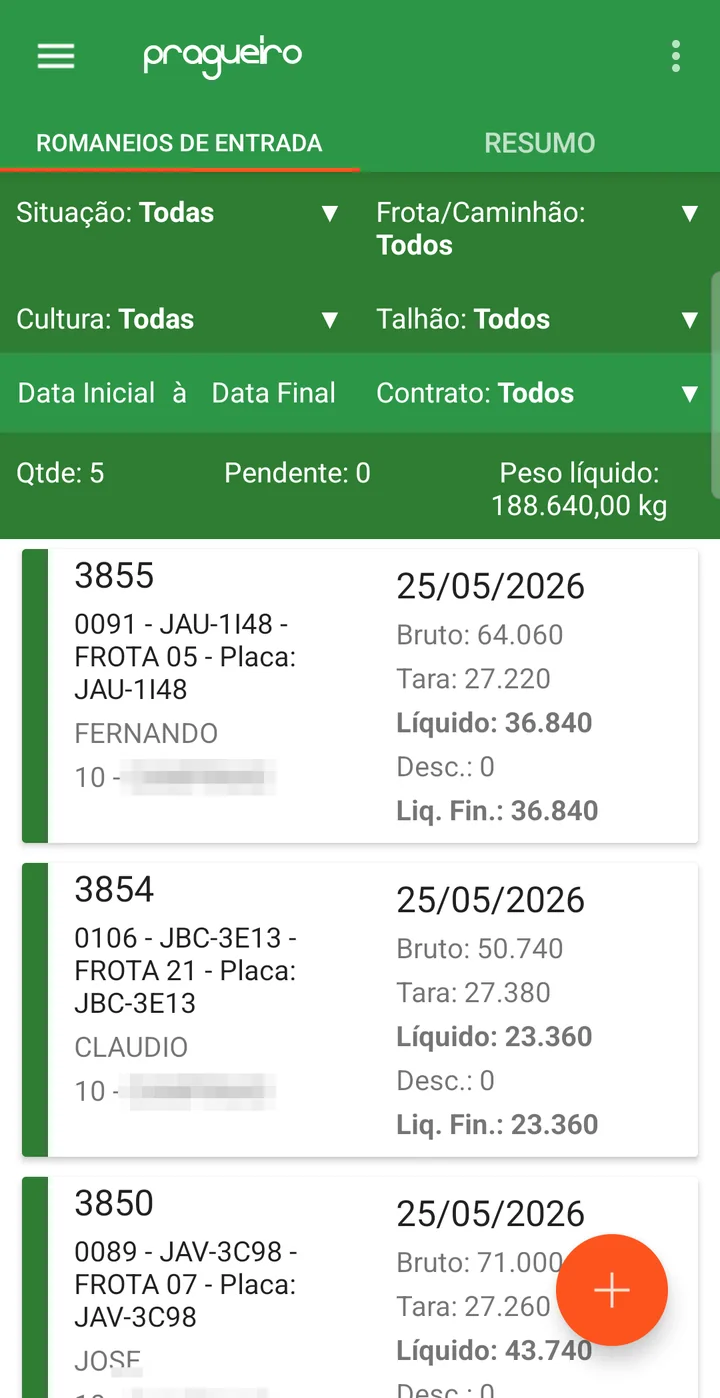
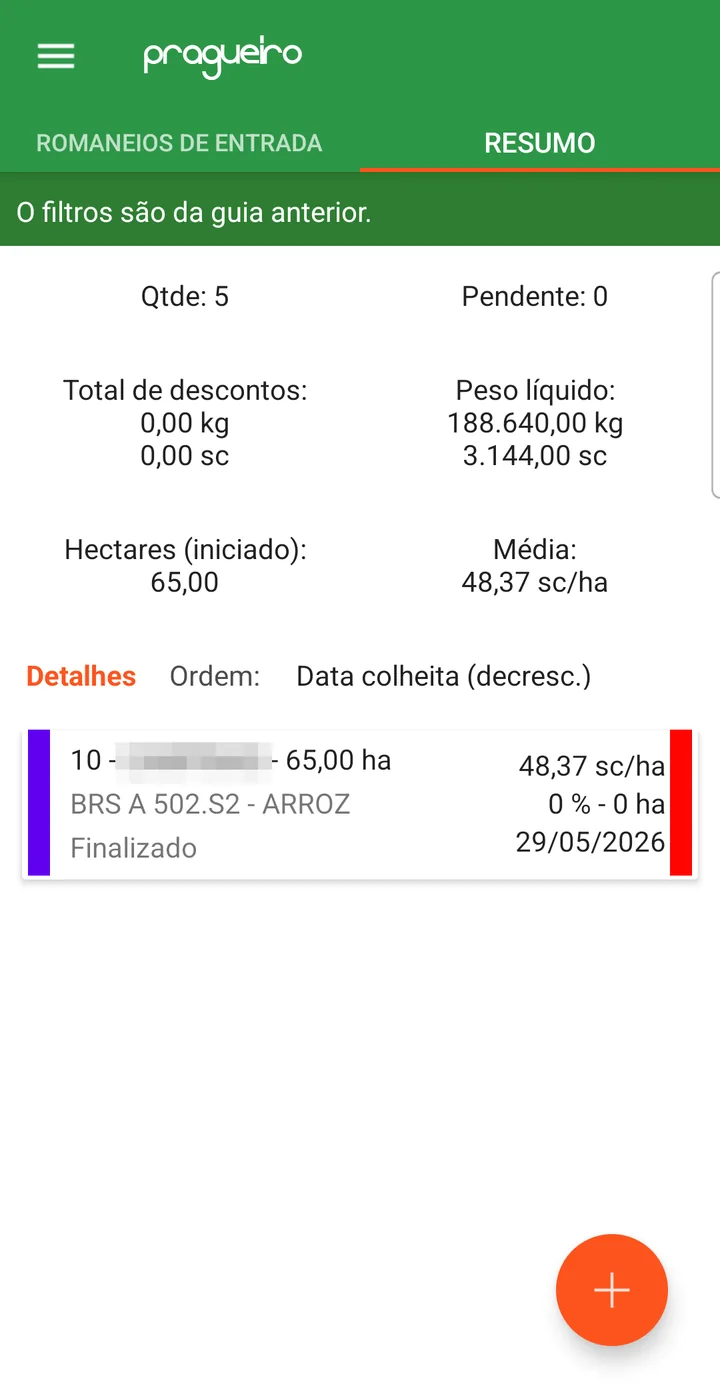
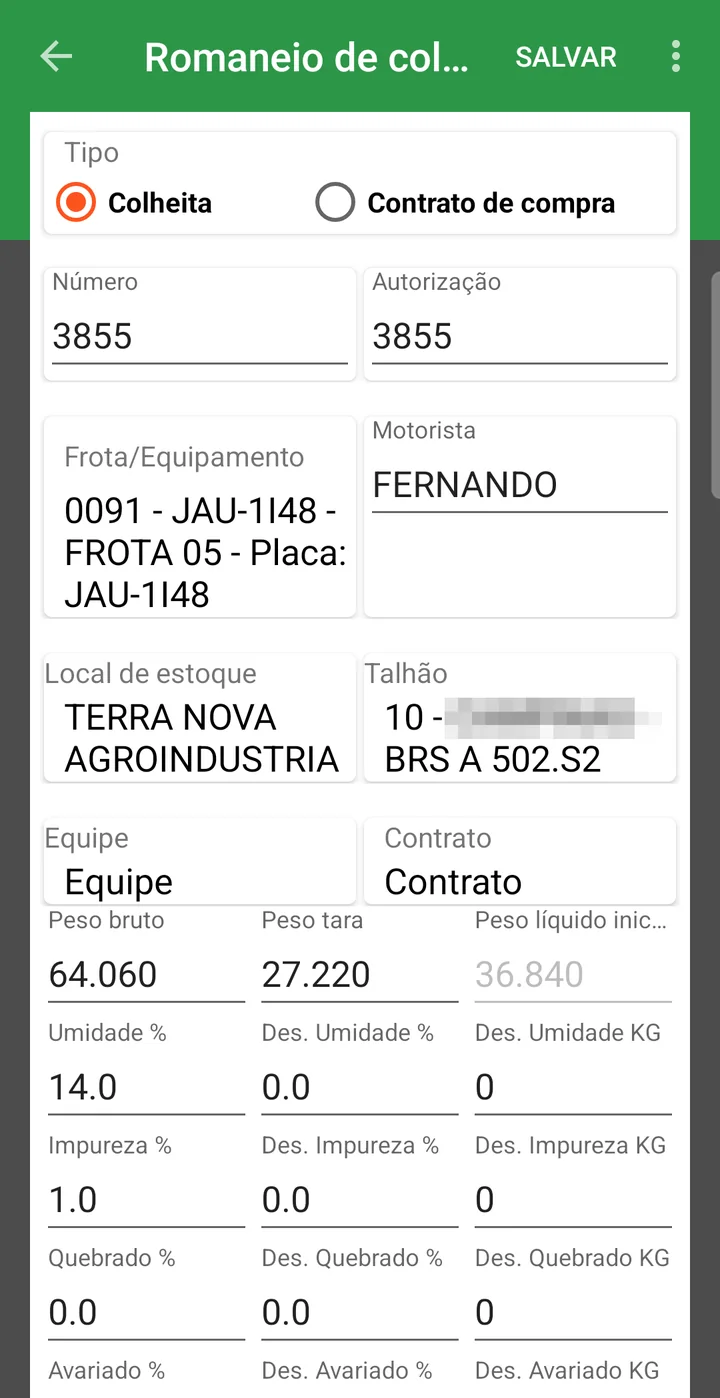
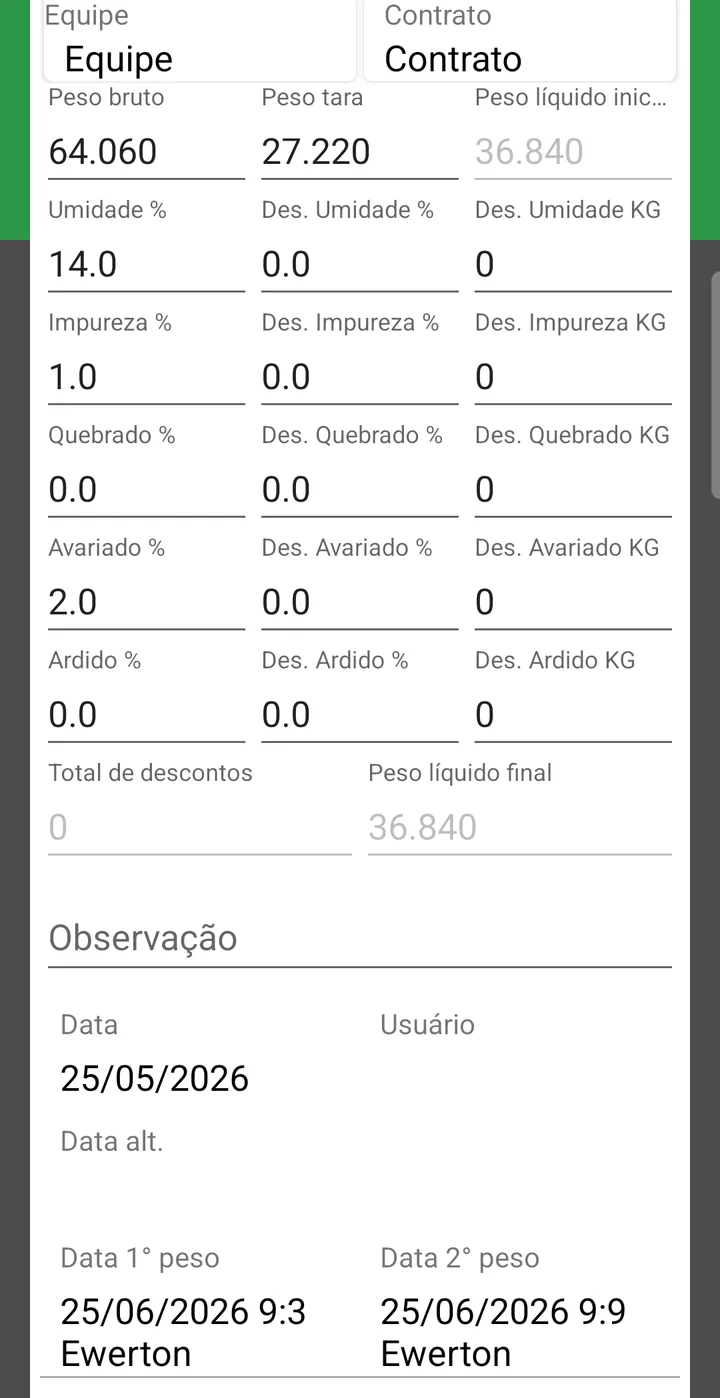
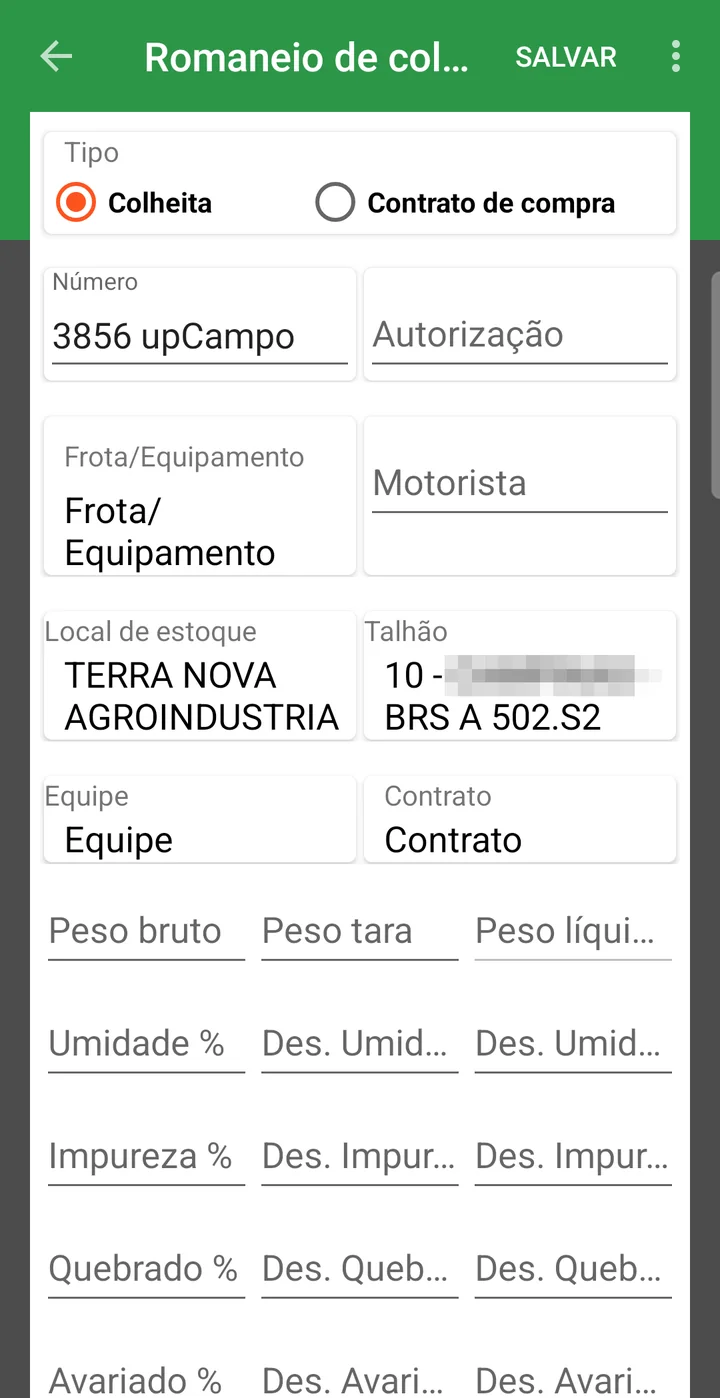
The load ticket form in the app has the Type with two options — Colheita (harvest) and Contrato de compra (purchase contract) —, the number, the fleet, the driver, the storage location, the field, the team and the contract; then the gross, tare and net weights and, for each discount type (moisture, impurity, broken, damaged, heat-damaged), the measured percentage, the discount percentage and the kilos; at the end, the total discounts, the final net weight, the notes and the dates of the first and second weights.
- The weight that goes into the warehouse is the same one that left the field, with no side spreadsheet
- The grading discount follows the registered rule, the same for every load
- Each field's yield builds itself, load by load
- A duplicate ticket is blocked when you save
❓ Frequently asked questions
Why does the system say it could not find the season's harvest parameter?
Because the season does not yet have parameters registered for that crop. They live in the harvest parameters tab of the Season screen and define which discounts appear on the load ticket and which standard discount tables to use. Without them, the harvest load ticket will not save.
The truck has been weighed full but has not come back empty yet. Can I save?
The load ticket only saves with both weights filled in and greater than zero, and with the tare never greater than the gross. Until the load is closed, it shows on the list with the date in red — that is how you see what is still pending in the yard.
Why does storage deduct less than the others?
Because it is applied to a smaller weight. Moisture, impurity, damaged and the rest are deducted from the initial net weight; storage is applied to the Pre-Net Total, that is, to what was left after those discounts.
I typed in the moisture and the discount came out to zero. Is that wrong?
Not necessarily. The discount comes from the standard discount table, which only starts discounting from a minimum grade. If the measured value is lower than the table's first range, the discount really is zero. Check the ranges of the table linked to that crop.
I entered the same load twice and the system would not let me. Why?
The load ticket number and the Auth. No. cannot repeat within the same season and branch. The warning shows which load ticket already has that number — look it up in the list before entering it again.
I need to reweigh a load that was already entered. Can I edit the load ticket?
Yes, as long as the load ticket is not tied to later entries. When you save, the system recalculates inventory, total harvested and contract. If there is an inventory movement with a later date that depends on that entry, the change is blocked.