📘 Screen: Storage Location
The storage location is where a product is kept on the farm: the chemical shed, the seed room, the warehouse, the fuel station. In upCampo it is not just an address label — it is the unit in which the balance is counted. The same product can have 400 liters in one shed and none in another, and it is the location chosen on the entry that decides where the quantity comes out of.
Every screen that deals with products goes through it: receiving an invoice in the inventory movement, issuing stock for the work order, fueling, transfers and stock counts.
📍 Location in the system
Menu: Inventory > Storage Location
🧩 Main function
Create and configure the locations where products will be stored, with options for balance control, fueling and per-user permissions.
📝 Main fields
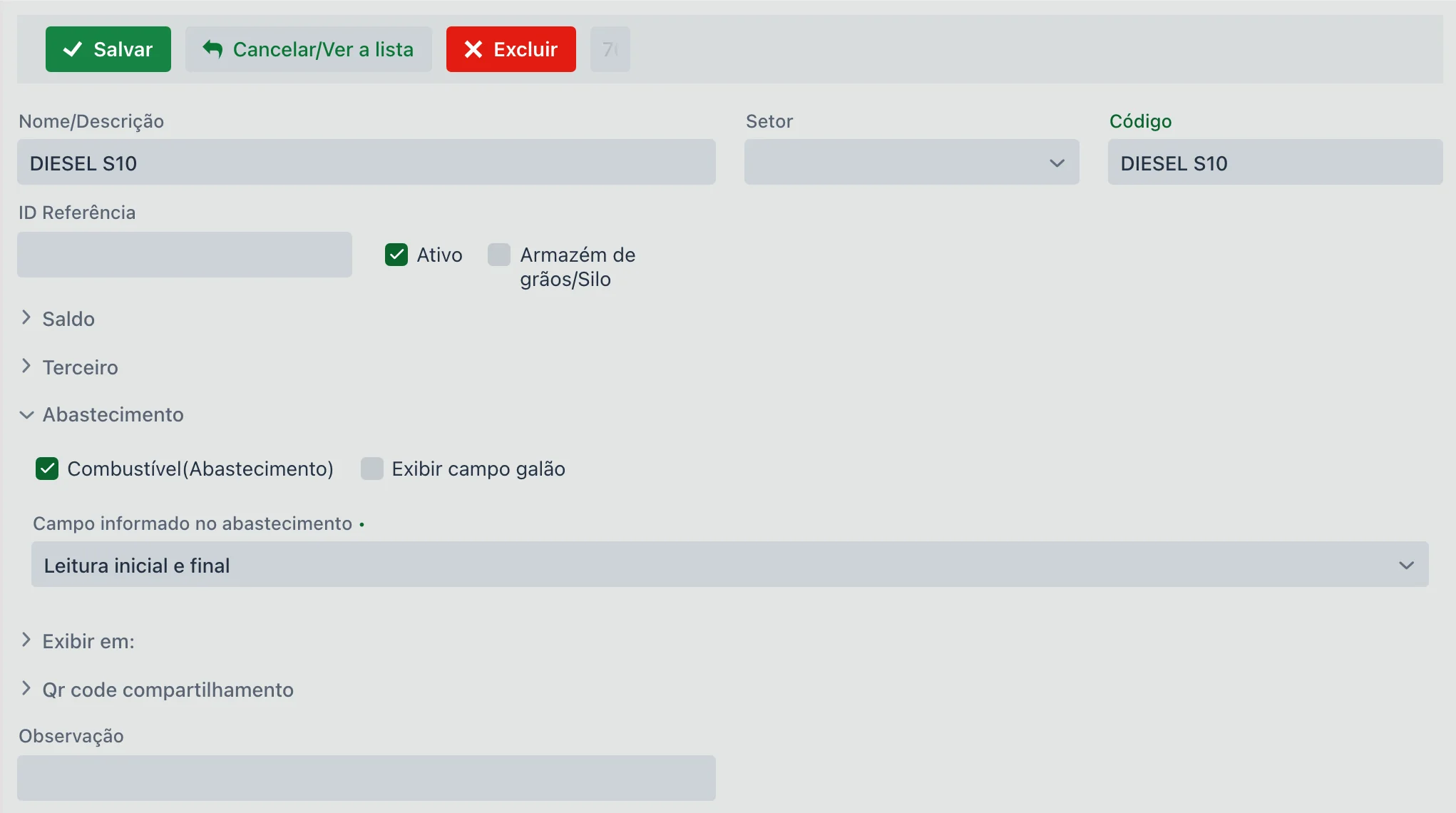
| Field | Description |
|---|---|
| Location description | E.g., "Main Fuel Station", "Chemical Shed". |
| Controls balance | If checked, the system prevents a negative balance. There is a field called "Send e-mail if balance goes negative, to:", where you can enter the e-mail addresses to be notified if the balance goes negative. |
| Grain warehouse | Marks the location as a grain storage facility so it can be filtered on the grain storage screens. |
| Third party | Defines whether the location belongs to another entity (e.g., a contracted warehouse). |
| Fueling |
|
🔒 What "Controls balance" changes
It is the most important decision in the setup, and the only one that changes how other screens behave.
When checked, the location cannot go into the red: an issue that would take the balance below zero is blocked at the moment it is entered. The block appears in the transfer between locations and in the stock issue for the field work order, which are the paths through which product goes out in quantity.
When unchecked, the entry goes through and the balance goes negative. This is not necessarily a mistake by whoever entered the issue: a negative balance almost always means a receipt that has not been entered yet — the invoice for the fertilizer that arrived and is sitting on the office desk, not fertilizer that vanished from the shed.
That is why the "Send e-mail if balance goes negative, to:" field exists: it notifies whoever needs to chase down the invoice, instead of the problem only showing up at month-end closing.
📲 QR Code
- Generated automatically
- Contains a link with direct access to the current inventory, ideal for sharing
🗂 Additional tabs
-
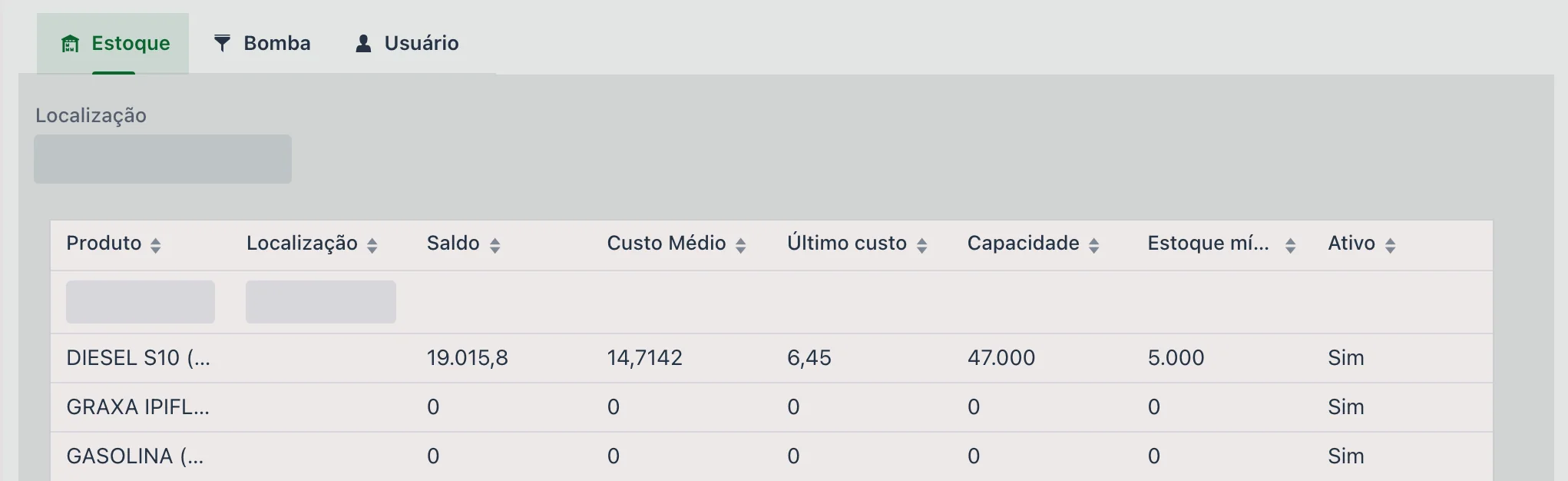
Inventory: shows the products stored at the location. It lets you define:
- Internal location (shelf, section, etc.)
- Minimum/maximum stock
- This enables the restocking reports
-
User: defines which users can access this location.
- If left empty, all users will see the location.
- When filled in, that user will only see the locations they have access to. You can see the user's view in their settings, in the File menu, which shows all the locations they have access to.
📊 Reports and dashboards
On the home screen there is a tab called Inventory, which shows charts and summaries related to storage locations and their products.
📱 Inventory in the app
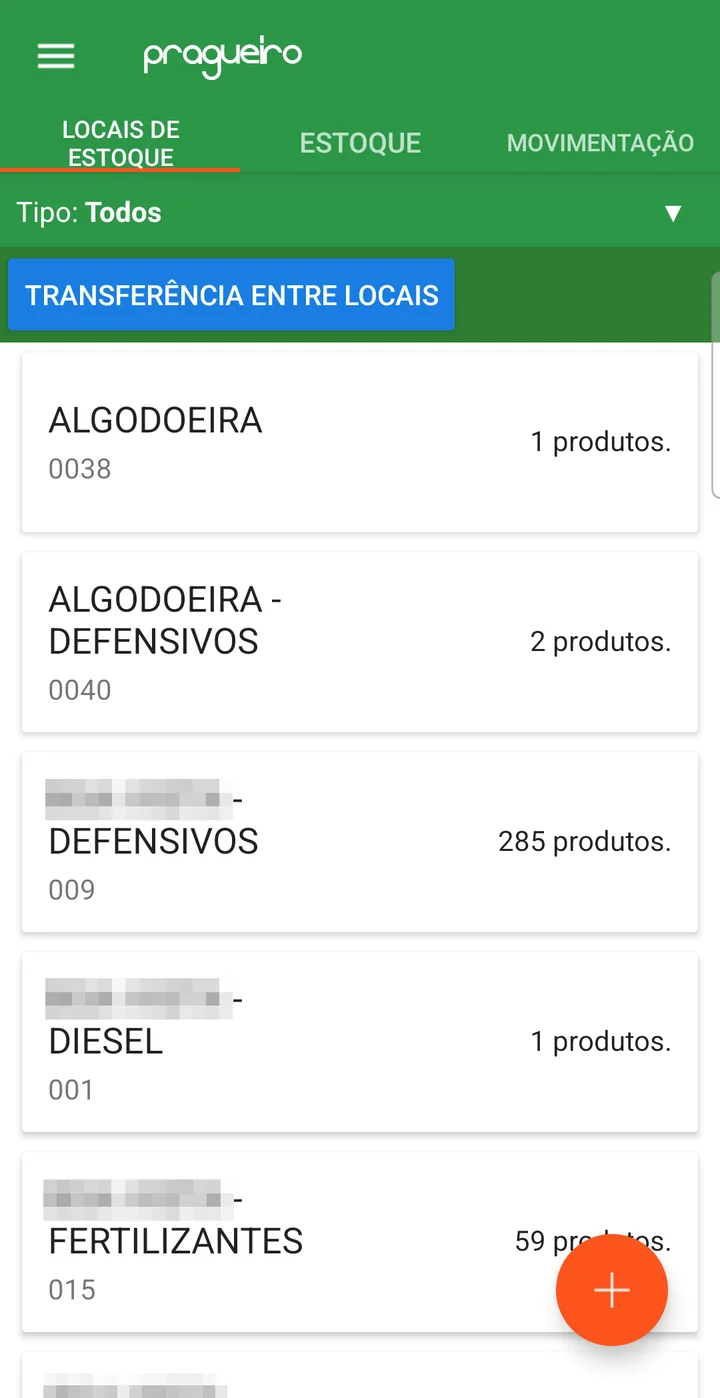
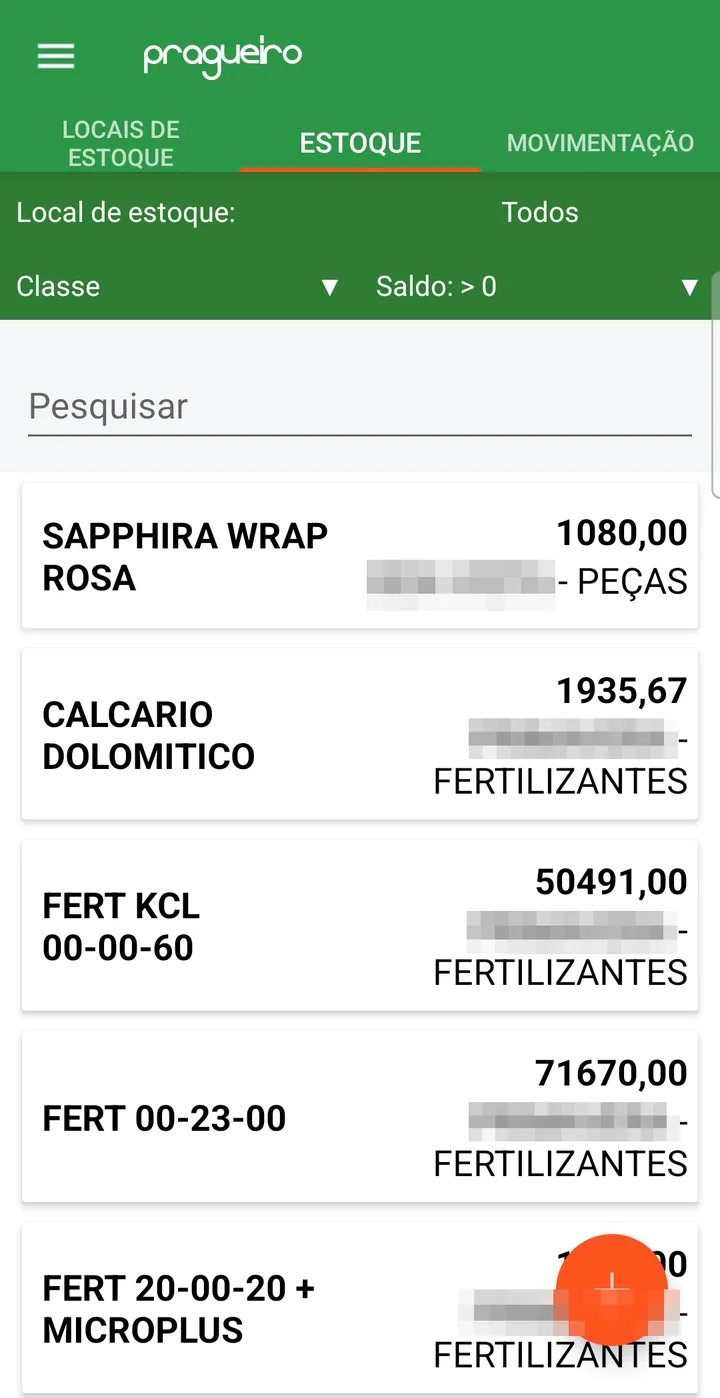
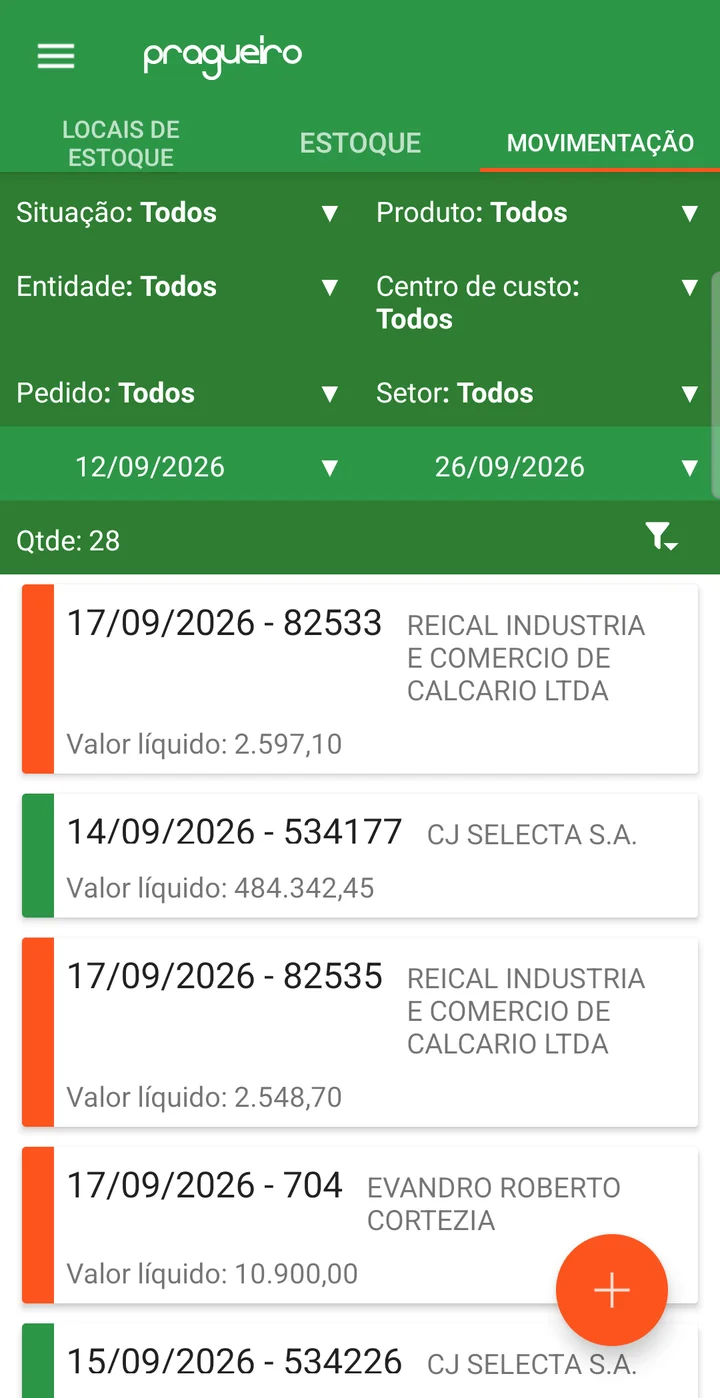
In the app, the Inventory menu has three tabs. STORAGE LOCATIONS lists the locations with how many products each one has, with a Type filter and the TRANSFER BETWEEN LOCATIONS button. INVENTORY shows each product's balance and which location it is in, with filters for location, class and balance, and a search. MOVEMENT lists the inbound and outbound invoices for the period, with filters for status, product, entity, cost center, purchase order and sector.
- Stock count control is more accurate
- Each item has a defined physical location
- Consumption by location becomes safer and auditable
❓ Frequently asked questions
How do I keep the farm's inventory from going negative?
Check the Controls balance option in the location setup. With it on, the system blocks issues that would leave a negative balance. In the same place there is the "Send e-mail if balance goes negative, to:" field, where you enter who should be notified if that happens.
Can I limit which users see each storage location?
Yes, with the location's User tab. If it is left empty, all users see the location. As soon as you link someone, that user will only see the locations they have access to. To check what a person sees, open their settings in the File menu.
How do I set up a third-party warehouse that does not belong to the farm?
Check the Third party option and indicate the entity that owns the location — for example, a contracted warehouse. The location still appears in movements, but it is identified as belonging to a third party.
How do I track fuel at an on-farm fuel station?
Set up the station as a storage location and use the Fueling section: there you define whether the reading is by hour meter or odometer and set up the pumps associated with the location.
How do I know which products are below minimum stock?
Enter the minimum and maximum stock on the location's Inventory tab. This enables report
EST.01.06 (formerly 012.C) - Inventory below minimum level, which lists the products that need restocking.