📘 Screen: Movement (Inbound & Outbound)
A movement is the document that records the inbound and outbound flow of products or services on the farm. In upCampo, it is how a purchase invoice enters the system — the fertilizer that arrived, the freight that was paid, maintenance done by an outside shop —, and also standalone inbound entries without an invoice, and standalone outbound adjustments.
What a movement decides is not just the balance: it is where the cost goes. A product usually goes to a storage location; a service goes straight to a fleet, an entity or a cost center. This destination is chosen item by item, in the field this cost will GO TO:, and it is what turns the invoice into a cost of the right machine, the right field or the right season — an invoice entered with the wrong destination is cost in the wrong place, and no report can fix it afterwards.
📍 Location in the system
Menu: Inventory > Movement (Inbound & Outbound)
🧩 Main function
Mainly to record purchase invoices — for products or services — and assign the inventory and/or the cost to inventory, a fleet or an entity.
Each movement must be linked to a season and, when applicable, to a tax setting (for customers with more than one CNPJ/CPF, the Brazilian company and individual tax IDs).
📋 List features
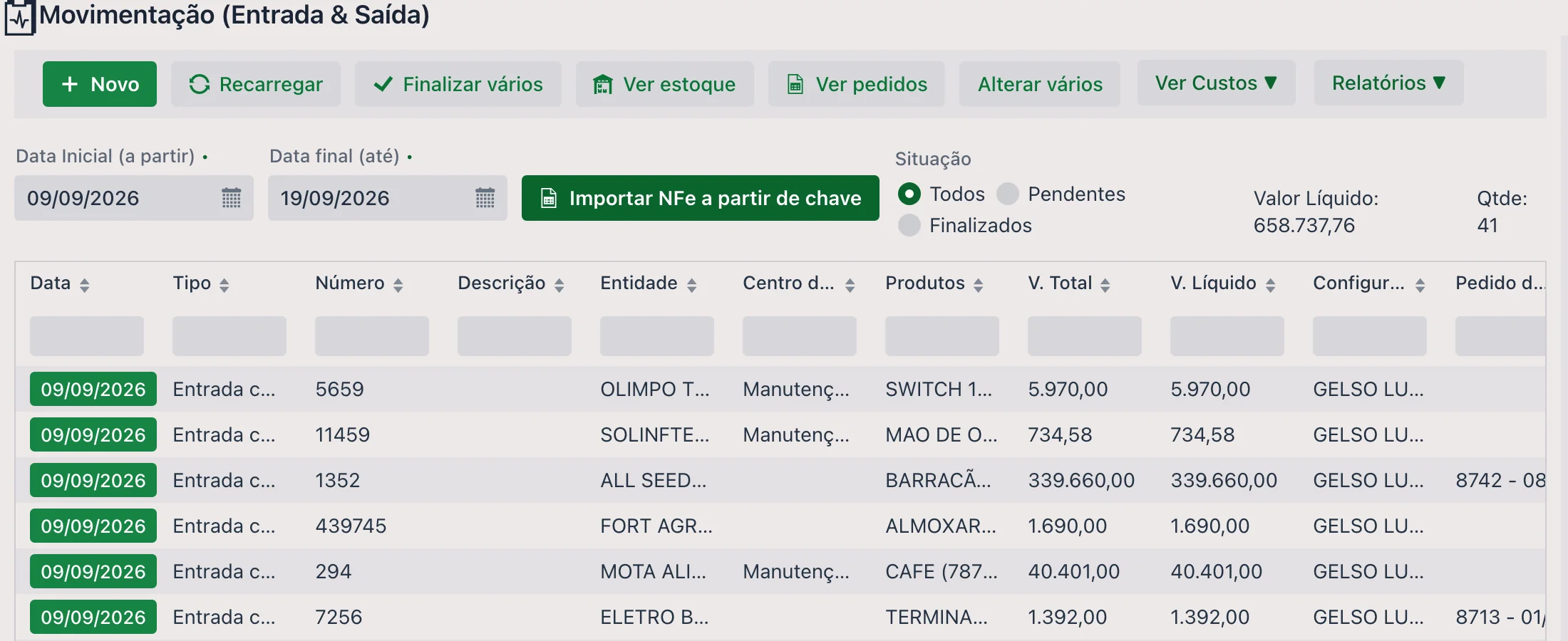
By default, the movement list shows movements dated from the last 7 days up to 7 days ahead.
You can filter by situation: Finalized, Pending or All. Next to the filter are the totals for what is being displayed — Net Value and number of documents —, useful for checking a closed period.
The grid shows Date, Type, Number, Description, Entity, Cost Center, Products, Total V., Net V., Tax settings, Purchase order and Sector, each column with its own search field.
🔄 Buttons and shortcuts
- Import NFe from access key: imports the invoice directly from its access key, without typing item by item.
- Finalize several: finalizes several selected movements in bulk
- View inventory: quickly shows the current product balances
- View orders: shows the purchase orders related to the movements
- Edit several: lets you change the cost center, season or tax setting of several documents
- View Costs ▼: cost queries based on the movements of the period
📝 Movement header
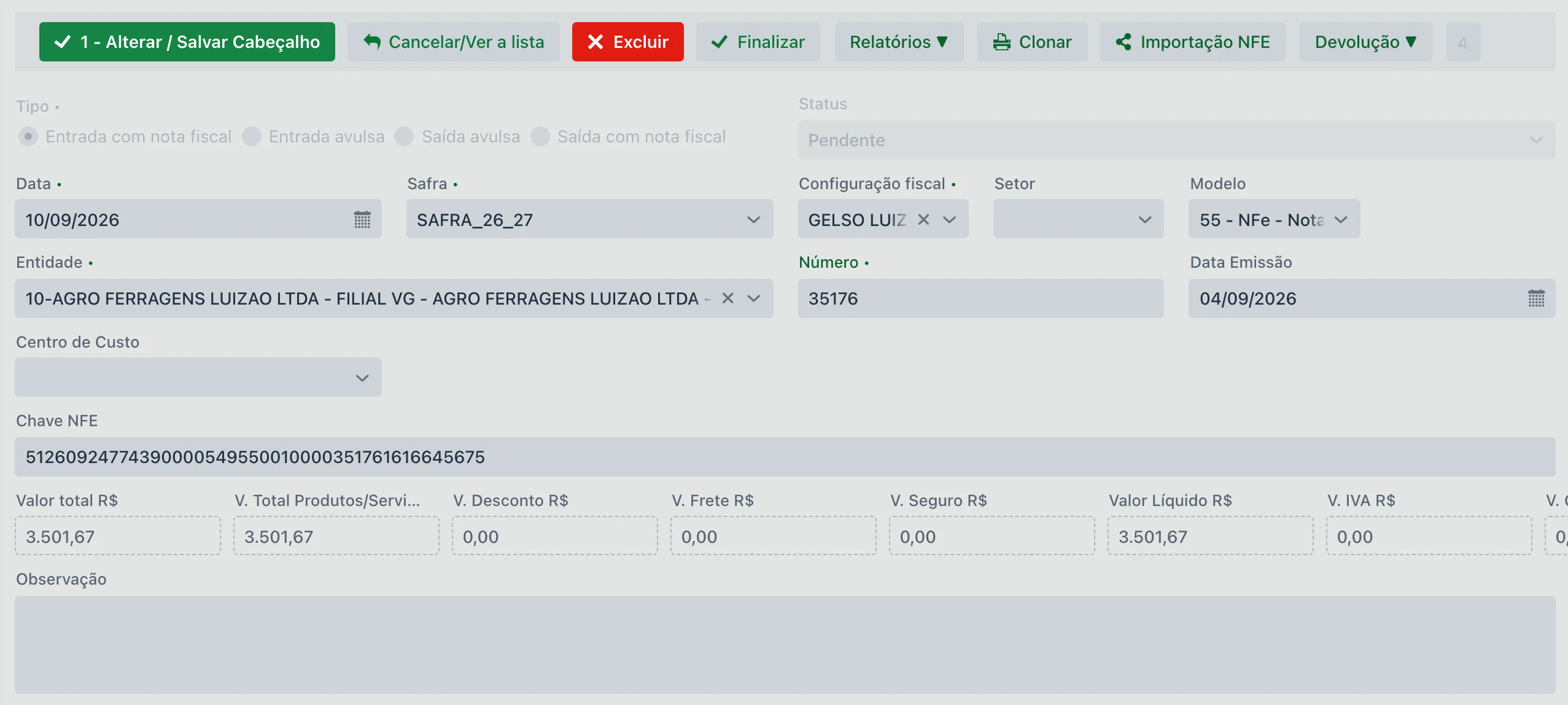
The screen numbers the two steps of an entry: 1 - Edit / Save Header and, on the products tab, 2 - Add / Save Details. You don't need to remember to save the header first: when you save the first detail line, the system saves the header too, if it hasn't been saved yet.
-
Type: the first choice, and the one that determines what the screen will require
- Inbound with invoice: requires some invoice data, such as Entity, Number, Date
- Standalone inbound: requires only a "description"
- Standalone outbound: same as the inbound one, but outbound, usually used for one-off withdrawals
- Outbound with invoice: when the farm itself issues the invoice for the outbound shipment. The issuing itself is done in NFE Transmission, which is this same screen in a dedicated mode
- Status: Pending or Finalized
- Date and Season (required): every movement must be associated with a season
- Tax settings: when there are multiple CNPJs/CPFs, you can choose which tax identity the movement represents
- Sector and Model of the document (for example,
55 - NFe - Nota de produtos) - Entity: the supplier or recipient
- Purchase order (optional): links to the purchase request recorded earlier
- Cost Center
- Number, Issue Date and NFE Key: the invoice data
- Values: Total value, Total Products/Services V., Discount V., Freight V., Insurance V., Net Value, VAT V. and Other Ancillary Exp. V.
- Notes
At the top of the document you also have Clone, which copies the movement so you don't retype a similar invoice, Reopen, for finalized documents, and NFE Import.
Right after NFE Import is the Return ▼ menu, with two actions — Generate return and Cancel this document, both described below. It only appears with the document open, already saved: it acts on the invoice that is on the screen, not on the list. And it doesn't exist on the NF-e Transmission screen.
📦 Tab: Details (Product & Service)
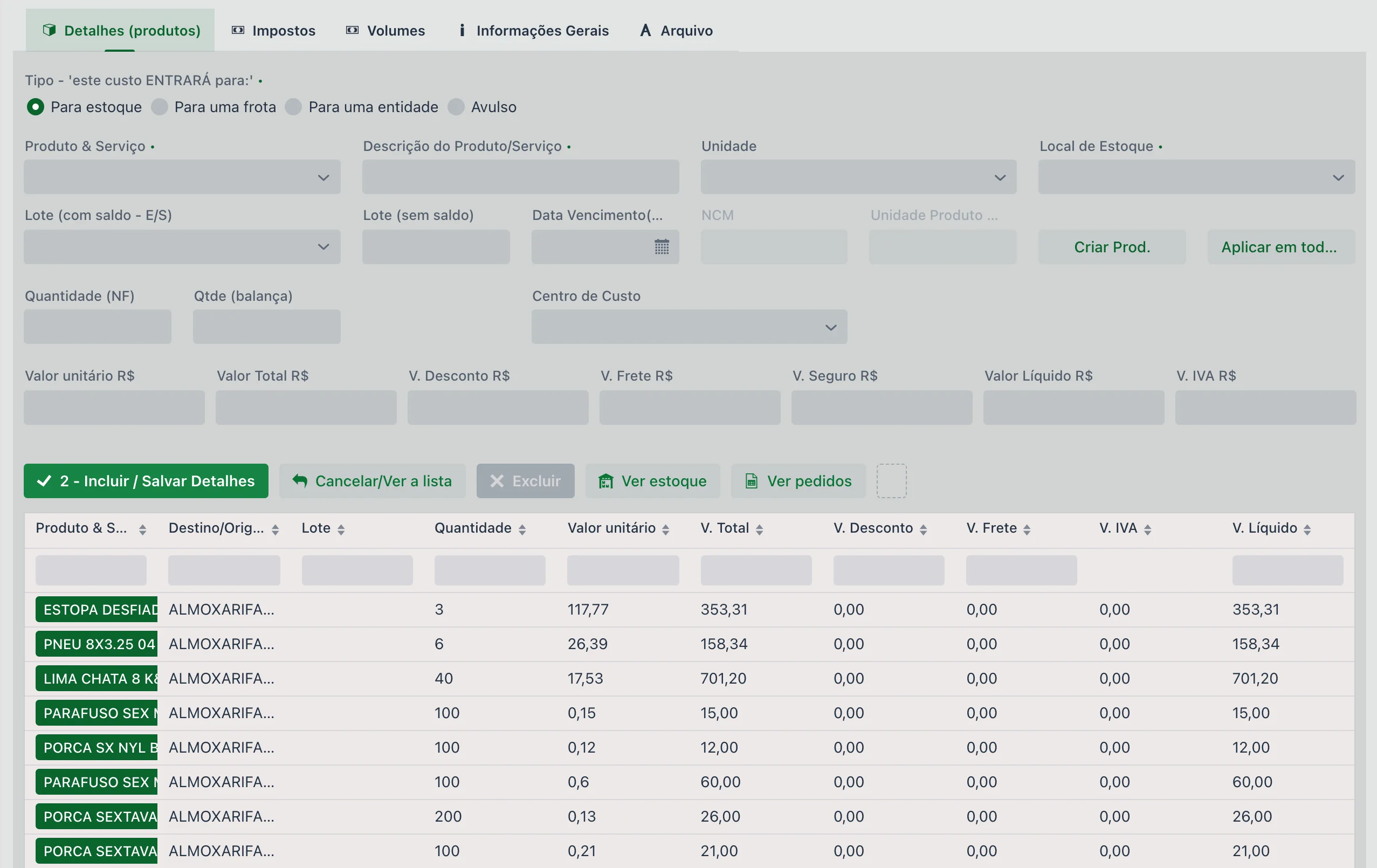
On this tab you add the products or services that are coming into or going out of inventory, or going to a fleet, or to an entity.
🏷 Product class of the item
Each invoice item has a Product class field. The field's help text sums up how it works: "Comes from the product and can be changed; with no product (direct purchase), choose it manually. It gives the item's account when the entity has no account."
- With a product, the class comes from the product record, and you can change it on that line only.
- For a direct purchase, with no registered product, you choose the class manually.
- The class is what tells what was bought — Fuel, Part, Lubricants, Input, Service or Other, through the class's Type field — and it is used to suggest the management account of the bill at finalization (see Finalization).
🎯 Destination type
The first field of the item is Type — "this cost will GO TO:". It defines the path of the product or service being moved and is required:
- To inventory: adds to or removes from a storage location
- To a fleet: assigns it to a piece of equipment or a machine
- To an entity: transfers it to a supplier, customer or third party
- Standalone: moves it with no specific destination (usually for one-off adjustments)
Main fields:
- Unit and Storage Location, the latter required for inbound to inventory
- Purchase order Details: links the item to the purchase order item. Once linked, the Remaining order qty field shows how much of that order has yet to arrive, and the grid marks the line as Related
- Lot: there are two fields — Lot (with balance - I/O), to choose a lot that already exists, and Lot (no balance), for the new lot that is coming in —, plus the Expiration Date (Lot)
- NCM (Brazilian product tax code) of the product
- Quantity (invoice) and Qty (scale), when the load is weighed
- Cost Center and Standalone Load Ticket
- Unit value, Total Value, Discount V., Freight V., Insurance V., Net Value and VAT V.
Next to the button that saves the details are View inventory and View orders, to check balances and open items without leaving the entry.
🧾 Tab: Taxes
Taxation belongs to the item, not the document: each product on the invoice has its own. The tab opens with the CFOP and the purchase order number and item, and organizes the rest into blocks that expand and collapse:
| Block | What it contains |
|---|---|
| Taxed | Taxed unit value, Taxed quantity and Other Ancillary Exp. V. |
| ICMS | Origin, Tax Base Method, CST ICMS, ICMS Base, ICMS %, ICMS, Base Red. % and Exempted ICMS |
| ICMS ST | ICMS ST Tax Base Method, ICMS ST Base, ICMS ST % and ICMS ST |
| PIS & COFINS | CST, base, rate and amount for each |
| IPI | CST IPI, IPI Base, IPI % and IPI |
| Federal IBS, State IBS, Municipal IBS and IBS CBS | The taxes of the Brazilian tax reform, with CST, base, percentages (including reduction and effective rate) and amount |
| Senar | Senar Base, Senar % and Senar — the contribution that appears on rural operations |
| Fuel | A specific block, shown collapsed |
At the end there is the Additional note for the Detail/Line of the invoice, for text that must appear on that line of the invoice.
📦 Tab: Volumes
The shipping volumes — quantity, type, brand, gross and net weight. This makes up the shipping data of the issued invoice.
ℹ️ Tab: General Information
Additional document data, used mainly when issuing invoices and in tax checks.
🧾 Tab: File
Lets you attach documents.
💰 What an inbound entry does to inventory cost
An inbound entry doesn't just add quantity. It recalculates the average cost of the product at that location — and it is this average cost, not the price on the last invoice, that values the outflow on the work order and in the reports.
A shed with 1,000 L of a crop protection product bought at R$ 25.00 receives an invoice for 500 L at R$ 31.00:
| Moment | Balance | Accumulated cost | Average cost |
|---|---|---|---|
| Before the invoice | 1,000 L | R$ 25,000.00 | R$ 25.00 |
| Invoice received | +500 L | +R$ 15,500.00 | (R$ 31.00 on the invoice) |
| After the invoice | 1,500 L | R$ 40,500.00 | R$ 27.00 |
From then on, each liter that goes out to a work order is worth R$ 27.00 — not R$ 31.00, nor R$ 25.00. This is the expected behavior of an inventory valued by average cost, and it explains the most common question from people checking costs: buying at a high price at the end of the season raises the cost of everything still in the shed, including what was bought cheaply before.
On outbound, the calculation is the same in reverse: balance and accumulated cost go down, and the average is recalculated with what remains.
↩️ Return: generating the invoice back
A wrong load arrived, the product came damaged, or the invoice has an item the farm didn't buy. To return the goods to the supplier you need to issue a return invoice — an outbound document that points to the original inbound invoice. The Return ▼ menu builds that outbound document for you, from the inbound entry that is selected.
Open the inbound invoice you want to return — the return acts on the open document — and, in the top bar, choose Return ▼ > Generate return. The window asks for two fields, which are what the outbound invoice needs in order to be transmitted:
| Field | Description |
|---|---|
| Series | The series of the outbound invoice that will be created. If only one is registered, it comes preselected. |
| Nature of Operation | The nature of the return operation, which is what describes the outbound document to SEFAZ (the state tax authority). |
The outbound document created does not appear on this screen — it lives in NFE TRANSMISSION - Movement, and the system takes you straight there after generating it. That's where you review and transmit it.
Three conditions must be met, and the system tells you when one is missing:
- the document must be of type Inbound with invoice — you can't generate a return for a standalone inbound entry or for an outbound one;
- it must have an access key. Without the key there is no way to reference the original invoice, and the option stays disabled. This is the case for inbound entries typed in by hand, without importing the XML;
- there must be an active series registered.
🚫 Cancel this document
The other option in the Return ▼ menu, at the top of the open document, is Cancel this document. It is for a document that is no longer valid but needs to stay on record — the rejected invoice, the entry found to be wrong after it was saved, the document the farm doesn't want to simply erase from history.
It is an internal cancellation: it doesn't talk to SEFAZ. When you confirm, the system asks for the reason — at least 15 characters, the same requirement as an NF-e cancellation — and then:
- the document's situation becomes Canceled;
- all items become Standalone: they lose storage location, field, fleet, entity and allocation. In practice, the document stops having any effect on inventory and cost, but it still exists and can be looked up;
- who canceled it, when and why is recorded — including in a line added to the document's Notes, which is what people read later during a review.
🔒 Finalization
After fully checking the movement, you need to "finalize" the document. At finalization, upCampo asks whether the movement will generate a bill in Accounts Payable/Receivable, with the payment method, the management Account, the Cost Center, the date of the first installment and the installments.
The invoice generates a single bill
Since October 8, 2026, the invoice generates a single bill, for any payment method. Before, there were several — one per management account of the items —, and the account selector only appeared for cash payment. A single bill is what matches reality: the supplier sends one payment slip, there is one payment, and reconciliation, payment batches and bank remittance all see the whole invoice.
The bill's management account is suggested in this order:
- the Account chosen in the finalization window — it overrides everything;
- the account of the entity (the supplier or the customer);
- the account of each item's product class — the inbound one on an inbound invoice, the outbound one on an outbound invoice.
The window shows the "Account suggested by the product class or by the entity" and, when the items fall into different accounts, the Planned allocation. Choosing an account in the window replaces that allocation with the chosen account.
- Supplier with an account: all items go to it, with no allocation.
- Supplier with no account and items from classes with different accounts: the bill is created with an allocation by item value, saved in the bill's Allocation tab, and each installment gets the same allocation. The bill's main account is the one with the highest value.
- No account anywhere: upCampo warns — "Bill without a management account" — and offers Go back and choose the account or Generate anyway. Without an account, the entry does not get the income tax flag in the tax cash book.
Example: invoice with items in different accounts
An invoice for R$ 10,000.00 with R$ 6,000.00 of fertilizer (Inputs class) and R$ 4,000.00 of diesel (Fuel class), from a supplier with no management account:
- Products are correctly added to inventory with traceability, or assigned to a fleet and an entity — and contracted services go straight to the cost of whoever used them
- Inbound entries are linked to the season and, if applicable, to the purchase order
- You can generate accurate accounting and inventory reports, or fleet cost reports, or entity reports
📊 Related reports
❓ Frequently asked questions
How do I return goods to the supplier?
Open the inbound invoice in Movement and, in the document's top bar, use Return ▼ > Generate return. Enter the series and the nature of operation, and upCampo creates an Outbound with invoice referencing the key of the original invoice. The outbound document appears on the NF-e Transmission screen, where you check the CFOP of the items — copied from the inbound invoice —, the values and the taxes before transmitting. The return doesn't remove inventory on its own: if the product had already been received, removing it is a separate entry.
The Generate return option is grayed out. Why?
It is only enabled for documents of type Inbound with invoice that have an access key. Standalone inbound entries, outbound documents and invoices typed in by hand without the key can't be referenced in a return — the key is what identifies, on the return document, which invoice is being returned. You also need at least one active series registered.
I entered a document by mistake. Should I delete it or cancel it?
It depends on whether you need the record. Cancel this document, in the Return menu of the open document, keeps the document in history with the Canceled situation, recording who canceled it and why, and removes its effect: the items become Standalone and no longer count toward inventory, field, fleet or allocation. That's the way to go for a rejected document or for anything that needs to stay traceable. Deleting removes the record entirely. And if the invoice has already been sent to SEFAZ, neither option works: the cancellation is done on the NF-e Transmission screen.
How do I enter a purchase invoice?
On this screen, which is the main way products enter the system. Save the header with the type "Inbound with invoice" and then add the products on the details tab. You can also use the Import NFe from access key button, which brings in the invoice directly from its access key.
I clicked Import NFe from access key and nothing came in. Why?
That import depends on the digital certificate registered in the branch's Tax settings: it is what authorizes the system to fetch the invoice from SEFAZ. Without a certificate — or with an expired one — the lookup returns nothing, and the invoice has to be entered manually.
Is the movement tied to the selected season?
No. Every document is associated with a season, but that is just an indication of which season it refers to — it doesn't prevent its use in other contexts.
I can't find a movement I entered. What should I do?
Adjust the filters: by default the list only shows the last 7 days and the next 7 days. You can also filter by situation — Finalized, Pending or All.
Can I enter a standalone outbound for a product?
Yes. Although it is mainly used for inbound entries, the screen also records standalone outbound entries, for one-off adjustments.
Can an inbound entry go to a fleet instead of inventory?
Yes. A movement lets you assign the inventory and/or the cost to a storage location, a fleet or an entity.
Where do I enter a service invoice — freight, outside maintenance, third-party application?
On this same Movement screen. The service is an item registered in Product & Service, in a class of type Service. On the details tab, instead of sending it to inventory, choose the cost destination: to a fleet, to an entity or standalone.
Why did the invoice generate a bill with an allocation?
Because the supplier has no management account in its record and the invoice items belong to product classes with different accounts. upCampo generates a single bill and splits it by item value — on an invoice with R$ 6,000.00 of fertilizer and R$ 4,000.00 of diesel, 60% Inputs and 40% Fuel. If you choose the account in the finalization window, or if the supplier has an account, everything goes to it, with no allocation.
Does the invoice still generate one bill per account?
No. Since October 8, 2026, finalization generates a single bill, for any payment method. When the items belong to different accounts, the split goes into the bill's allocation, not into separate bills.