🛠 How the John Deere integration works
The integration with John Deere brings into upCampo the work that the machines already record on their own in the Operations Center: how many hectares each field received, on which day, with which machine, in how much time and with how much fuel. Instead of someone typing the work order's execution at the end of the day, the order fills itself in with what the sprayer, the tractor or the harvester recorded in the field.
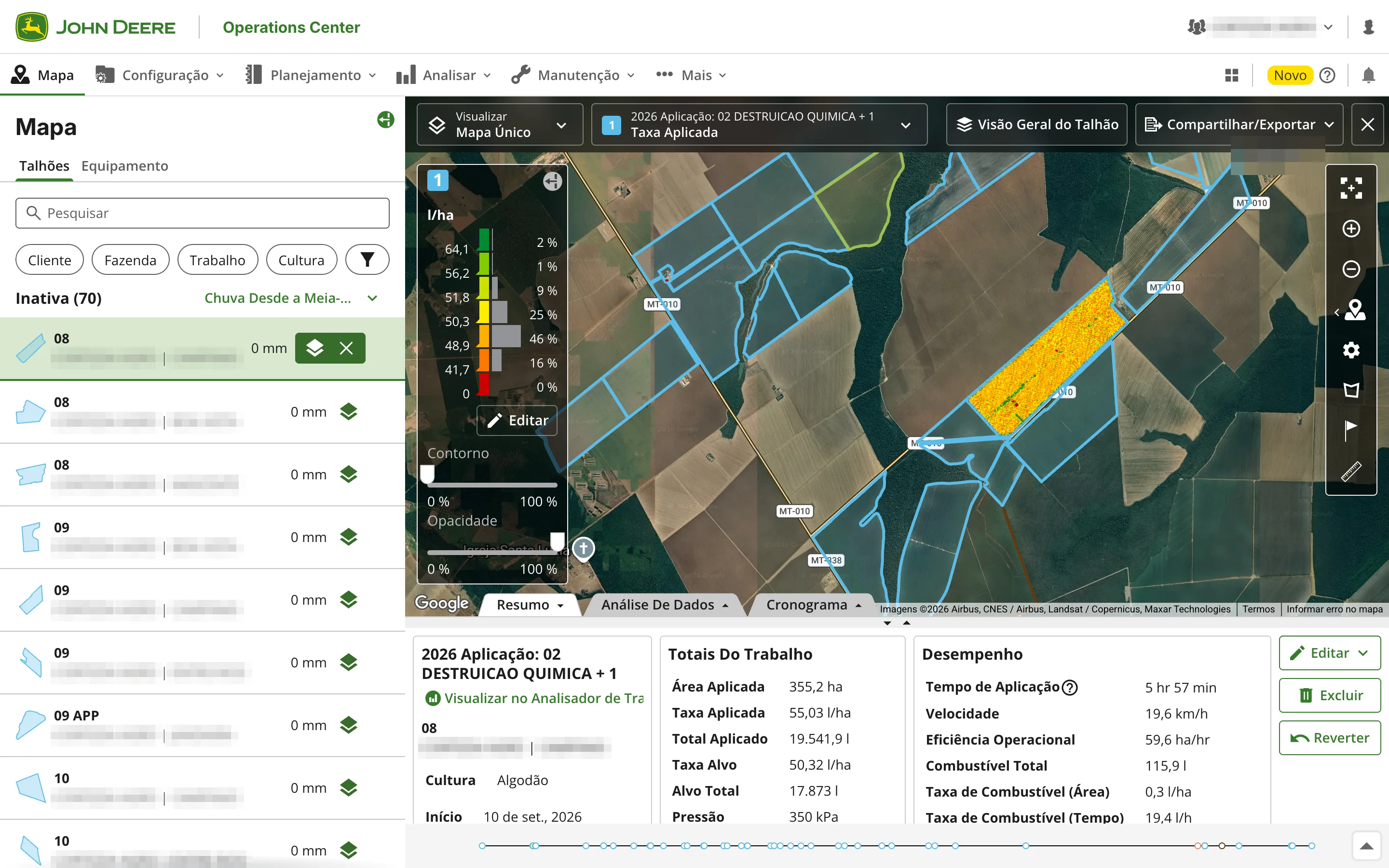
And it also sends information the other way: the farm's weather stations and rain gauges show up on the Operations Center map with rainfall and weather, and the application map of each field, made in Field maps, can be sent to the matching field.
This article shows the whole path, from setup to result: how to connect the farm's John Deere account, what has to be linked between the two systems, how upCampo figures out which work order each John Deere operation belongs to, what appears on the order's two execution tabs and where that number ends up — on the operations, yield and machine dashboards.
The setup is done once, in this order:
- Connect the farm's John Deere account and approve upCampo's access.
- Link the farm to the John Deere organization, in the Farm record.
- Link each upCampo field to the matching John Deere field.
- Link each activity type to the John Deere operation type.
- Write the order's Ide. Res. exactly like the product the operator enters in John Deere.
From then on it is automatic: the machine works, upCampo finds the work order, and the area and the per-machine detail go into it — and feed the dashboards.
🧩 What the integration brings — and what it doesn't
The integration runs both ways. From the Operations Center into upCampo comes the work the machines recorded. From upCampo to the Operations Center go the farm's weather stations and rain gauges and the application map of each field. The operation recorded by the machine is read only: upCampo does not change or delete anything the display recorded.
⬇️ From John Deere to upCampo
| It brings | It does not |
|---|---|
| The area worked in each field, per day | It does not create work orders — the order has to exist beforehand |
| Machine, hours, liters of diesel, speed, width and applied rate | It does not deduct inputs from inventory or post product cost |
| The yield and total quantity applied or harvested in the operation | It does not fill in the operator as an upCampo employee |
| The cotton bales produced by the harvester | It does not touch aerial application orders |
⬆️ From upCampo to John Deere
| What is sent | How it shows in the Operations Center | Where to turn it on in upCampo |
|---|---|---|
| The farm's weather stations and rain gauges, with today's, yesterday's, 7-day and 30-day rainfall and, for stations, temperature, humidity and wind | A point on the Map, Assets tab, with the rain gauge's name; the readings update on their own every 30 minutes | In the Rain Gauge record, the option Send to John Deere Operations Center |
| The application map of each field — applied rate, deviation from target, passes or coverage, with the legend | A map item on the field, with the name chosen when sending, next to the machine's operations | In Crops > Field maps, the Send to Operations Center button |
Weather stations and rain gauges. What goes to the map is an active rain gauge, with
latitude and longitude, on a farm already linked to the John Deere organization (step 2). Check the option in the
record and save; the first send happens within 30 minutes. Each one's status appears in
File > Integrations, on the John Deere card, Stations in Operations
Center tab: On the map, Waiting for the first send, No location or
Farm without John Deere ID. That is also where the Send now,
Rename (changes the name shown on the map) and Remove from map buttons are; the last one removes
the point and the readings from the Operations Center and unchecks the option in the record.
Application map. On an application map that has already been processed, Send to Operations Center opens a window where you choose what to Show (one or more views, which go together as layers of the same item), the Product and the Name in Operations Center. One item is sent per field. Resending with the same name replaces the previous one; with a different name, it creates a new item. The list of sends, in the same window, shows the status of each one (Sent, Replaced, Deleted) and has the trash icon to Delete from Operations Center.
1. Connect the John Deere account
To read the operations, upCampo needs the grower themselves to authorize, in John Deere, access to their organization's data. That authorization is done through a connection link:
- Ask the upCampo team for the link. It arrives by WhatsApp, is valid for 7 days and can be used only once. Anyone with access to the Farm record can also generate it there (see the box below).
- Open the link and sign in with your John Deere account — the farm's Operations Center account, with your own username and password. You sign in on John Deere's own website: upCampo never sees the password.
- Approve upCampo's access on the screen John Deere shows next.
- If John Deere opens the Operations Center approval screen, it means an organization on the account has not yet authorized upCampo: review and save. When you save, John Deere sends you back to the upCampo page.
- Check the "John Deere account connected" page. It lists the organizations the account can see, each one marked as authorized for upCampo or awaiting approval.
Ideally, the connection is made by an organization administrator in John Deere: that way the approval in step 4 happens right away, without depending on someone else.
Organization "awaiting approval". A John Deere account can see more than one organization. If any of them shows as awaiting approval in Operations Center, an administrator of that organization still needs to approve upCampo's access inside the Operations Center. Until that happens, that organization's data does not come in — the others keep working normally. John Deere takes you to the approval screen for only the first pending organization; the others are approved by each one's administrator directly in the Operations Center, and then you click Refresh organizations in the web portal's connection window.
The connection is made once. Access renews on its own, without anyone signing in again. It only drops if the account owner revokes upCampo's authorization in John Deere, changes the password or leaves the organization. In that case the account shows in the connection window as Refused — connect again: generate a new link and repeat the steps above.
John Deere connection button. In the
Farm record, next to the
John Deere ID (integration) field, the button opens the
John Deere Operations Center connection window. It shows the company's John Deere accounts already
connected, with each one's organizations marked as authorized or
awaiting approval in Operations Center, and it has the
Connect John Deere account button, which generates the same connection link — to open it
(Open John Deere sign-in) or copy it and send it to whoever has the farm's John Deere
username. After finishing the connection, click Refresh. Anyone without access to that
record asks the upCampo team for the link.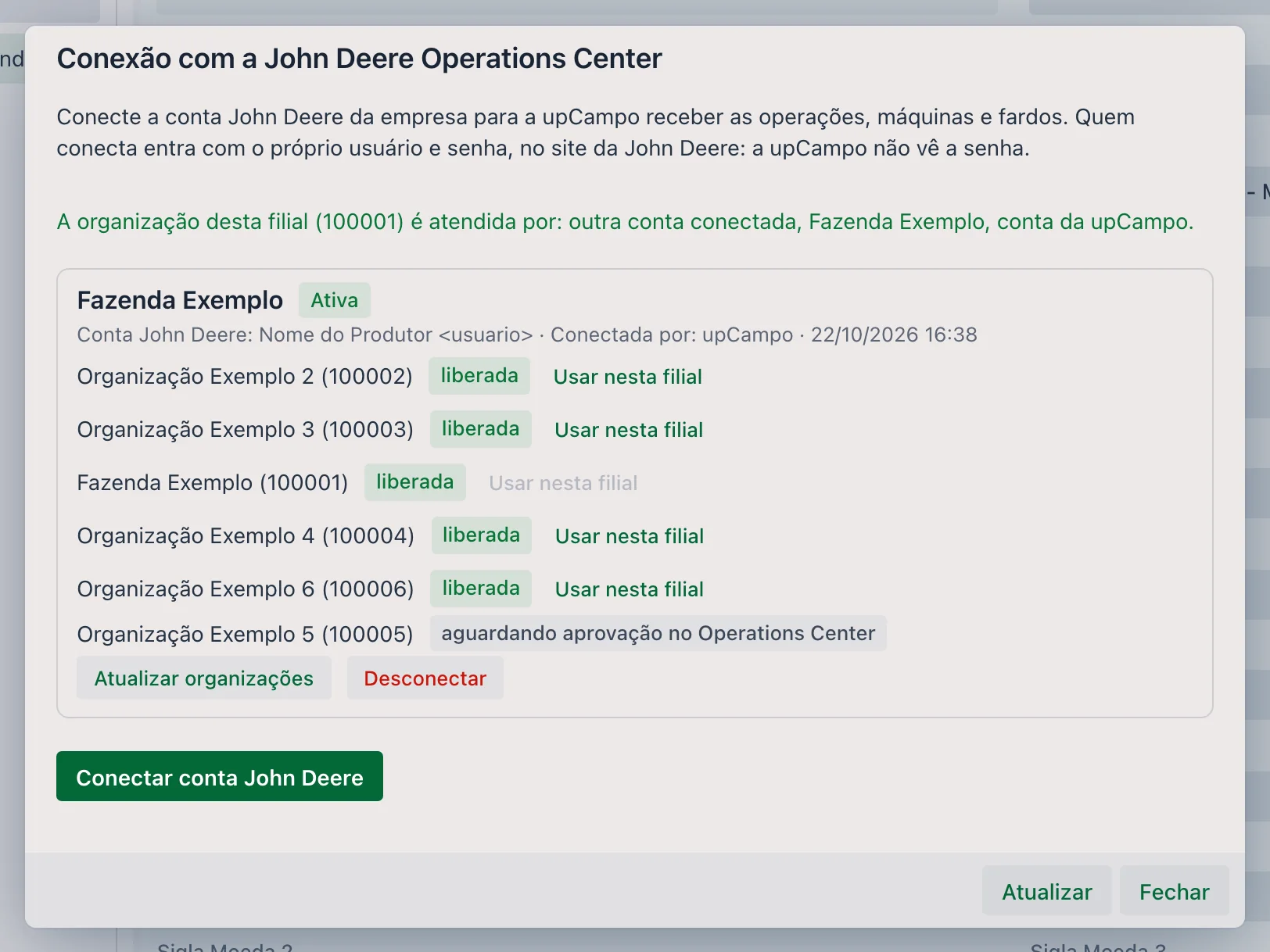
2. Link the farm to the John Deere organization
Menu: File > Farm — John Deere ID (integration) field
In John Deere, a grower's fields, machines and operations live inside an
organization. The John Deere ID (integration) field in the Farm record says
which organization matches that farm — it is what makes upCampo fetch the right fields and
operations.
In the window of the John Deere connection button, each authorized organization has the
Use in this farm button, which fills in the field without typing the code; then just
save the farm. If you prefer, the upCampo team does this step together with the
connection.
3. The upCampo field is linked to the John Deere field
Menu: Crops > Field — Integration tab
Both systems have the same field registered, each with its own internal code. The Integration tab of the Field record is where you say that field 08 – CAMPINAS in upCampo is the same 08 in John Deere. Repeat for every field that will receive John Deere operations.
On the tab, the John Deere Integration ▼ button holds what you use day to day:
| Option | What it does |
|---|---|
| Refresh Options | Fetches the organization's current field list from John Deere. It is the first step when a new field was created there. |
| Select JD Field | Opens the list of John Deere fields (name, farm, type and last change). When you pick one, the ID, description and sector fill in on their own. |
| Open Last JD Operation / Open All JD Operations | Open the John Deere response window with what John Deere returns for that field, in the technical format it sends. They are for confirming the link responds; to interpret the content, ask the upCampo team for help. |

The tab's list shows the saved link: Description, Sector,
ID (the field's code in John Deere) and Type, which here is
Jonh Deere. The same tab serves other integrations — that is why the Type field exists.
4. The activity type is linked to the operation type
Menu: Operations > Work Order/Activity Type — Operation tab
John Deere classifies all field work into four types. upCampo works with the farm's activity types — Crop Protection Spraying, Disking, Planting, Harvest. The Operation tab is the mapping between the two:
| Type in John Deere | What it is |
|---|---|
Application | Application — crop protection, liquid fertilizer, burndown |
Seeding | Seeding / planting |
Harvest | Harvest |
Tillage | Soil preparation — disking, subsoiling |
These four names are registered once in
Operations > Operation, and the Description there must be exactly the name
John Deere uses (Application, Seeding, Harvest,
Tillage) — it is by this text that the two sides recognize each other. Then, in each activity
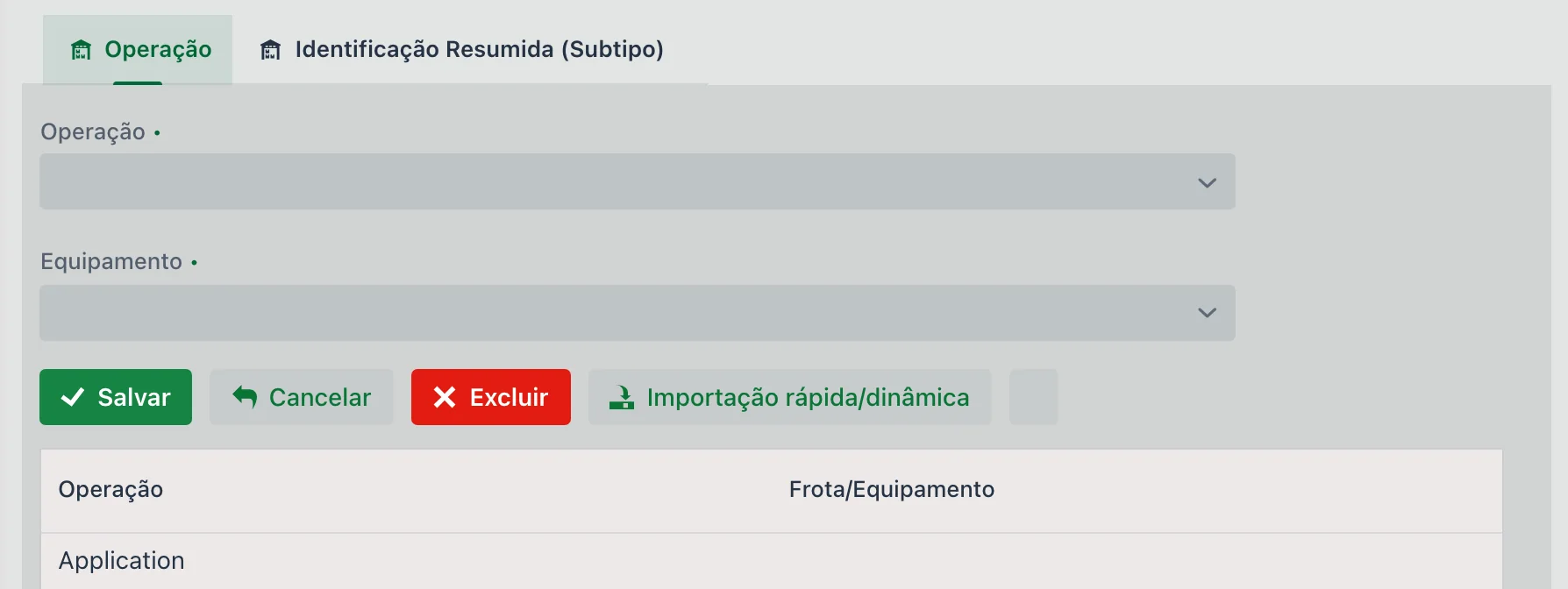
type, the Operation tab gets a line linking that type to the matching operation. The
Quick/Dynamic Import button creates these lines all at once.
The same line has the Equipment field, which reserves a fixed fleet unit for whatever comes in through that operation. Since the imported execution does not bring the machine that worked — it brings the area of the whole operation —, the usual practice is to use a generic fleet unit there, John Deere Integration, which marks in the list what came from the integration and what someone typed.
Application.5. The Ide. Res. is the product name in John Deere
Menu: Operations > Short ID (Subtype)
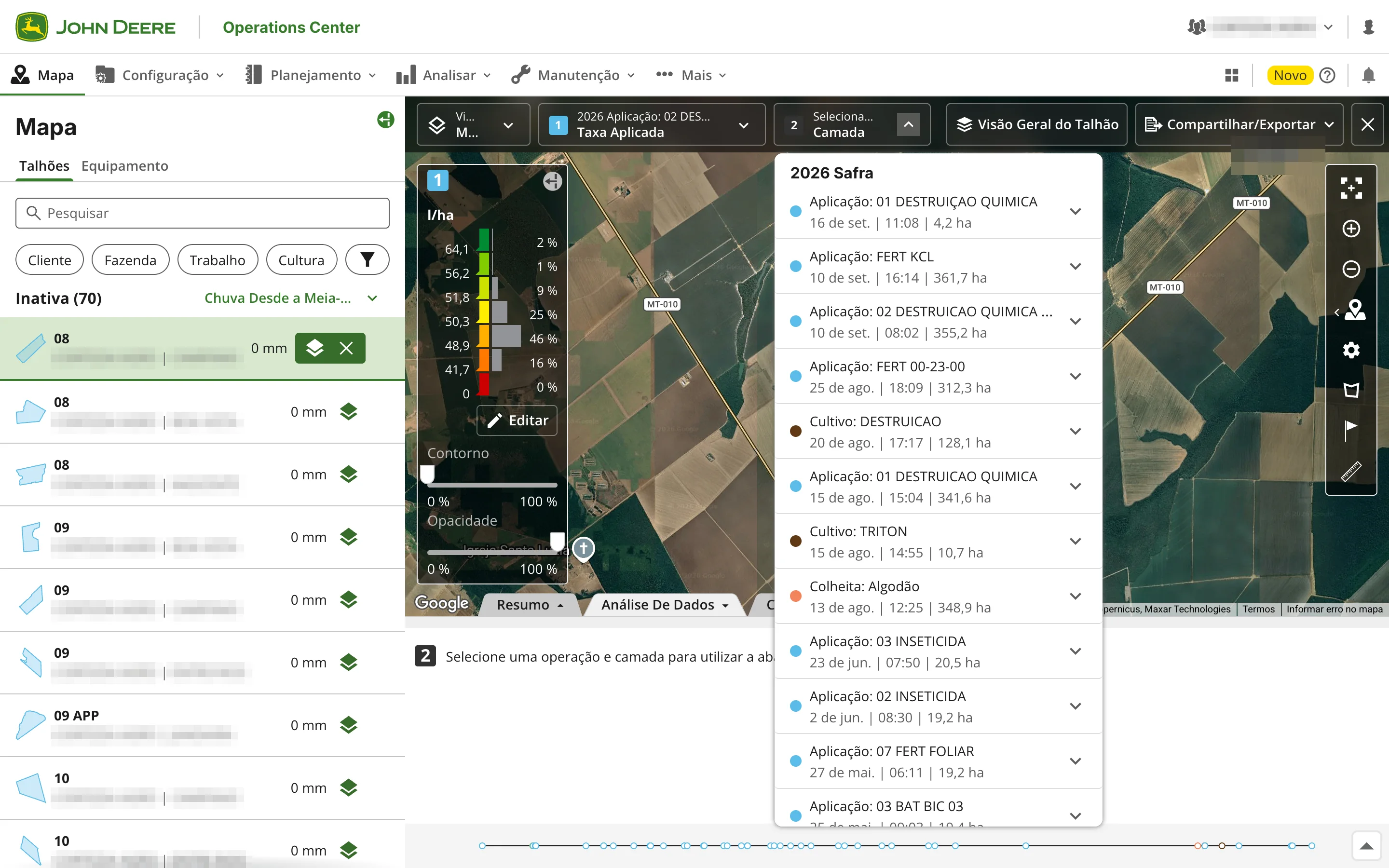
Ide. Res. is how the web portal abbreviates the short identification: the subtype that tells one order apart from another within the same activity type — 02 DESTRUICAO QUIMICA, FERT KCL, PLANTE E APLIQUE.
This is the fine-grained key of the integration. In the Operations Center, the operator records the operation entering the product applied; John Deere stores that name with the operation. upCampo reads that name and looks for the work order with the same Ide. Res. — text for text.
That is why the field rule is short: the product name in John Deere and the order's Ide. Res. must be written the same way. That is how a September 8 operation on field 08 finds the right order, and not the order for another application on the same field.
Two exceptions, which do not depend on the name:
- Planting (
Seeding) — the order is found if it is marked as a planting order. - Harvest (
Harvest) — likewise, if it is marked as a harvest order.
For soil preparation, the name used is the tillage type entered in John Deere.
🔎 How upCampo picks the work order
Every twenty minutes upCampo asks John Deere what is new on the linked fields — and John Deere also notifies when it closes an operation. For each operation received, the order search follows this list:
| Condition | Detail |
|---|---|
| Same field | The field linked in step 3, within an active season |
| Compatible activity type | Through the mapping in step 4 |
| Same Ide. Res. | Or a planting/harvest order, in the two cases of step 5 |
| Order not finalized | An order already finalized no longer receives area |
| Cannot be an aerial application | An order marked as aerial stays out of the integration |
| Compatible date | The order cannot be scheduled for more than 60 days after the end of the operation |
If more than one order meets all of this, the one with the planned date closest to the start of the operation wins; if it is still a tie, the one registered last.
6. What reaches the work order
Menu: Operations > Work Order/Activity
The operation found becomes a record on two different tabs of the order, with different purposes.
4 - Execution tab: the area that counts
It is the regular execution tab, the same one someone would fill in by hand. The integration adds a line there per field and per day, with:
| Column | What comes from John Deere |
|---|---|
| Date | The day of the work |
| Area | The hectares worked on that field |
| Field | The linked field |
| Fleet | The integration's generic fleet unit — not the machine that worked |
| Hours Qty | Left at zero: the real hours are on the next tab |
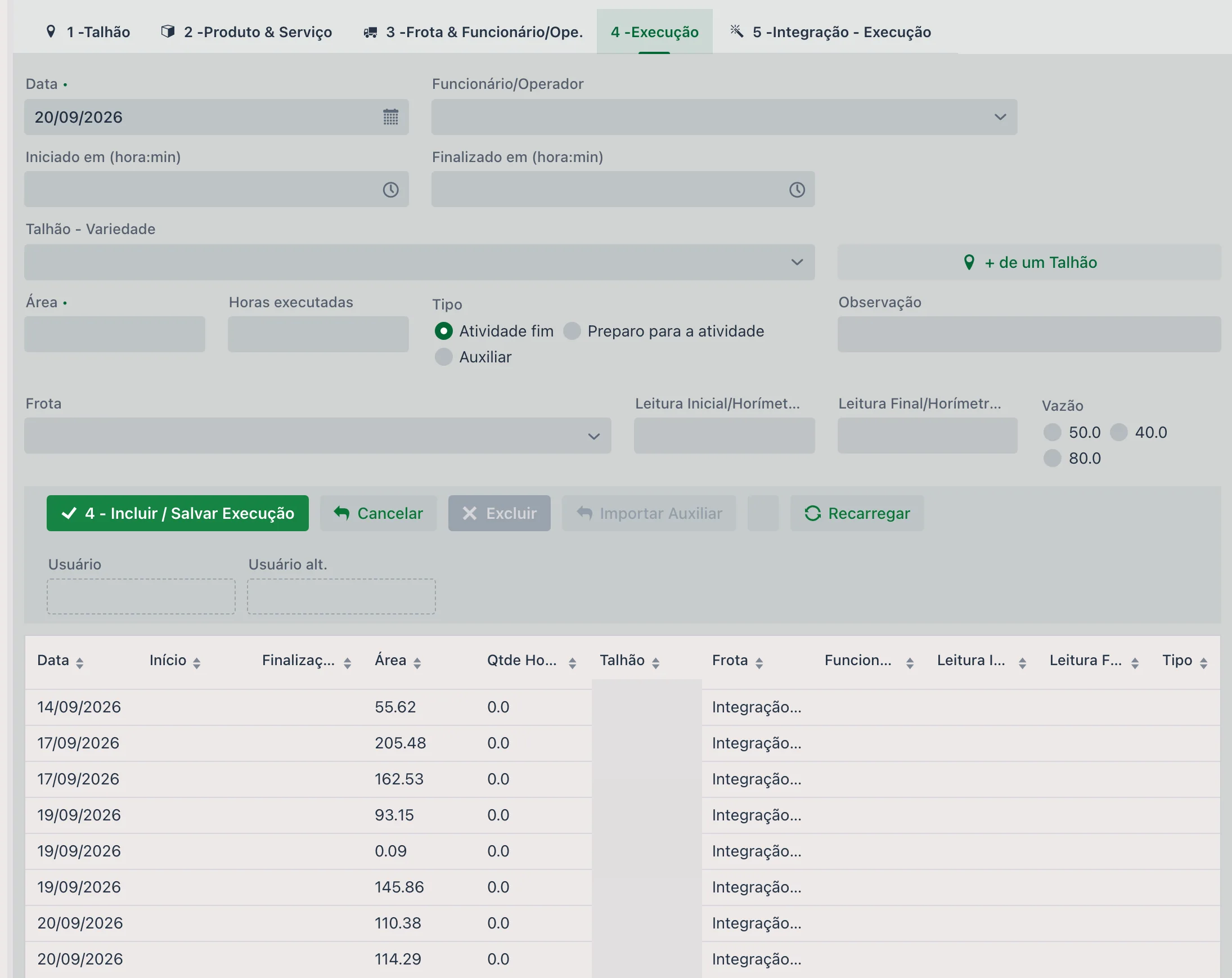
It is this area that adds up in the order's % Executed and in the list's Area exec. column — the number the manager looks at to know how much of the order is already done.
5 - Integration - Execution tab: machine by machine
This tab only appears when the farm has the John Deere integration. It shows the detail the execution tab does not carry: one line per machine and per day.
| Column | What it shows |
|---|---|
| Date | That machine's working day |
| Area | The hectares that machine covered that day |
| Hours Qty | The hours of actual work, in decimal |
| Field | The field |
| Fleet | The real machine, recognized by the chassis or serial number |
| Integration ID | The operation's code in John Deere |
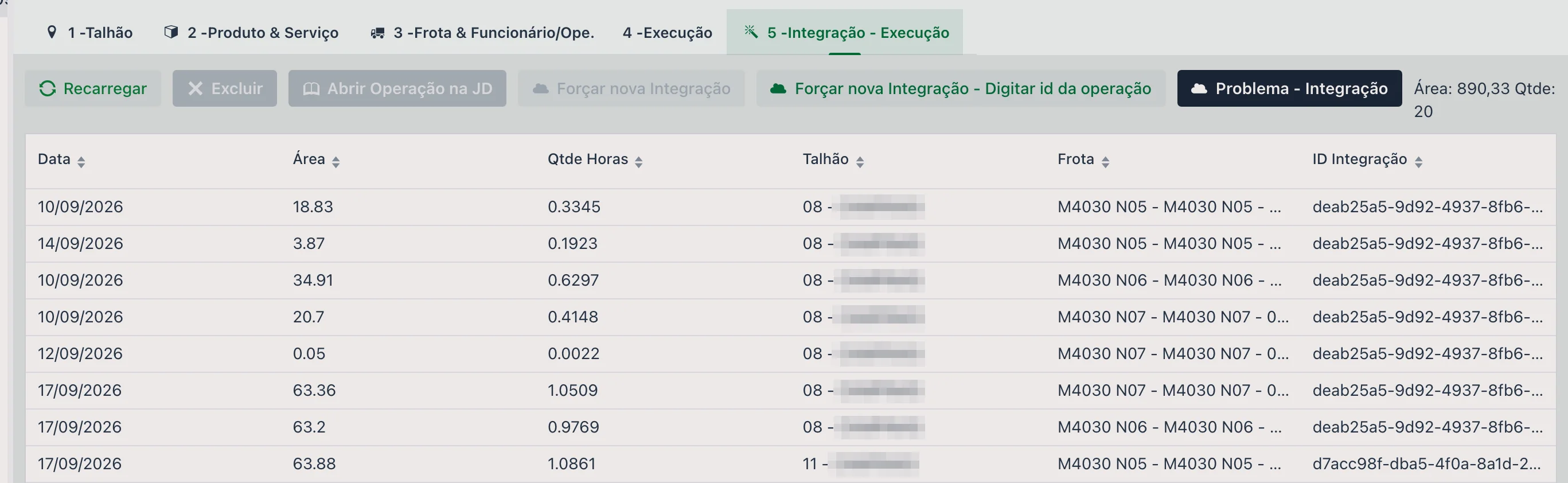
Above the list, the Area and Qty label totals what is being shown. Stored in the record alongside it are also the fuel used, the average speed, the working width, the target rate and the applied rate — those are the numbers that feed the machine dashboard.
The tab's buttons:
| Button | What it does |
|---|---|
| Reload | Rereads the list, without going to John Deere |
| Delete | Deletes the selected line |
| Open Operation in JD | Opens that operation inside the Operations Center, in another browser tab — it is the way to check the number at the source |
| Force New Integration | Tells upCampo to fetch the selected line's operation again |
| Force New Integration - Enter Operation ID | The same, typing the operation code by hand |
| Integration Issue | Opens the Integration Issues screen without leaving the order |
⏱ How long it takes to appear
Once set up, the integration runs on its own — no one needs to press a button for it to fetch:
- Every 20 minutes upCampo asks John Deere what is new on the linked fields.
- When John Deere notifies that a new operation was recorded, upCampo fetches it right away, without waiting for the next round.
The order's two tabs, however, do not necessarily arrive together:
| What | Where it comes from | When it appears |
|---|---|---|
Total area on the 4 - Execution tab | The operation summary | On the first fetch after John Deere records the operation |
Lines per machine and per day on the 5 - Integration - Execution tab | The operation's map file, with each machine's point-by-point track | It can take longer: John Deere has to generate that file, and when it is not ready yet upCampo tries again on a later fetch |
That is why it is normal to see the area already posted on the order and the machine tab still empty for a while. If
you need the detail sooner, Force New Integration - Enter Operation ID, on the
5 - Integration - Execution tab, requests the operation again.
⚠️ When the operation finds no order
Menu: File > Integration Issues
An operation that arrives and finds no order is neither lost nor made up: it becomes a record on that screen, with the field, the operation type, the text that came in place of the Ide. Res. and the start date. There are two reasons upCampo records on its own:
- Order not found — there was no open order with that Ide. Res. on that field, or one of the conditions in the list above was not met.
- Area greater than a thousand hectares — the operation came with an area too large to be real for one field. In that case upCampo does not even look for an order: it records the problem and waits for review.
The normal way to fix it is to correct what was wrong — create the order, fix the Ide. Res., link the field — and use Force New Integration on the order, entering the operation code.
📊 Where the result shows up
The imported work does not stay only inside the order. It shows up, the same day:
- In the work order list — in the Area exec. and % Executed columns, which now move on their own.
- In the operations reports — any report that adds up executed area by field, by Ide. Res. or by period already counts what came from the integration.
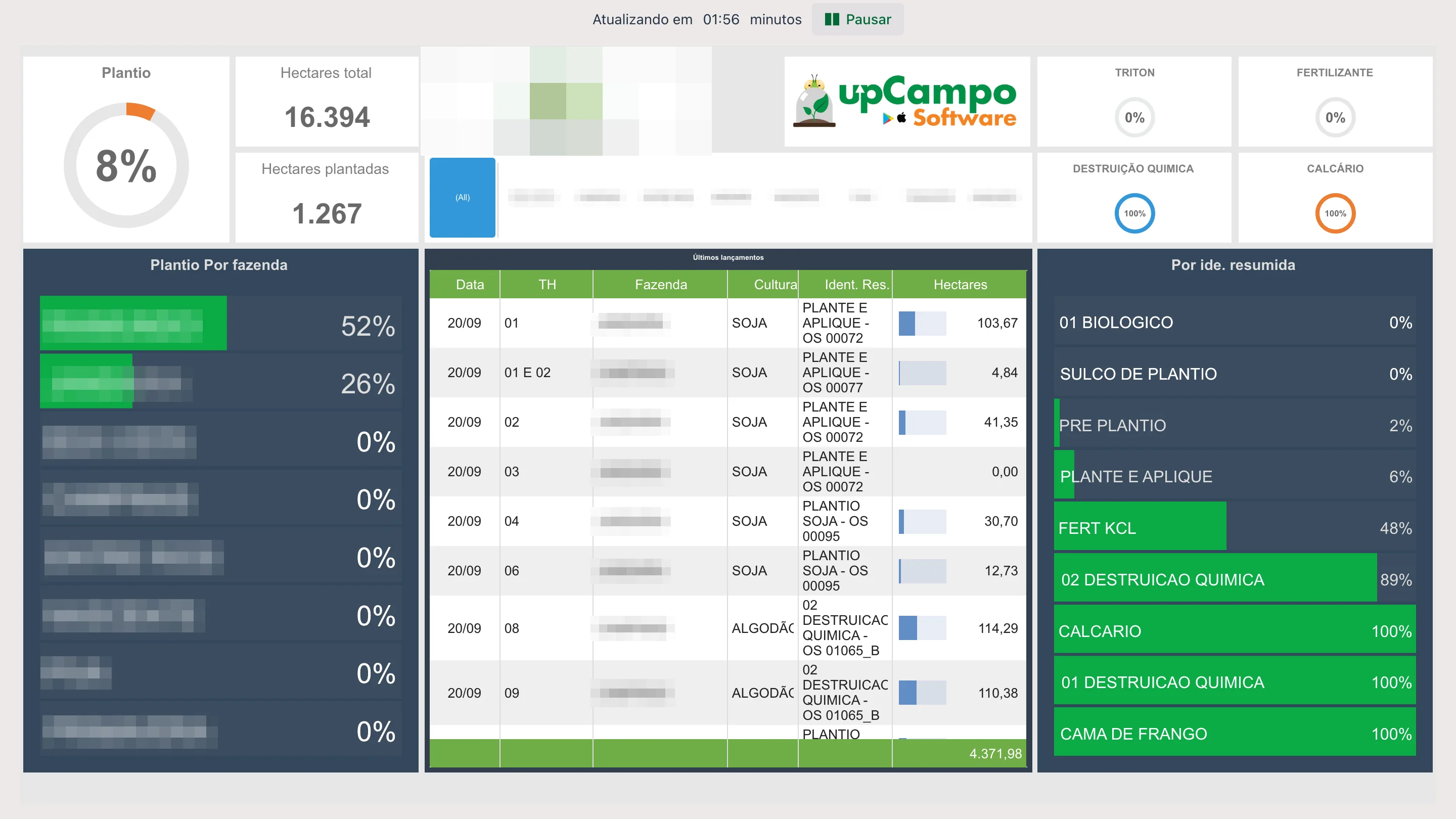
- On the farm's TV dashboards, which upCampo builds to order and publishes at their own address.
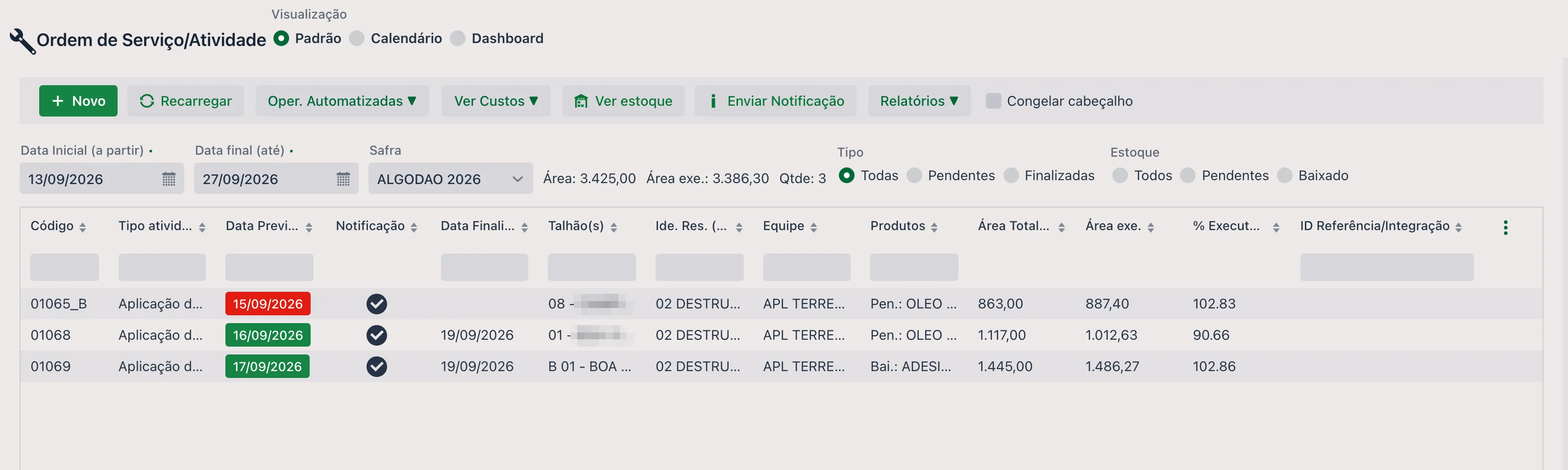
Three dashboards live off these numbers:
| Dashboard | What it shows |
|---|---|
| Operations overview | How much of the season is already planted, the progress per farm and the list of the latest operations — date, field, crop, Ide. Res. with the order number and the hectares. It is the integration showing up almost in real time. |
| Yield | By field and by variety: hectares, bales and arrobas per hectare. For cotton, the bales also come through John Deere, read from the harvester. |
| Machine summary | By machine and by day: hectares worked, working hours, total hours in the day, % of the day
working, efficiency in ha/h, average speed and liters per hour. It is the
5 - Integration - Execution tab consolidated. |
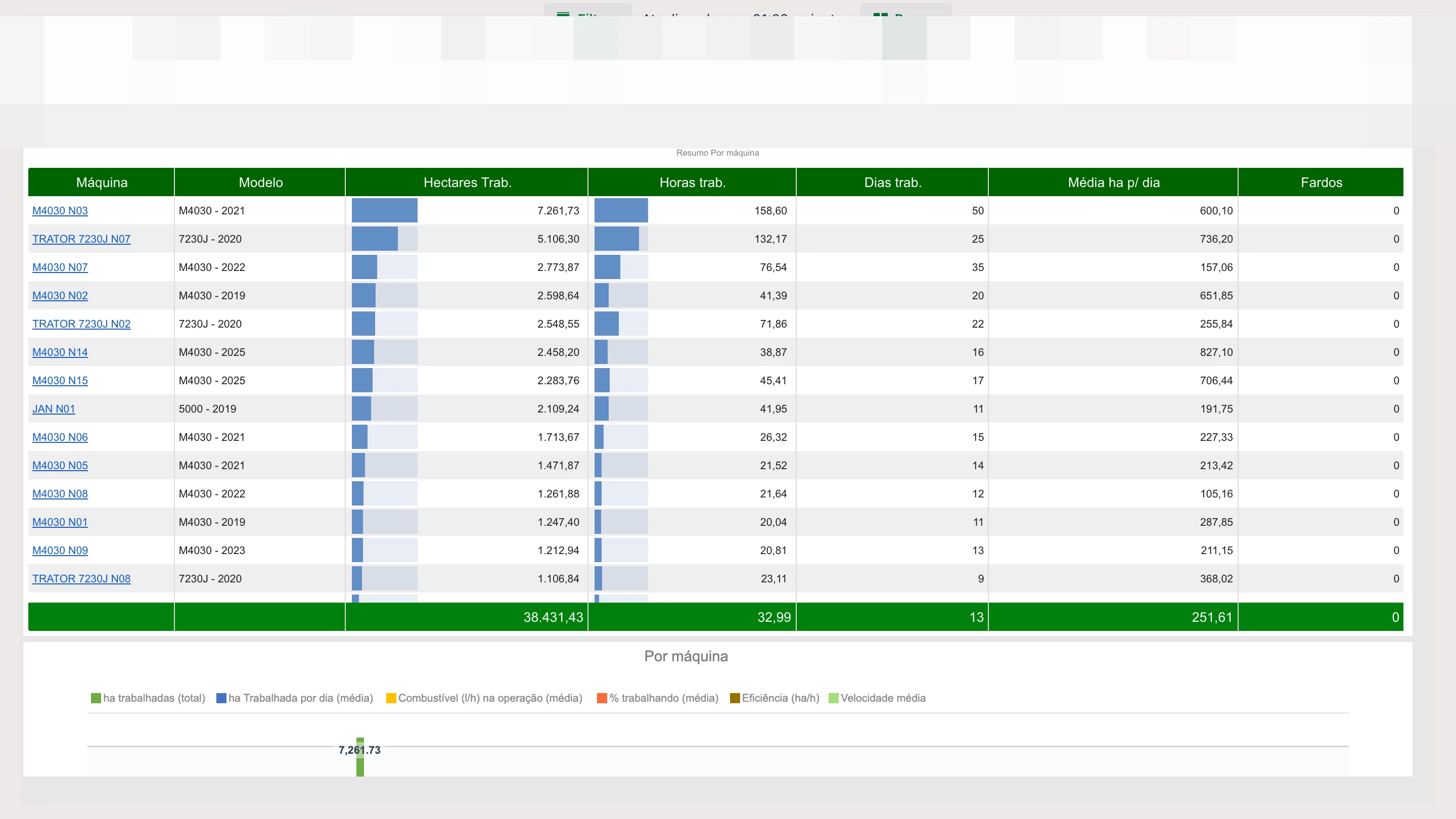
- Execution without typing — the area comes from the machine, not from the memory of whoever remembered to log it.
- Order progress in near real time — the % executed moves while the sprayer is in the field.
- More accurate cost per field — the executed area is what the machine actually did, and that is what the cost is spread over.
- Measured machine performance — hours, hectares per hour, liters per hour and speed, machine by machine, with no spreadsheet.
- Visible errors — whatever did not match stays on a single screen, with the reason, instead of disappearing.
Want to understand the scope of the integration before turning it on? See the John Deere integration page on the upCampo website.
❓ Frequently asked questions
How do I connect my John Deere account to upCampo?
Ask the upCampo team for the connection link: it arrives by WhatsApp, is valid for 7 days and
works for one connection only. Open the link, sign in with your John Deere account — the farm's Operations
Center account — and approve upCampo's access. Anyone with access to the Farm record can also generate the link
with the John Deere connection button, next to the John Deere ID (integration) field.
An organization shows "awaiting approval". What is missing?
An administrator of that organization still needs to approve upCampo's access inside John Deere's Operations Center. The account connection is already done; what is pending is the authorization for that specific organization. After it is approved, click Refresh organizations in the connection window, or let the upCampo team know.
Why did John Deere ask for my password again if I was already signed in?
It is on purpose. The connection link always asks for the username and password, to make sure the person approving is the owner of the farm's John Deere account — and not some other account that happened to be open in the browser, such as a consultant's or another grower's.
Do I need to reconnect the John Deere account from time to time?
No. Once connected, the John Deere account stays linked to upCampo and access renews on its own. You only need to connect again if the account owner revokes upCampo's authorization in John Deere, changes the password or leaves the organization — then the account shows as Refused — connect again in the John Deere connection window of the Farm record, and you just generate a new link.
How often does the John Deere area show up in upCampo?
upCampo checks John Deere every 20 minutes, and John Deere also notifies when
a new operation is closed. In practice, what the machine did in the morning is already on the work order before
lunch. If you need it sooner, use Force New Integration on the order's
5 - Integration - Execution tab.
The operation happened but did not go into any order. What should I check?
First, the connection: the farm's John Deere account is connected and the organization shows as
authorized (see the question about "awaiting approval"). On the order: the field is linked to John Deere, the Ide. Res. is written exactly like the product
entered there, the order has not been finalized yet and it is not an aerial application. Then look at
File > Integration Issues: if the operation arrived and found no order, it is
recorded there with the text that came in — usually the spelling difference is obvious right away.
Why does the execution's fleet show as "Integration" and not the machine that worked?
Because the 4 - Execution tab records the area of the whole operation, which may have
been done by three machines at the same time — there would be no single fleet unit to put there. The real machine
is on the 5 - Integration - Execution tab, with one line per machine and per day, and that is where
the hours and fuel come from.
The order's area went over 100%. Is that wrong?
Not necessarily. The executed area is what the machine actually covered, including pass overlap and re-covered headlands; the order's total area is the field's registered area. Going a little over 100% is common, and it is exactly the information the integration gives you for free. Far above that, it is worth checking whether the same operation came in twice and whether the field's area is up to date.
I finalized the order and the area stopped growing. Is that right?
Yes. A finalized order no longer receives execution from the integration. If the machine went back to the field after you finalized it, the way forward is to reopen the order or open the next order, with the same Ide. Res., and use Force New Integration with the operation code.
I bought a new machine. What do I need to do?
Register the machine in Fleet / Farm Assets with the chassis number matching what John Deere shows. That number is how upCampo recognizes which piece of equipment each line on the integration tab came from. Without it, the area keeps going into the order, but the per-machine detail — and the machine dashboard — will not include it.
I created a new field in John Deere. Does it come in on its own?
No. Open the matching field in Crops > Field, go to the Integration tab,
use Refresh Options to bring in the new list from John Deere and then
Select JD Field to pick it. Until the link exists, no operation for
that field is looked up.
Do I still need to post the input to inventory with the integration on?
Yes. The integration brings the machine's work — area, hours, fuel —, not the product consumption. The inventory deduction is still done through the work order, the usual way.
What does upCampo send to John Deere?
Two things, and only when the farm turns each one on: the weather stations and rain gauges checked in the record, which appear on the Operations Center Map, Assets tab, with rainfall and weather updated every 30 minutes; and the application map of each field, sent with the Send to Operations Center button in Field maps. The operation recorded by the machine is not changed, and upCampo work orders, prescriptions and records do not go there.