📘 Screen: Transfer Between Storage Locations
Used to move a quantity of product from one storage location to another: from the central warehouse to the depot at farm B, from the diesel tank at headquarters to the fuel truck, from the seed shed to the edge of the field. The farm's total quantity does not change — what changes is where the product is.
📍 Location in the system
Menu: Inventory > Transfer Between Storage Locations
🧩 Main function
Record the product leaving one location and entering the other in a single document, with date, quantity, lot, who delivered and who received — keeping each location's balance correct and a history of who took what where.
🖥 The list
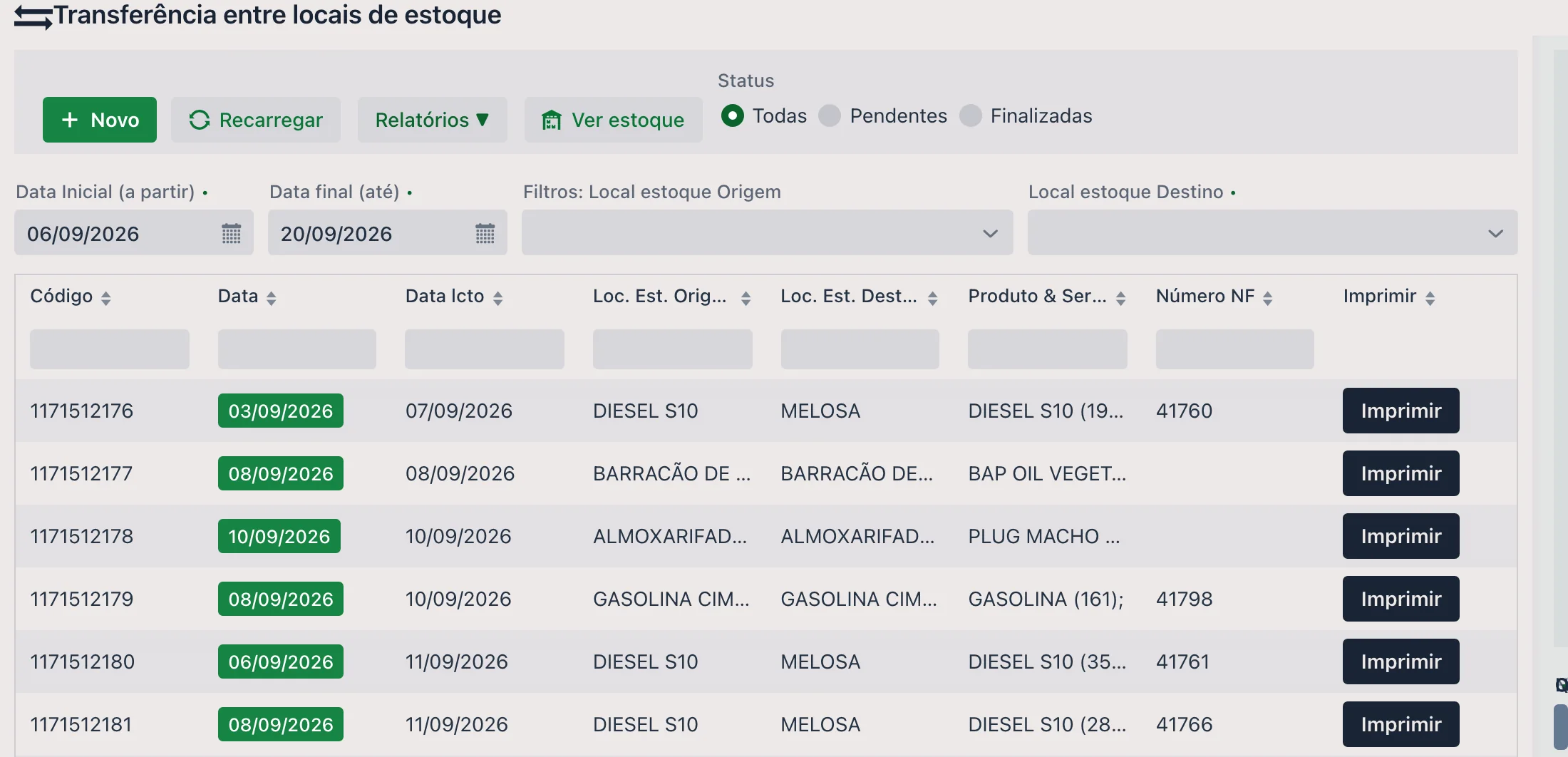
The screen opens with the list of transfers for the period. The filters are Start Date (from) , End Date (to), Origin Storage Location and Destination Storage Location.
The grid shows Code, Date (with the status in a colored tag), Entry Date, Origin Loc., Destination Loc., the products in the transfer, Invoice No. and a Print button on each row — handy for sending the receipt along with the load. At the top, besides New and Reload, the View Inventory button checks the balance without leaving the screen.
📝 Header fields
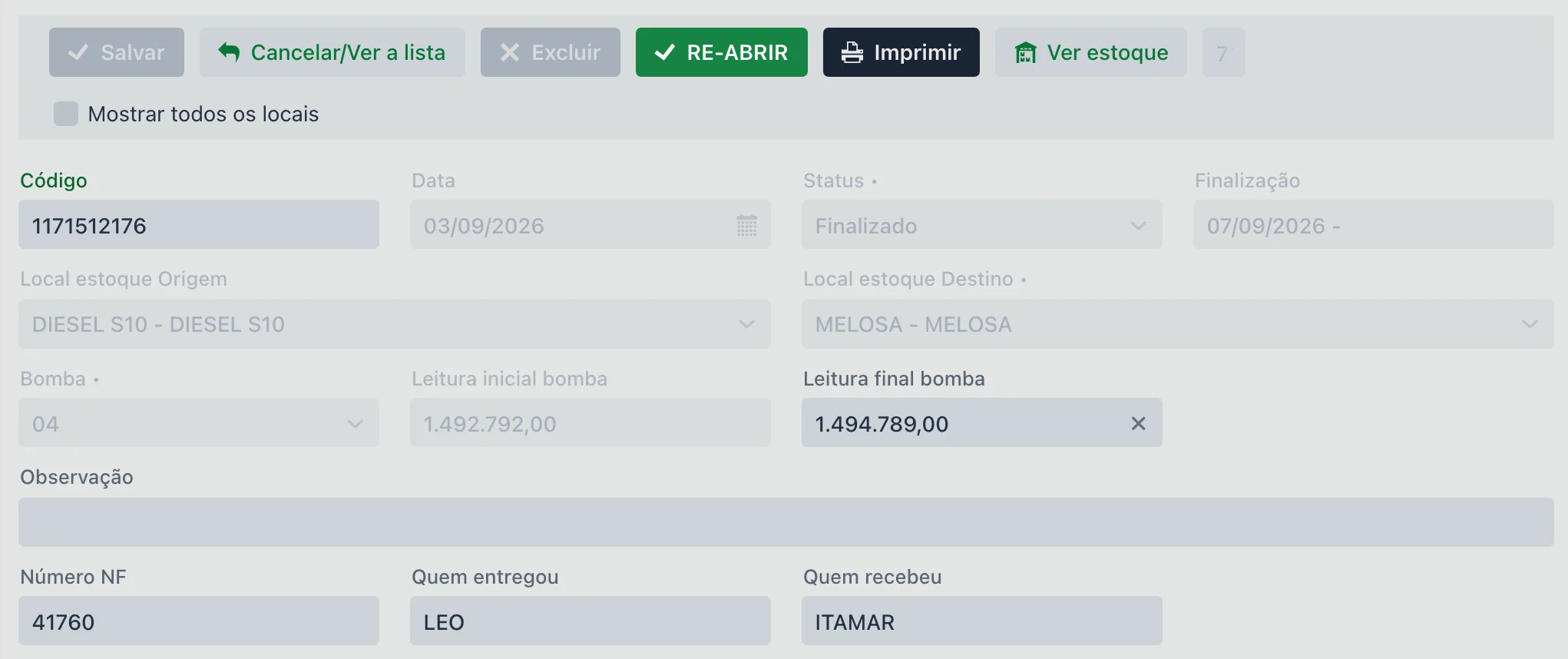
| Field | Description |
|---|---|
| Code | Transfer number, suggested by the system. |
| Date | Day of the transfer. Future dates are not accepted. |
| Status | Open, Sent or Finalized. It is not typed: the Finalize button is what changes it. |
| Origin Storage Location | Required. Where the product leaves from. |
| Destination Storage Location | Required. Where it goes. |
| Pump, Start reading and End reading | Appear when the origin location is a fueling location. In that case the pump is required, and the readings record the meter before and after the withdrawal. |
| Invoice No. | Invoice that travels with the load, if any. The system does not accept the same number twice in the branch. |
| Delivered by and Received by | The names of both ends. This is what settles the question of "who took the product" weeks later. |
| Notes | Free note about the transfer. |
| Show all locations | Expands the list of locations offered beyond the usual ones. |
| Reference/Integration ID | Filled in when the transfer came from an external system. |
📦 The transferred products
Each product goes in as an item. A single transfer can carry several products between the same pair of locations.
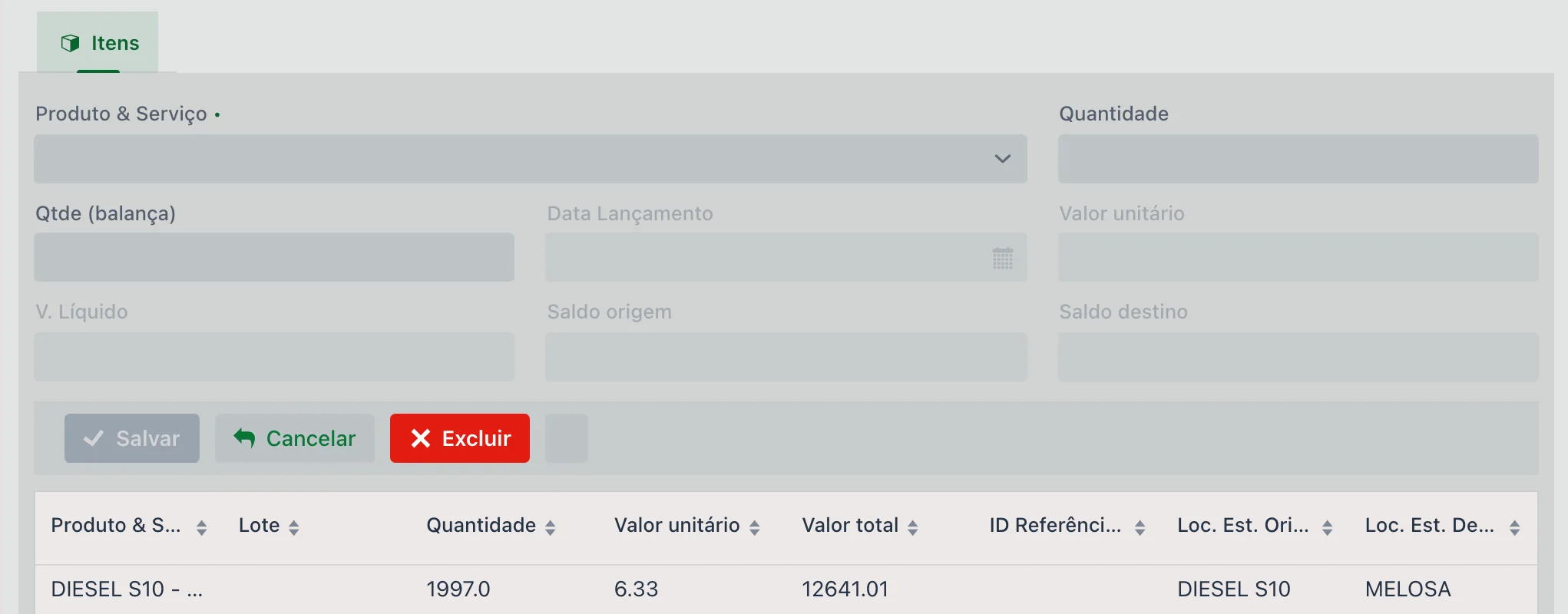
| Field | Description |
|---|---|
| Product & Service | Required. What is being transferred. |
| Lot | Required for products that track lots — it is what keeps traceability of the crop protection product all the way to the field where it was applied. |
| Quantity | How much leaves the origin and enters the destination. |
| Qty (scale) | Weight checked on the scale, when the load is weighed. |
| Entry Date | When the movement was recorded in the system, which may differ from the day of the transfer. |
| Unit price R$ and Net value R$ | Product price and item total — this is how the cost travels with the product to the new location. |
| Origin balance and Destination balance | Show how each side stands, so you can check as you enter the item. The balance only actually changes when the transfer is finalized. |
⚠️ What the system does not allow
- Leaving the origin balance negative, when the origin location has "Controls balance" checked in the location record. The message is straightforward: the balance would go negative and the transfer is not saved.
- Entering with a future date.
- Repeating the invoice number in another transfer of the same branch.
- Finalizing with no items — first add the products, then finalize.
✔️ Finalize: it is what moves the balance
While the transfer is open, it is just a draft: you can add, change and delete items, and inventory stays untouched at both locations.
The Finalize button is what carries out the movement — the quantity leaves the origin location and enters the destination location — and locks the document for editing. That is why a transfer entered and forgotten in open status does not show up in the balance: for the system, the product has not moved yet.
If something needs fixing, the same button reopens the transfer, after confirmation.
📱 Transfers in the app
In the app, transfers are inside the Inventory menu, under the TRANSFER BETWEEN LOCATIONS button. The list filters by origin location, destination location and status; each transfer shows the code, date, both locations and the products. Tapping it shows the same data as the web portal: status, origin and destination, Invoice No., who delivered, who received, notes and the products with quantity and value.
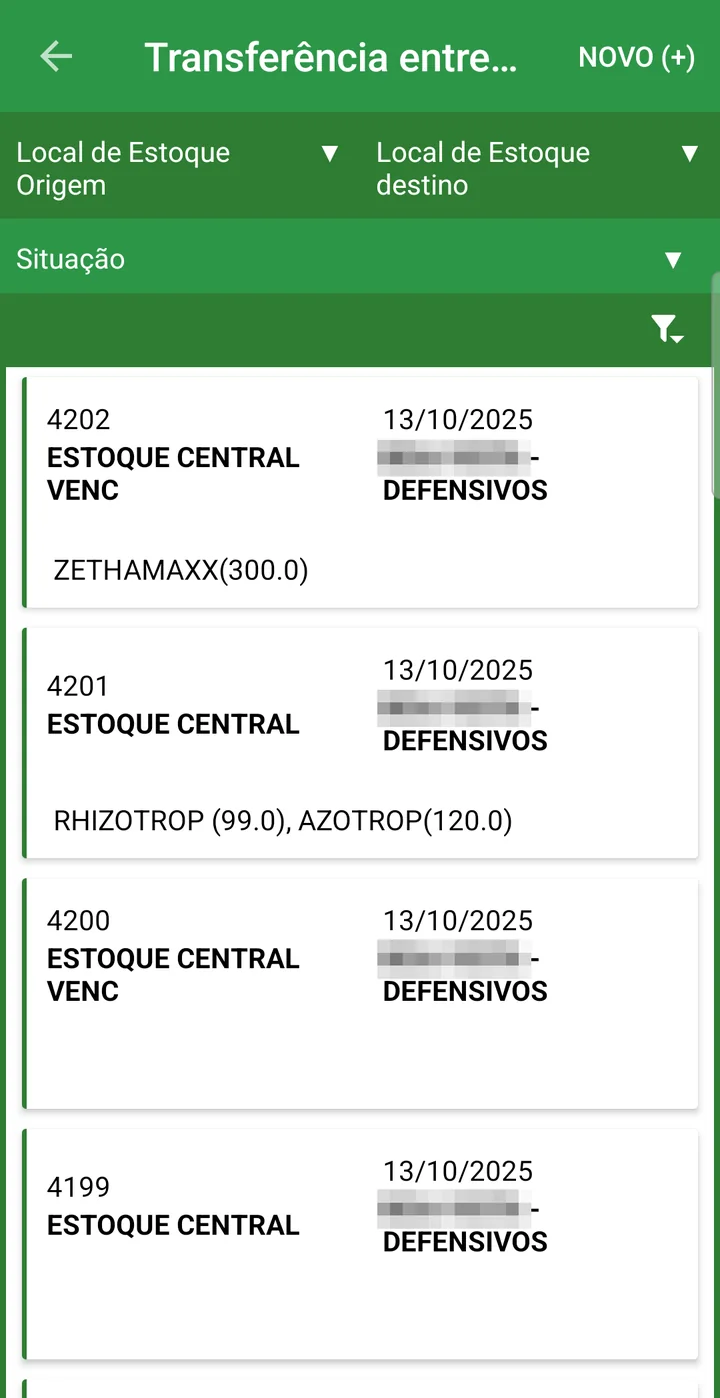
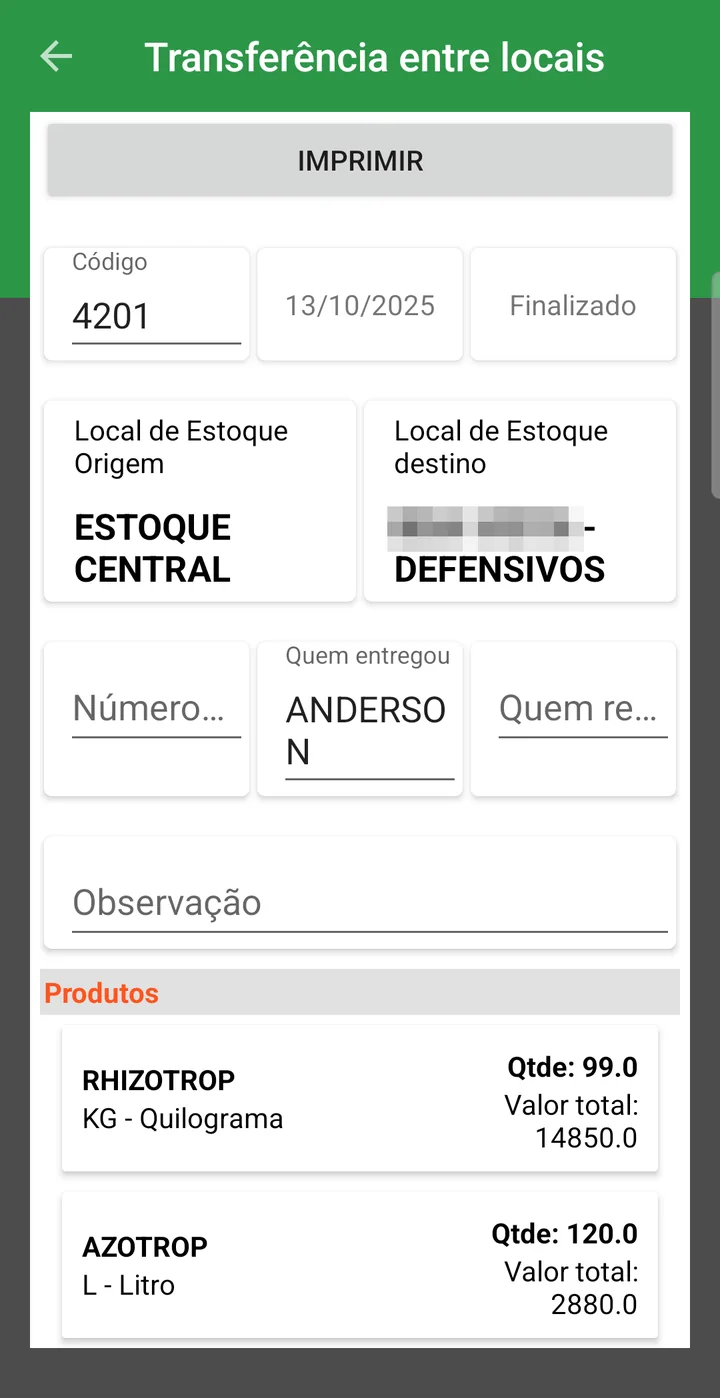
Entering a transfer in the app
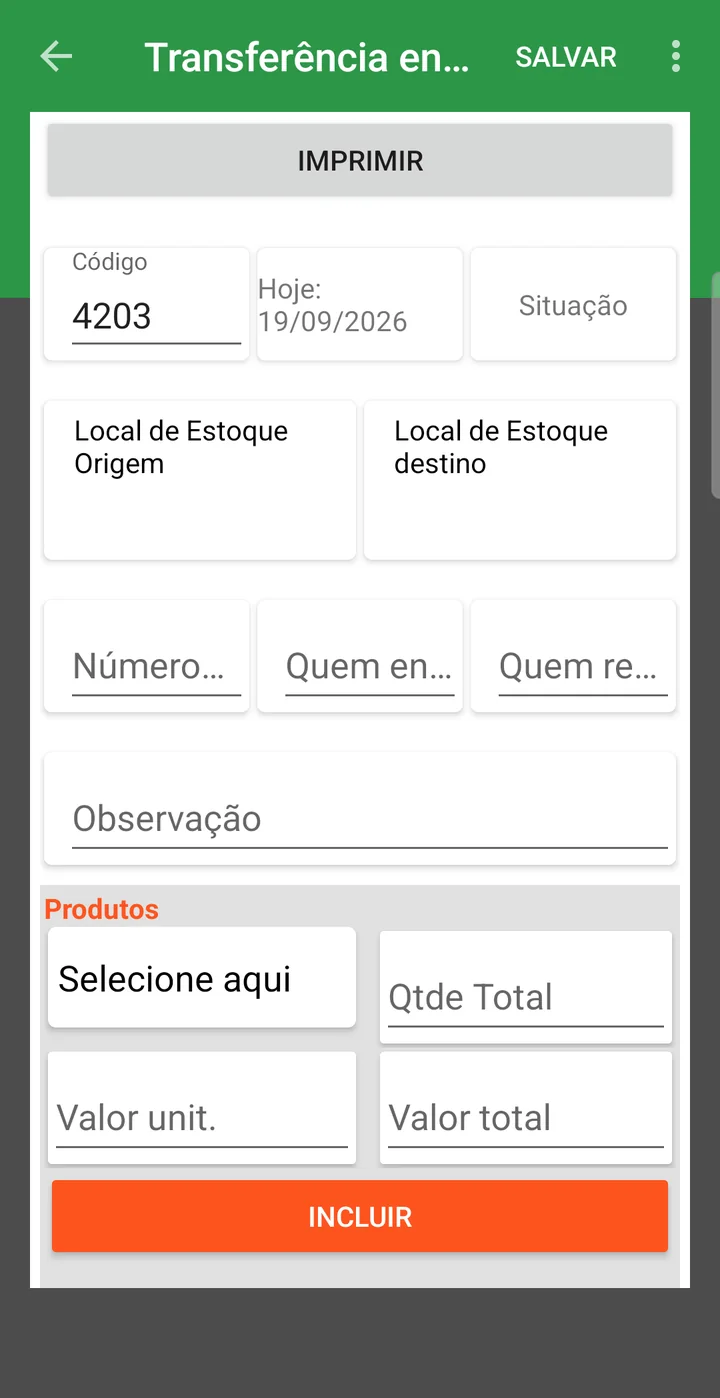
- Tap NEW (+). The code and today's date are already filled in.
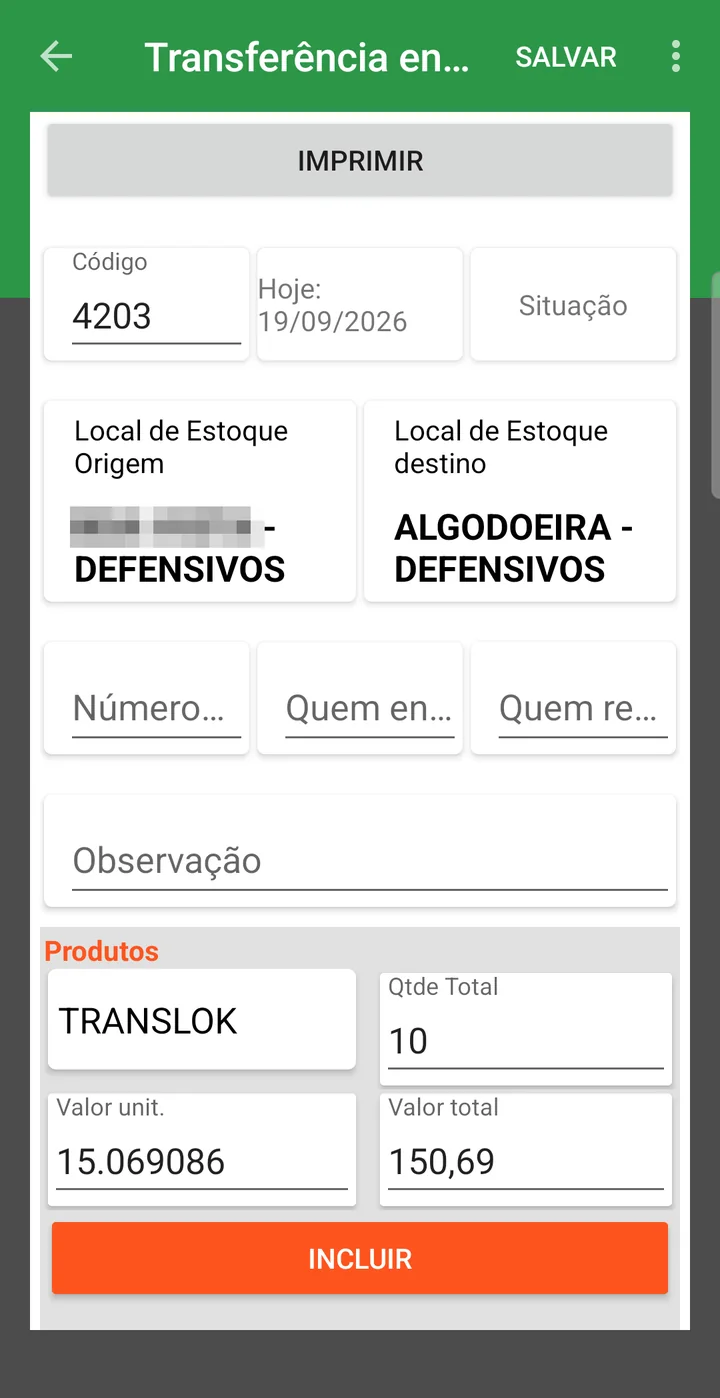
- Choose the Origin Storage Location and the Destination Storage Location.
- Under Products, tap Select here: the list shows the products at the origin location, with their balance. Enter the Total Qty and tap ADD; repeat for each product.
- Tap SAVE.
- Correct balance at each farm, depot or tank
- Lot traceability that follows the change of location
- Printed receipt to travel with the load
- Record of who delivered and who received, with the date
❓ Frequently asked questions
How do I record product that left the central warehouse for another farm's depot?
Use the Transfer Between Storage Locations screen: click New, enter the origin and destination locations, save the header, add the products with their quantities and click Finalize. Finalizing is what takes the quantity out of the origin balance and puts it into the destination, without changing the farm's total.
I entered the transfer and the location balances did not change. Why?
The transfer is probably still open. Finalizing is what carries out the movement: until the document is finalized, the product still counts at the origin location and does not appear at the destination. Open the transfer and click Finalize.
What is the difference between a transfer and an inbound/outbound movement?
A transfer only moves the product from one place to another: the farm's total stays the same. The Movement (Inbound & Outbound) screen is what records what comes into the farm — product or service, by purchase or return — and what actually leaves it.
I got a message that the origin location's balance will go negative. What should I do?
That storage location is set to control its balance, and there is not enough product recorded there for the quantity entered. Check whether the product's receipt was entered at the right location, or adjust the transfer quantity.
I transferred diesel from the headquarters tank to the fuel truck. Why does the system ask for the pump?
Because the origin location is marked as a fueling location. In those cases the pump is required and the start and end readings record the meter before and after the withdrawal, which lets you check the fuel later.
I need to fix a transfer that was already finalized. Is that possible?
Yes. Select the transfer and click Finalize again: the system asks whether you want to reopen it. Once the document is reopened, the items can be changed again.