📘 Screen: Fueling
Fueling is the record of each tank of fuel that goes from the farm's pump into a machine: which fleet item, which pump, how many liters, at what hour meter or odometer reading and by whom. In upCampo, it's the simplest and most frequent entry in the fleet module, and the one that supports everything else in it: consumption per machine, the fuel station balance and the reading that triggers preventive maintenance.
Fueling deducts the fuel from inventory: the storage location set up as the fuel station uses the same balance control as any other product. Before the first entry, you need the product, storage location, pump and fleet set up; that walkthrough is in Fueling (Initial Setup).
📍 Location in the system
Menu: Fleet > Fueling
🧩 Main function
Record internal and external fueling, pump calibrations and fuel transfers, updating the fuel station balance, the machine's hour meter and consumption per fleet item.
🔀 The four types
The type, at the top of the header, is the first choice, and it changes which fields appear:
| Type | When to use | What changes on the screen |
|---|---|---|
| Internal (storage location) | The normal case: the machine was fueled at the farm's pump. | Asks for the storage location, pump and the pump readings. The product comes from the location itself and the unit price comes from inventory. |
| External (one-off) | Fueled at a roadside gas station, off the farm. | Asks for the station description, the product and the unit price; there's no pump and no reading. |
| Calibration | Pump measurement adjustment, when the counter and the tank don't match. | No fleet item and no hour meter: the entry is about the fuel, not a machine. |
| Transfer | Fuel moving from one location to another, for example the fuel truck filling up at the main tank. | Asks for the source location and the destination storage location. Source and destination can't be the same. |
📝 Main fields
| Field | Description |
|---|---|
| Date | Required. Can't be later than today. |
| Number | Comes in sequence and must be unique: the system rejects a repeated number. |
| Ticket | Receipt number from the pump or the gas station. Shown depending on the company settings. |
| Employee/Operator | Who did the fueling. |
| Description/Station | For external fueling, where the machine was fueled. |
| Storage Location | Required for internal and transfer. It's the farm's fuel station, registered in Storage Location. |
| Pump | Required for internal. When the location has only one, it comes preselected. |
| Storage Location DESTINATION | Transfer only: where the fuel goes. |
| Equipment | Required for fueling: the machine that received the fuel. Only fleet items with "Show in Fueling" checked appear. |
| Cost Center | Where the fuel cost goes. |
| Product | The fuel. For internal it comes from the storage location itself; for external it is chosen. |
| Pump start reading | Comes filled in and locked: it's the end reading of the previous fueling at that pump. Only a user with that permission can change it. |
| Pump end reading | Required for internal: in practice, it's the number the fuel attendant reads on the pump and the only one of the two they type in. Must be greater than the start reading. |
| Gallon | Appears when the pump works in gallons (US pump). Once the gallons are entered, the system converts them to liters. |
| Liters | Amount fueled, greater than zero. In start/end reading mode the system calculates it on its own and the field is locked; for locations set up to type in liters, this is where you type them. |
| Hour meter/KM | Required when the fleet item has a counter. It's the reading that feeds preventive maintenance. |
| Notes | Anything that needs to be recorded about the entry. |
| Unit price and Total value | Fuel price. For internal, it comes from inventory; for external, it's typed in. |
| Balance | How much was left in the storage location after the entry. |
| Prev. hour meter/KM and Prev. hour meter diff. | Previous hour meter/KM and Difference from previous hour meter: the reading from that machine's previous fueling and how much it ran or worked since then. This pair is what exposes typing errors: a difference that is too large or negative is almost always a wrong reading, not a machine that ran a lot. |
| Consumption | Calculated from the liters and the hour meter difference. |
| Created by and Changed by | Who entered it and who last changed it, with date and time. |
The fields at the bottom (Unit price, Total value, Balance, Prev. hour meter/KM, Prev. hour meter diff. and Consumption) are calculated: they're a check at entry time. That's where you see the balance left at the fuel station and whether that machine's consumption was out of the ordinary.
To enter several fuelings in a row, use Save + new: it saves and opens the next one blank, which is how the fuel attendant works.
🚜 Link fueling to the work order
Below the hour meter, the Field W.O. Date field lists that machine's work orders, with 7 days before/after the fueling or All. When you check the work orders, the fuel is split among them in proportion to the area worked. That's how diesel reaches the field's cost instead of sitting in a generic cost center.
⛽ How upCampo calculates consumption
Consumption isn't typed in: it comes from comparing with the previous fueling of that same fleet item. When you pick the fleet item and enter the reading, the system looks up its last fueling with an earlier date, brings that entry's reading into the Prev. hour meter/KM field (previous hour meter or mileage) and calculates the Prev. hour meter diff., the hour meter difference from the previous fueling, that is, how much the machine worked or ran between one tank and the next.
From there, the calculation depends on the Counter type in the fleet record, and the result comes out in different units:
| Machine | Previous reading | Current reading | Difference | Liters | Consumption |
|---|---|---|---|---|---|
| Tractor (Hour meter) | 1,240 h | 1,268 h | 28 h | 420 L | 15.00 L/h |
| Truck (Odometer) | 84,300 km | 84,910 km | 610 km | 210 L | 2.90 km/L |
Two practical consequences: skipping a fueling distorts the next one (the difference piles up the hours of both, with the liters of only one), and so does entering out of chronological order, because the comparison is always with the most recent entry with an earlier date. Both show up as odd consumption in the list before they show up in the monthly report.
🛡 The checks the system runs
These are warnings meant to catch typing errors on the spot, not three months later in the report:
- Liters above the fleet item's tank capacity
- Hour meter difference above the limit set on the fleet item
- Hour meter entered lower than or equal to the previous fueling's
- There's already an entry for the same pump and location with a later date
- End reading lower than or equal to the start reading; zero liters; negative total value
Who can or can't change the start reading is set in the user preferences; by default, the operator can't.
🖥 The list
The grid shows Number, Ticket, Date, Storage location/station, Fleet/Equipment, Consumption, Start read., End read., Hour meter/KM, Liters, Unit price, Total value and Cost Center, with search on each column. The Ticket, Employee and Reference/Integration ID columns appear depending on the company settings.
The filter is by period (Start Date (from) and End Date (to)) and, next to it, the system shows the total of what's on screen: summed Liters and the Qty of entries. It's the quick check of the day or week against what came out of the pump. The top also has View fleet cost, View inventory and the Reports ▼ menu.
📱 Fueling in the app
In the field, the entry is made in the upCampo app, in the Fueling menu. The list shows the period's fuelings (it starts at Last 7 days) with filters for storage location, dates and fleet item, and the + button opens a new entry.
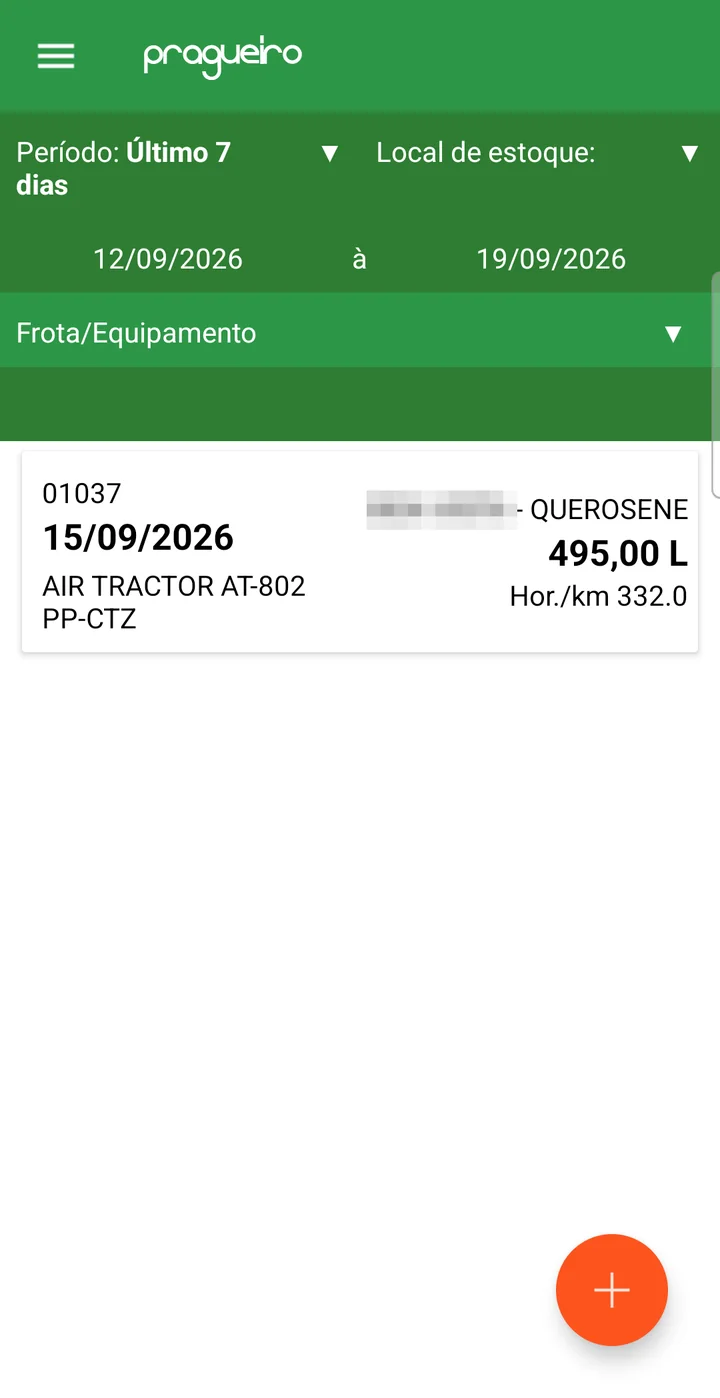
The four types in the app
The Type is at the top of the form and changes the fields as described in the four-types table above:
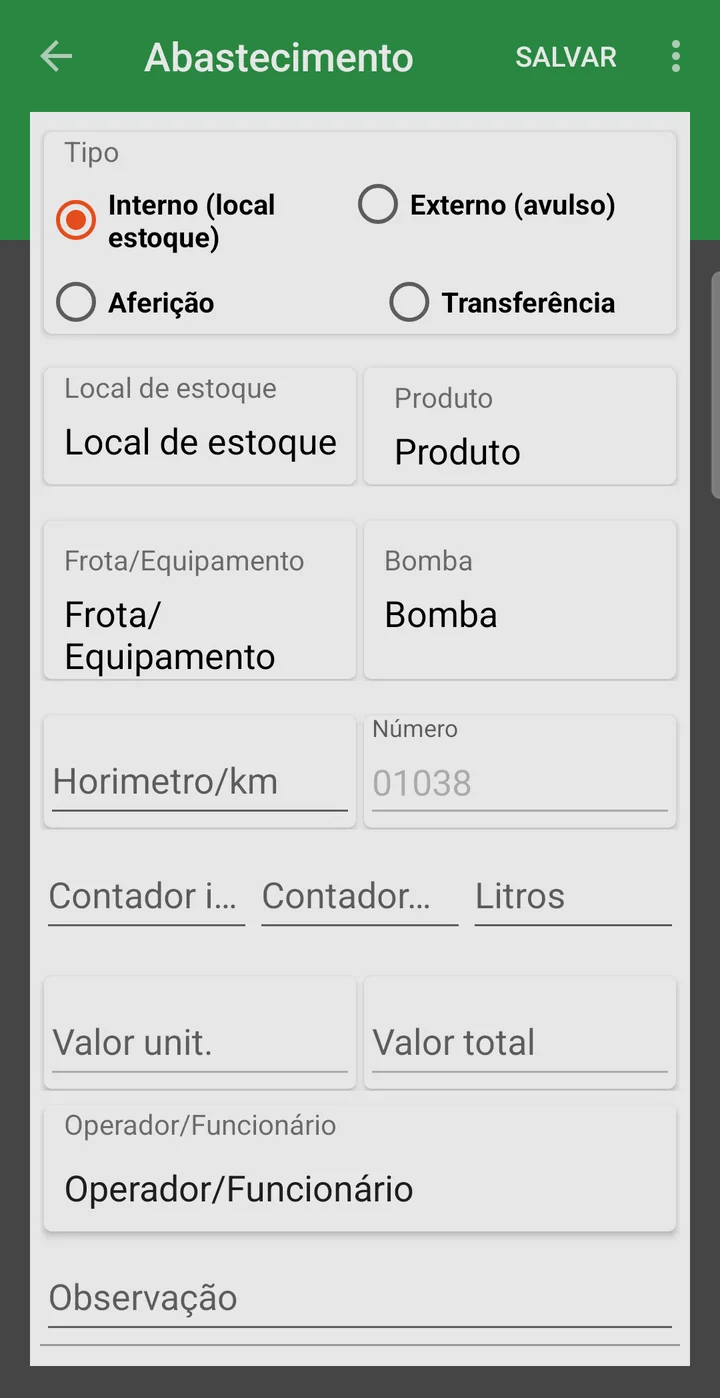
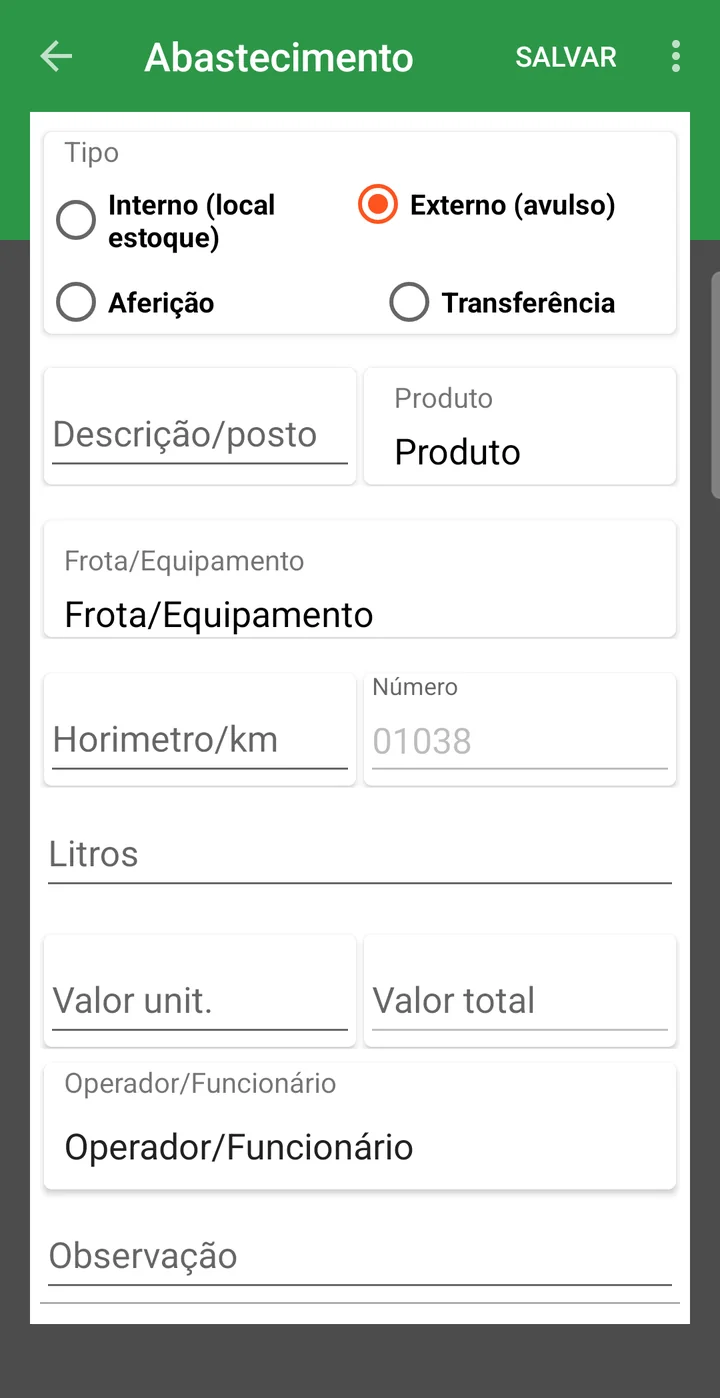
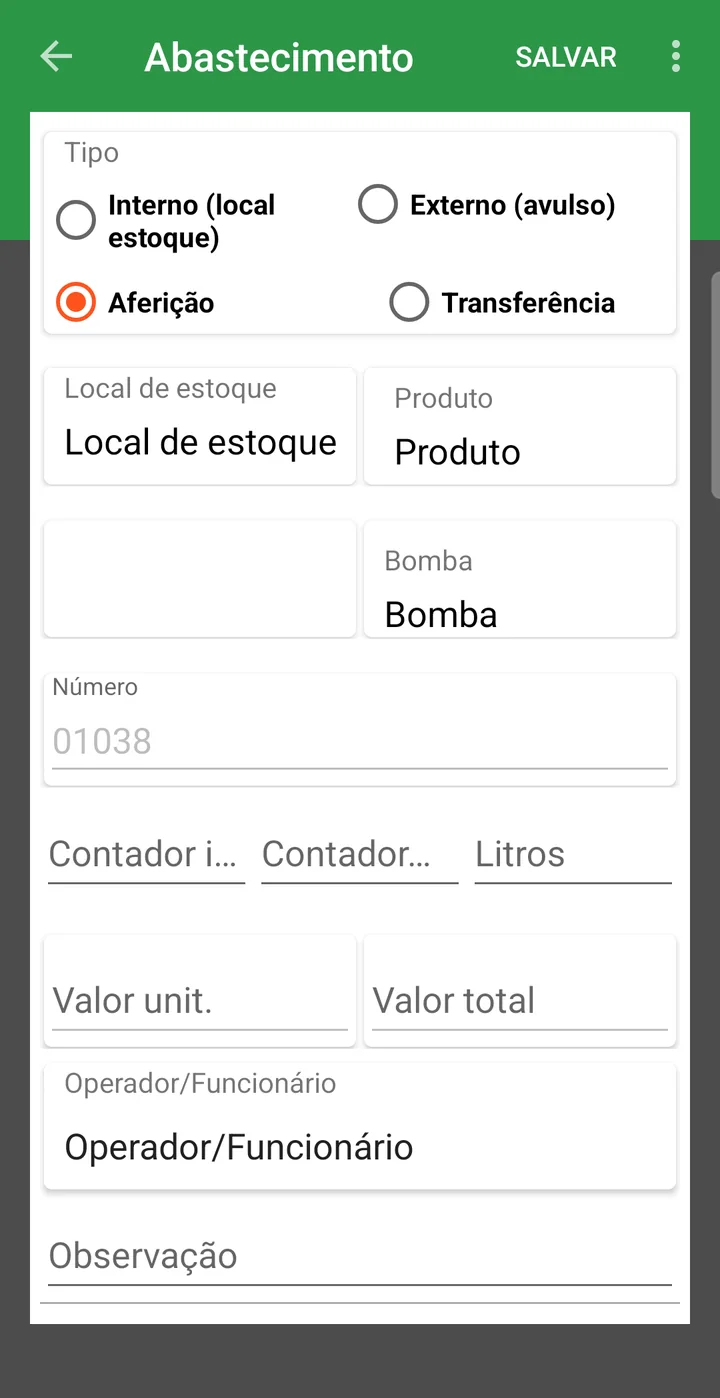
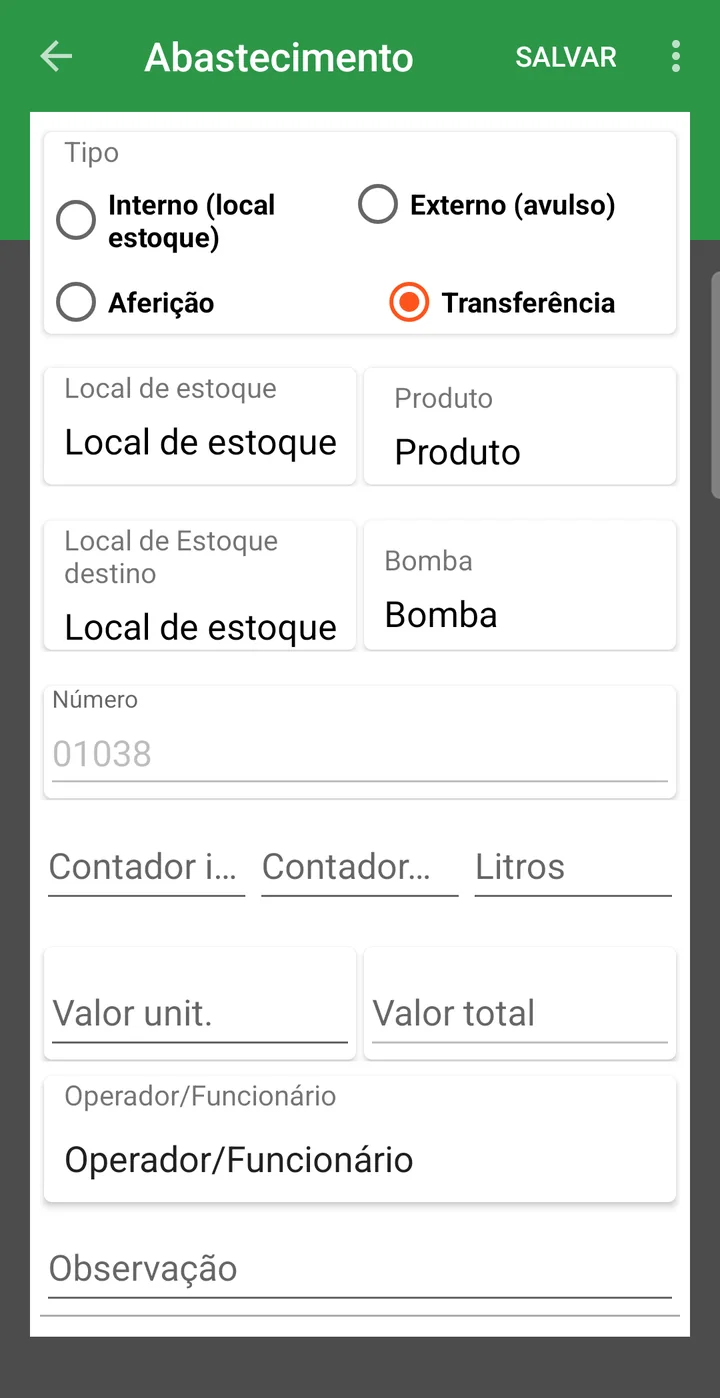
Enter an internal fueling
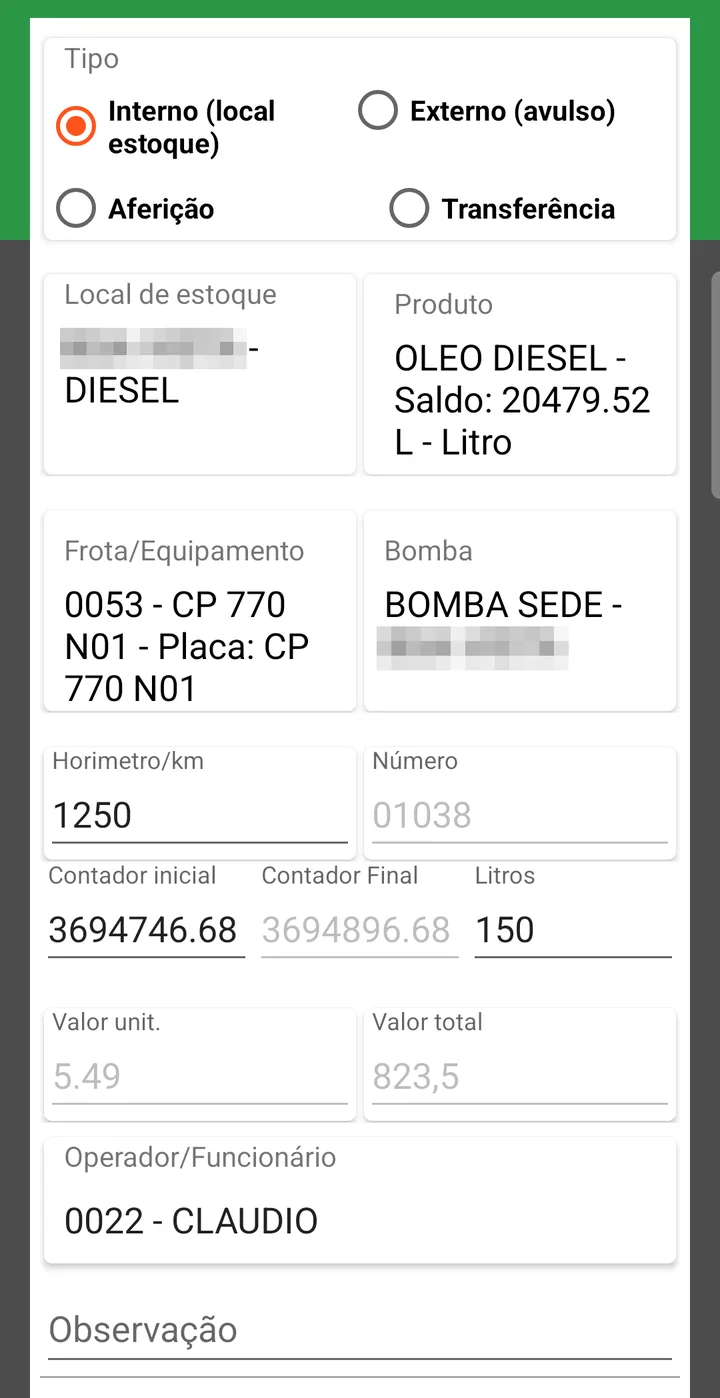
- Tap + and leave the type as Internal (storage location).
- Choose the Fleet/Equipment and the Storage location: each field opens a list to choose from.
- Enter the Hour meter/km and the Liters, and choose the Operator/Employee.
- Tap SAVE.
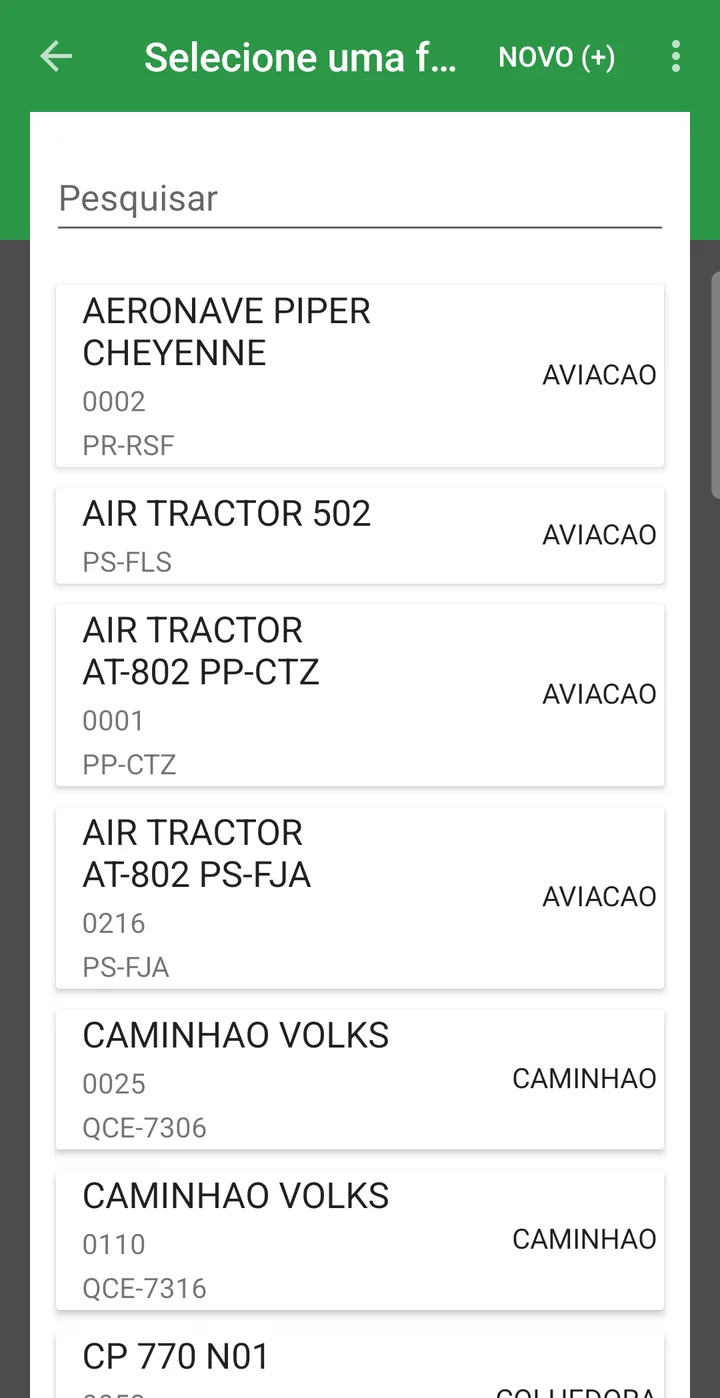
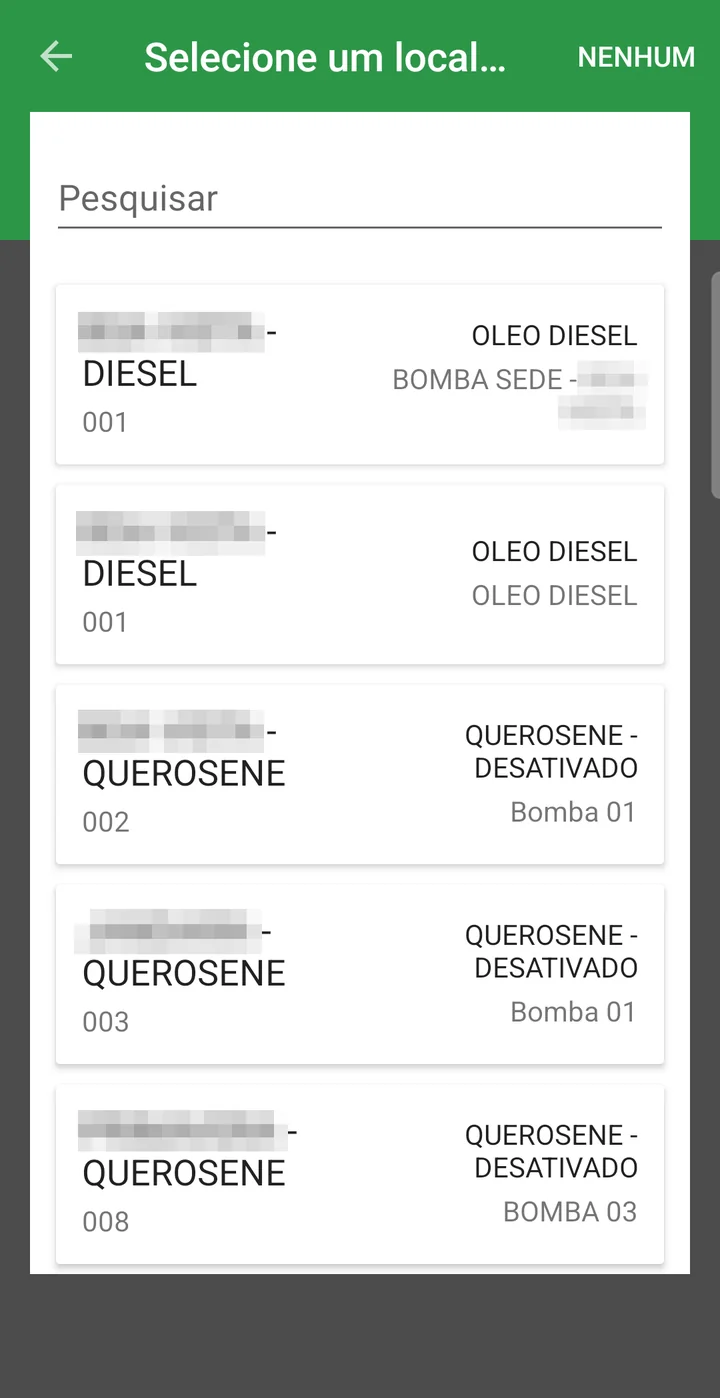
When you pick the location, the app fills in the Product (with the balance in liters), the Pump, the Start counter and the Unit price on its own; once the liters are typed in, it calculates the End counter and the Total value.
- Fuel station balance always matching the tank
- Consumption per machine measured, not estimated: you can spot the machine that started burning too much
- Hour meter updated every day, which makes preventive maintenance work
- Diesel charged to the field through the work order
- Typing errors caught at entry time
❓ Frequently asked questions
How do I enter fueling done at a gas station in town?
Choose the External (one-off) type. In this mode you enter the station description, the product, the liters and the unit price; there's no pump or counter reading, because the fuel didn't come out of the farm's inventory.
The pump reads differently from what's in the tank. How do I fix it?
Use an entry of type Calibration. It adjusts the measurement without involving a machine or hour meter, because what's being corrected is the fuel, not a fleet item's fueling.
The fuel truck filled up at the main tank. Is that a fueling?
It's a Transfer: enter the source location and the destination storage location. The fuel leaves one balance and goes into the other; source and destination can't be the same location.
The system warned that the liters exceed the tank capacity. Is that wrong?
Probably yes: check the pump reading and the liters typed in. The limit comes from the
Tank capacity field in the fleet record; if it's the registered capacity that's out of date, fix it
in Fleet > Fleet / Facility.
The fleet item doesn't show up in the fueling list.
Show in Fueling needs to be checked in its record. Only machines with that setting make it into the fueling screen's list.
Why does the system insist on the hour meter?
Because the fueling reading is what keeps the machine's counter up to date, and it's what the calculation of how much is left until the next service in Fleet x Maintenance Plans comes from. Without the hour meter, preventive maintenance stops working.
How do I get the diesel into the field's cost?
In the Field W.O. Date field, check the machine's work orders for the period. The fuel is split among them according to the area worked, and the cost reaches the field.
The pump start reading is locked. How do I correct it?
It's locked on purpose: it comes from the end reading of that pump's previous fueling, and that's what makes sure one entry picks up where the other left off with no gaps. Changing it requires a permission in the user preferences. If the number is wrong, the problem is almost always the previous entry: correct that one.
How do I check what came out of the pump today against what was entered?
In the list, enter the period in Start Date and End Date: next to the fields the system shows the summed Liters and the Qty of entries for that range. It's the direct check against the pump's physical reading.